
Check IPTV compatible devices in Ireland before choosing a plan. Find your exact device model, check its operating system and see which player apps are available in its app store. You can test one device with a free 24-hour trial.
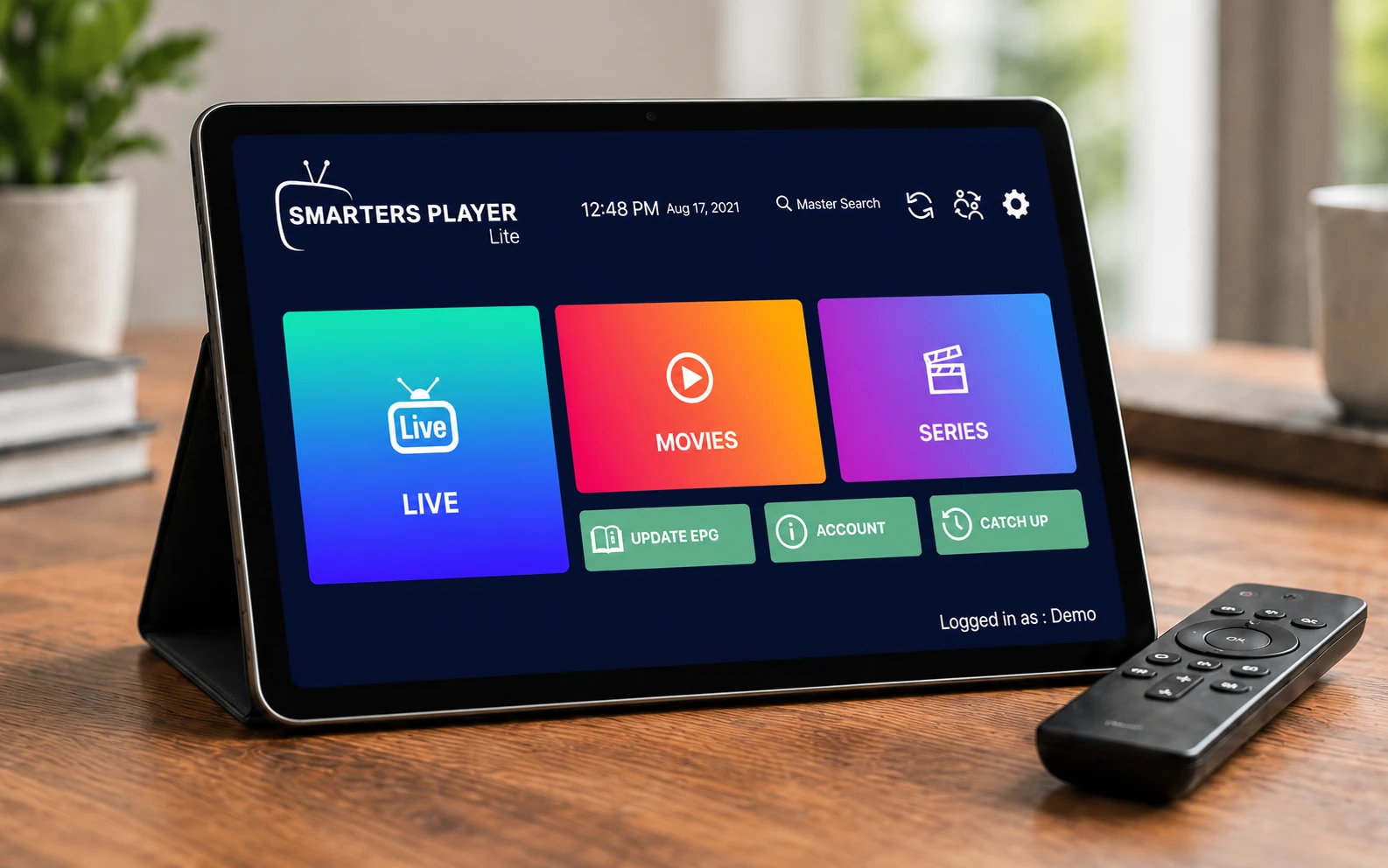
Explore IPTV compatible devices by choosing the screen you plan to watch on. If a stick or box is plugged into your television, start with the streaming-device section. That is the device that runs the player. If the app opens directly from your television menu, start with Smart TVs.
IPTV device compatibility depends on the combination of hardware, software and player. Two televisions from the same brand may offer different apps. Find your model and software version in the settings menu or on the manufacturer’s support page. Check the official app store on the device itself before paying for a player licence.
When comparing IPTV compatible devices you already own, try the one you are most likely to use every day. That gives you a chance to check whether the navigation, sound and picture work for your normal viewing set-up.
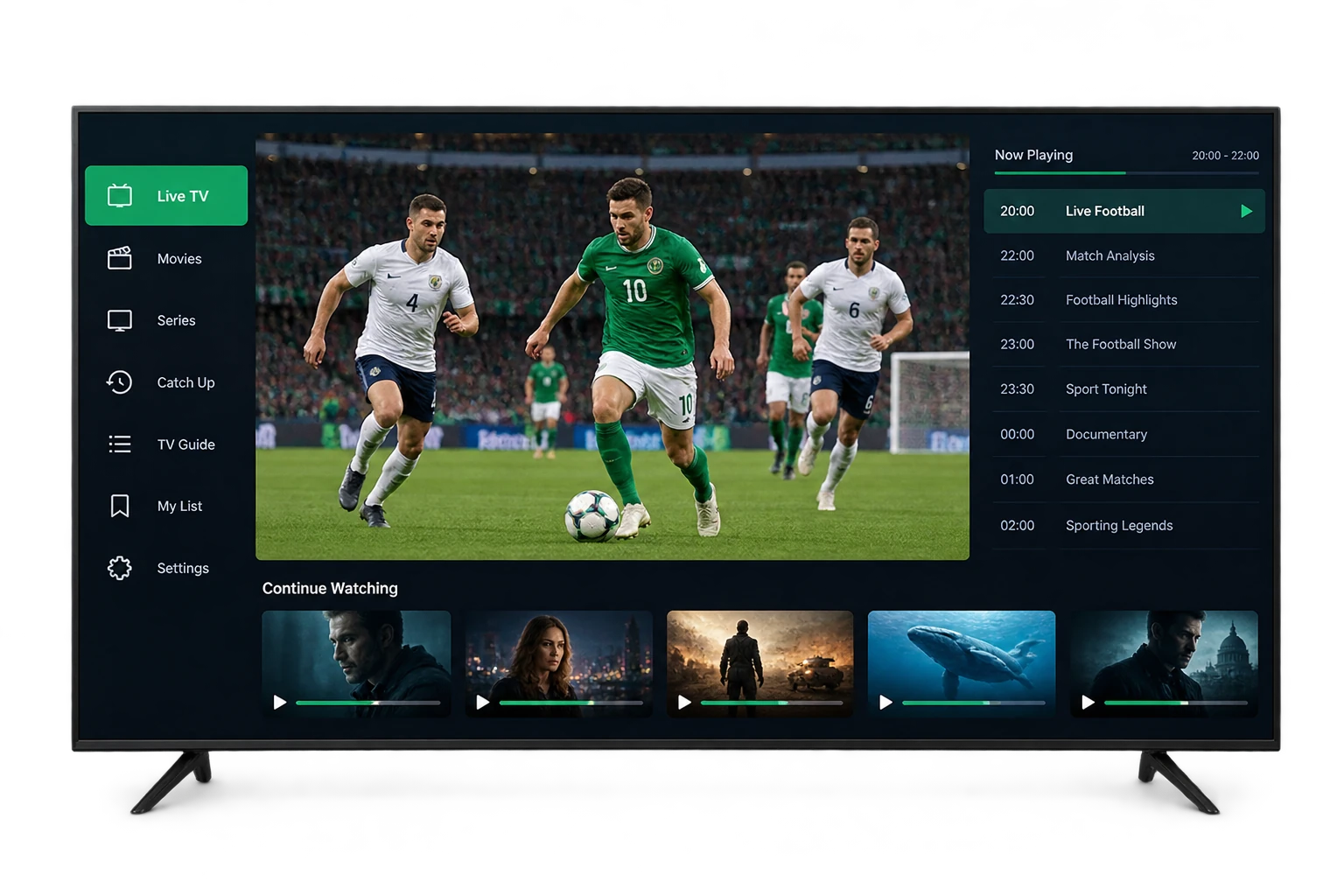
When checking IPTV compatible devices such as Samsung, LG and Android TVs, look up the model and operating system before choosing a player. Search your TV’s app store from the television itself, since app availability can depend on the model, software version and store region.
If you cannot find a suitable app for your TV, check whether a compatible streaming stick or box can connect to a spare HDMI port.
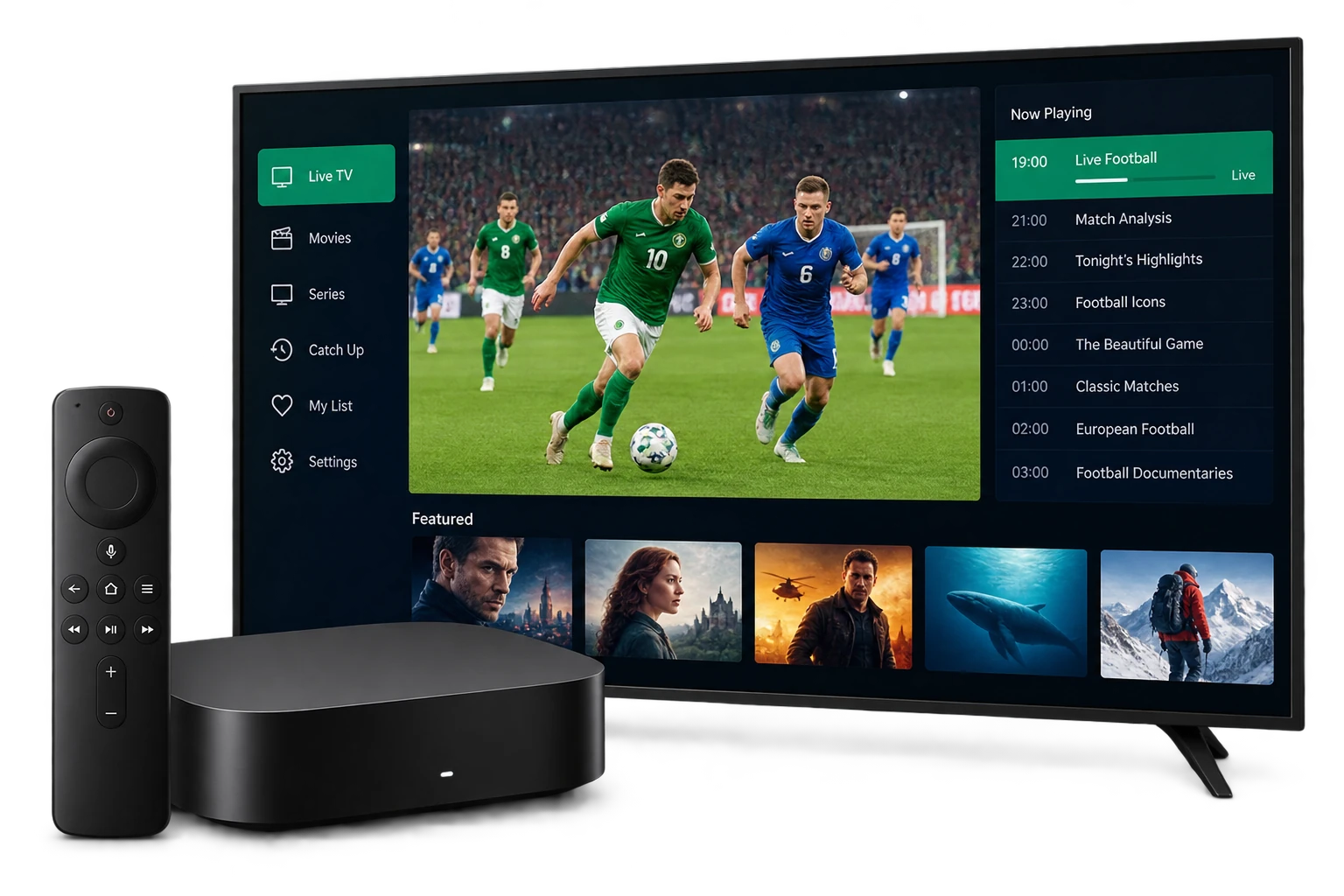
For IPTV compatible devices such as Fire TV Stick, Android TV boxes and Apple TV, check the model and the apps available on that device. Use its app store and the player developer’s compatibility information to check your options.
If you already connect the device to your TV, check that you can switch to the right HDMI input and navigate the player with its remote.
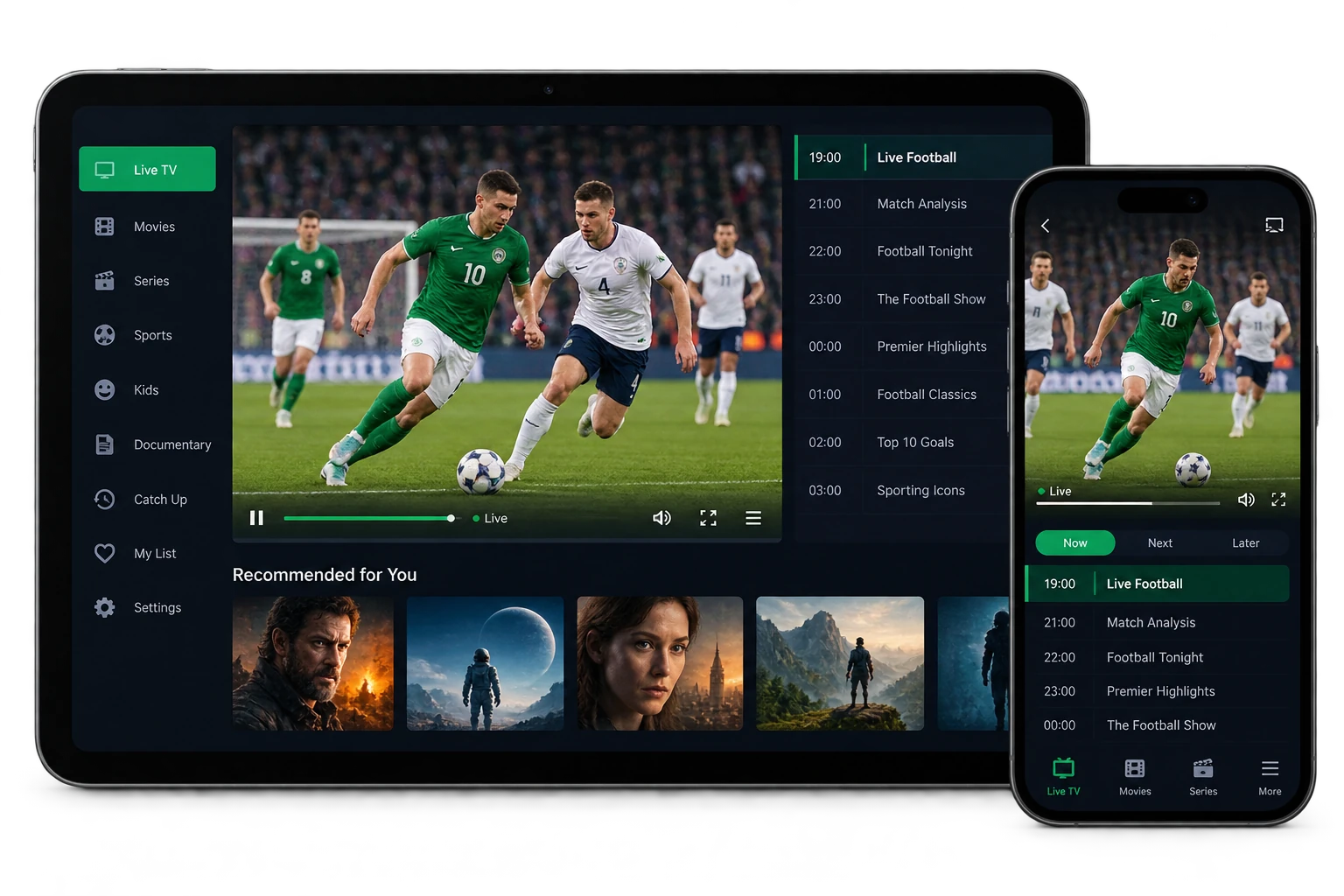
When checking IPTV compatible devices such as Android phones, iPhone and iPad, look up the operating-system version and the player’s listing in your app store. Confirm that the app accepts the type of login or playlist you will receive.
During a test, open the app where you usually watch and see whether the menus and playback controls are comfortable to use.
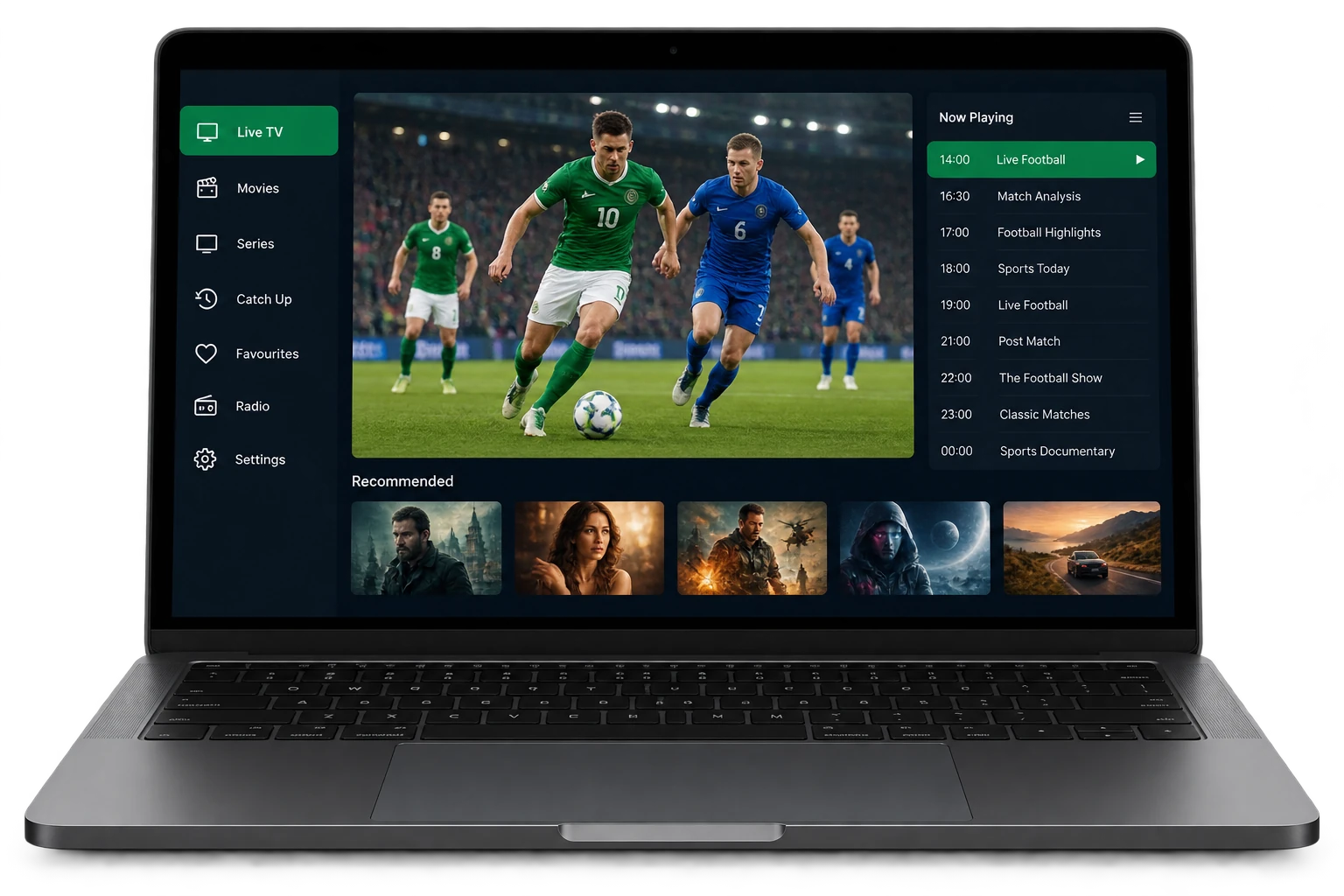
For IPTV compatible devices running Windows or macOS, choose a player that supports your operating system and the access format you receive. Check the developer’s official download page and whether the app can open the type of stream you intend to use.
If you plan to watch on an external monitor, test the picture and sound there as part of your usual setup.
IPTV compatible devices need a suitable player and access details before you can watch. The device runs the app, the player opens the stream, and your subscription or trial supplies the information you add to the player.
When you check IPTV device compatibility, ask two questions. Can I install the app on this device? Can that app read the type of access details I have? Checking both up front can save time if you are choosing between several IPTV compatible devices.
The screen you watch on: a Smart TV, streaming device, phone, tablet or computer.
The app you install to browse channels, open the TV guide and watch your subscription.
Your IPTV Ireland Fast access details, added to a compatible player on your device.
Player apps and IPTV subscriptions are separate. Some players may require their own licence.
These player examples show how the choice of app changes between IPTV compatible devices. Check the official store or developer listing for your own device and confirm which access formats the app accepts.
If you plan to use IPTV on multiple screens, choose a suitable player for each one. A remote-friendly TV app can suit the living room, while a different player may work better on a tablet or computer.
Android TV
A TV-focused player designed for navigation with a remote control. Visit the official TiviMate website for app details.
Premium features available
iPhone · iPad · Apple TV
A player for live streams and on-demand playlists on compatible Apple devices.
Free download · In-app purchases
Windows · Mac
A free, open-source option for opening network streams and playlists.
Free and open source
The rows above are examples of players for IPTV compatible devices. If your screen is missing, check its official app store and use the setup guides for your model. Read the app developer’s information on licensing before installing or paying.
An app can be compatible with your screen and still require a different access format. Check that the input option shown in the player matches the details provided for your service. Third-party app fees are separate from your IPTV subscription.
Set up IPTV compatible devices in three steps. Install a player for your screen, add the access details you receive and open a channel. If the player offers several sign-in methods, use the one that matches your details.
Once the player loads, test one live channel to check picture and audio. Return to the channel list and open another before trying the programme guide. This gives you a simple way to identify where a problem begins.
Find instructions for your device and player.
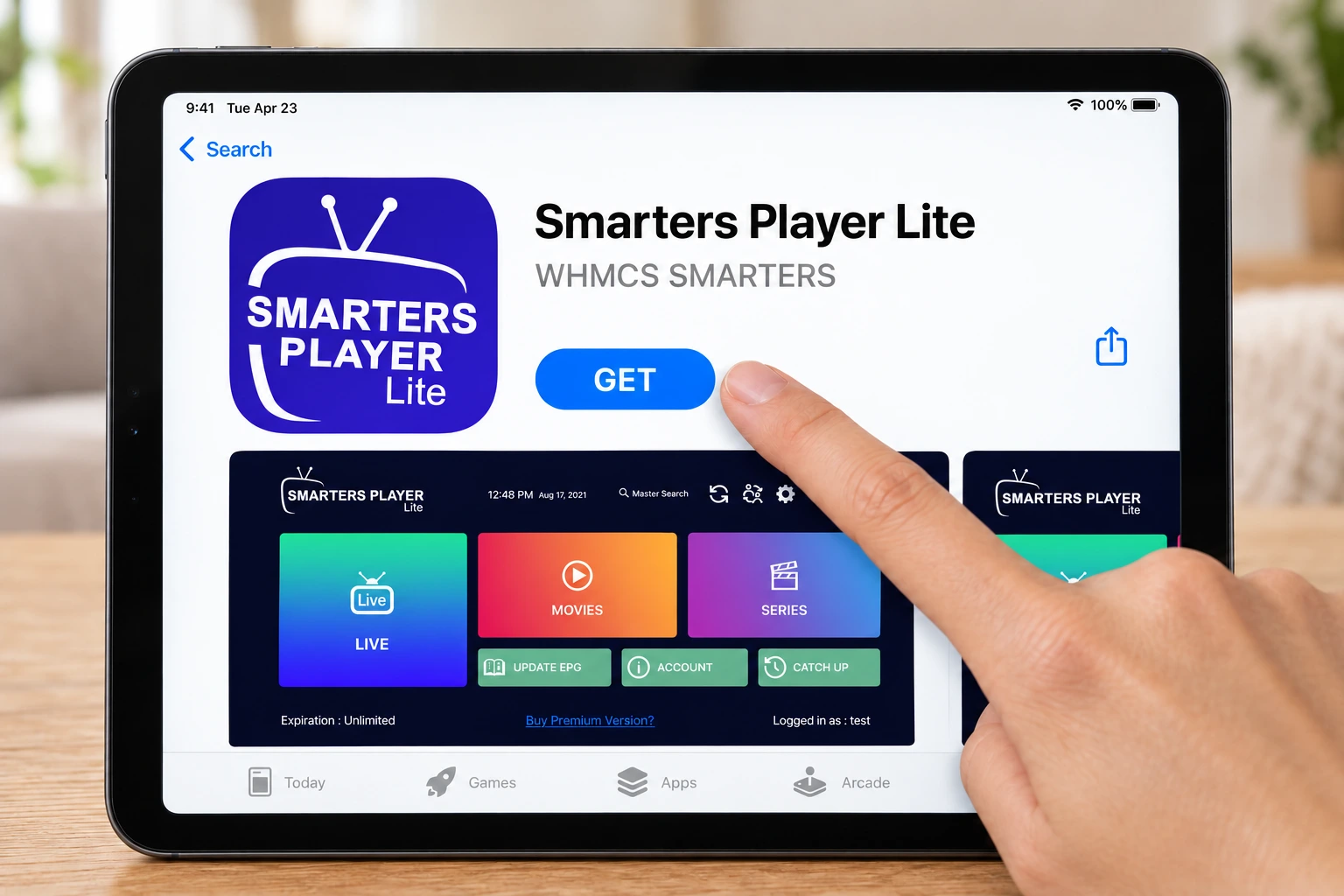
Use the player developer’s official listing to check compatibility before you install. On a TV, test the main menus with your remote, including how to go back to the channel list.
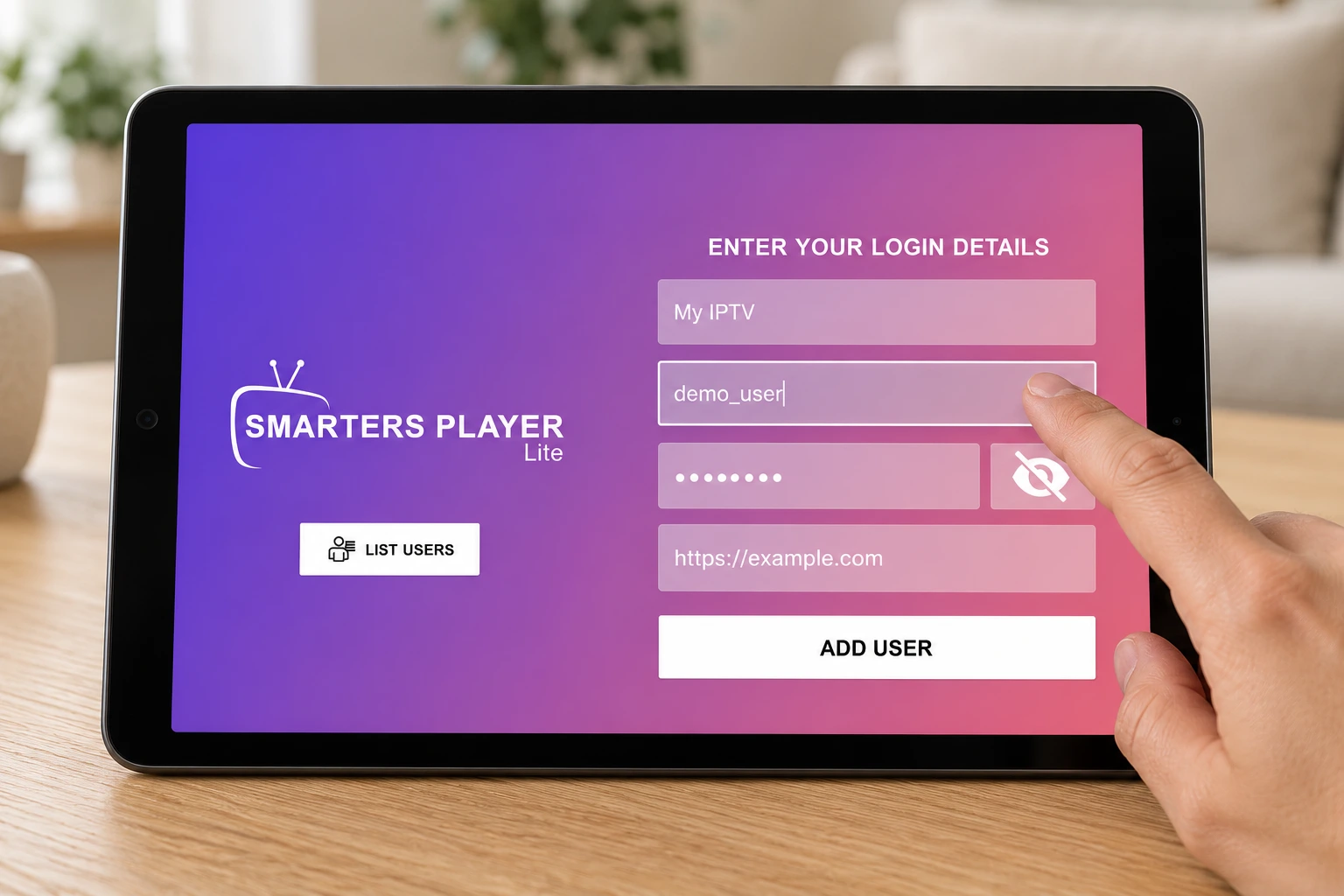
Open the login or playlist option that matches your access details. Keep the labels in the player visible as you enter the information. A misplaced character or space can stop the player from signing in.
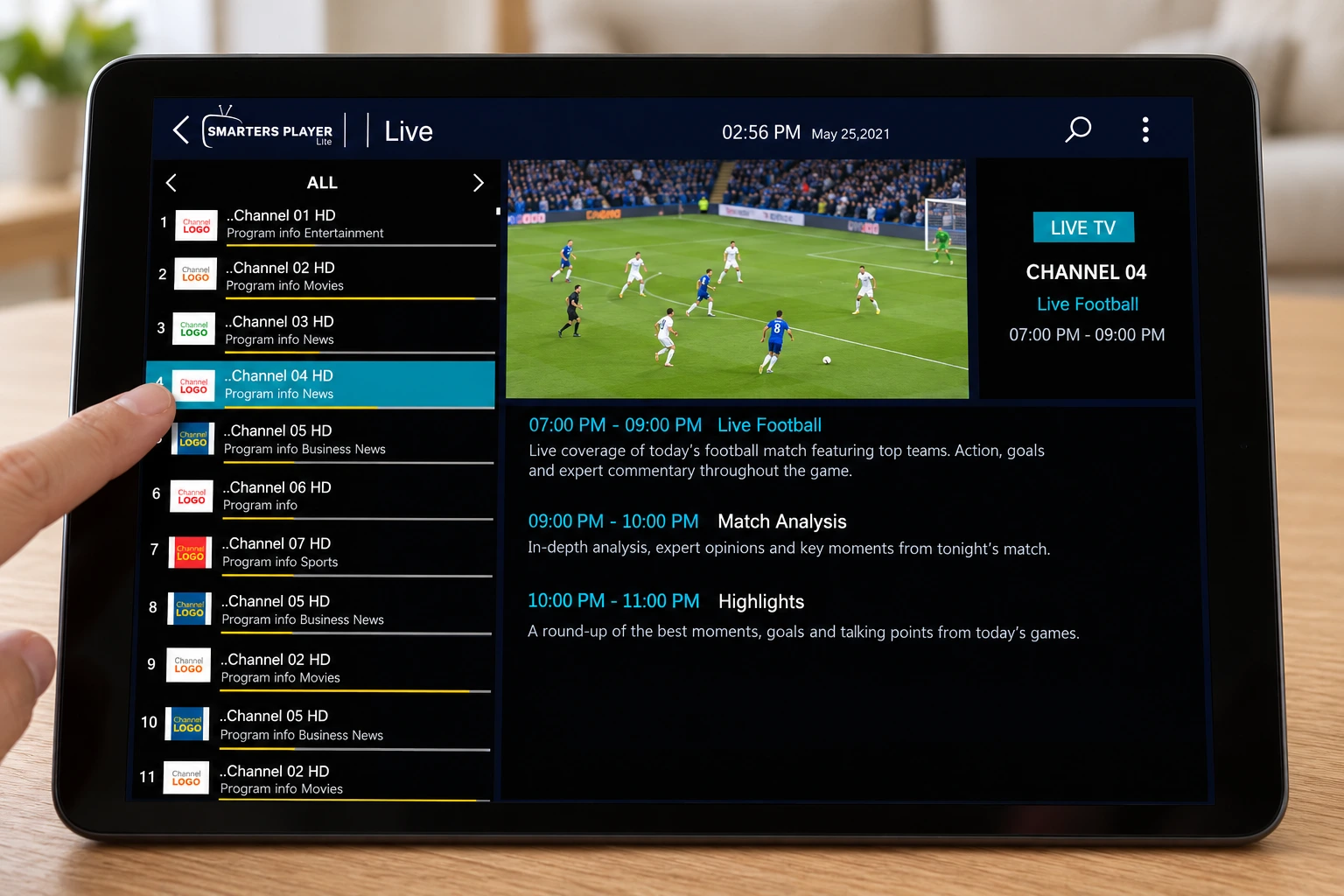
After signing in, allow the channel list to load. Open a channel, try another and check the programme guide where listings are available. If the guide is empty for one channel, check another before assuming the whole guide is unavailable.
Exploring IPTV multiple devices plans for your home? Start by counting the screens that will actually stream at the same time. Our paid plans allow one, two or three simultaneous streams on IPTV compatible devices.
A TV and tablet playing separate streams at the same time use two connections. Switching from the TV to the tablet after you stop the first stream uses one connection at a time. This distinction matters when comparing IPTV multiple devices plans.
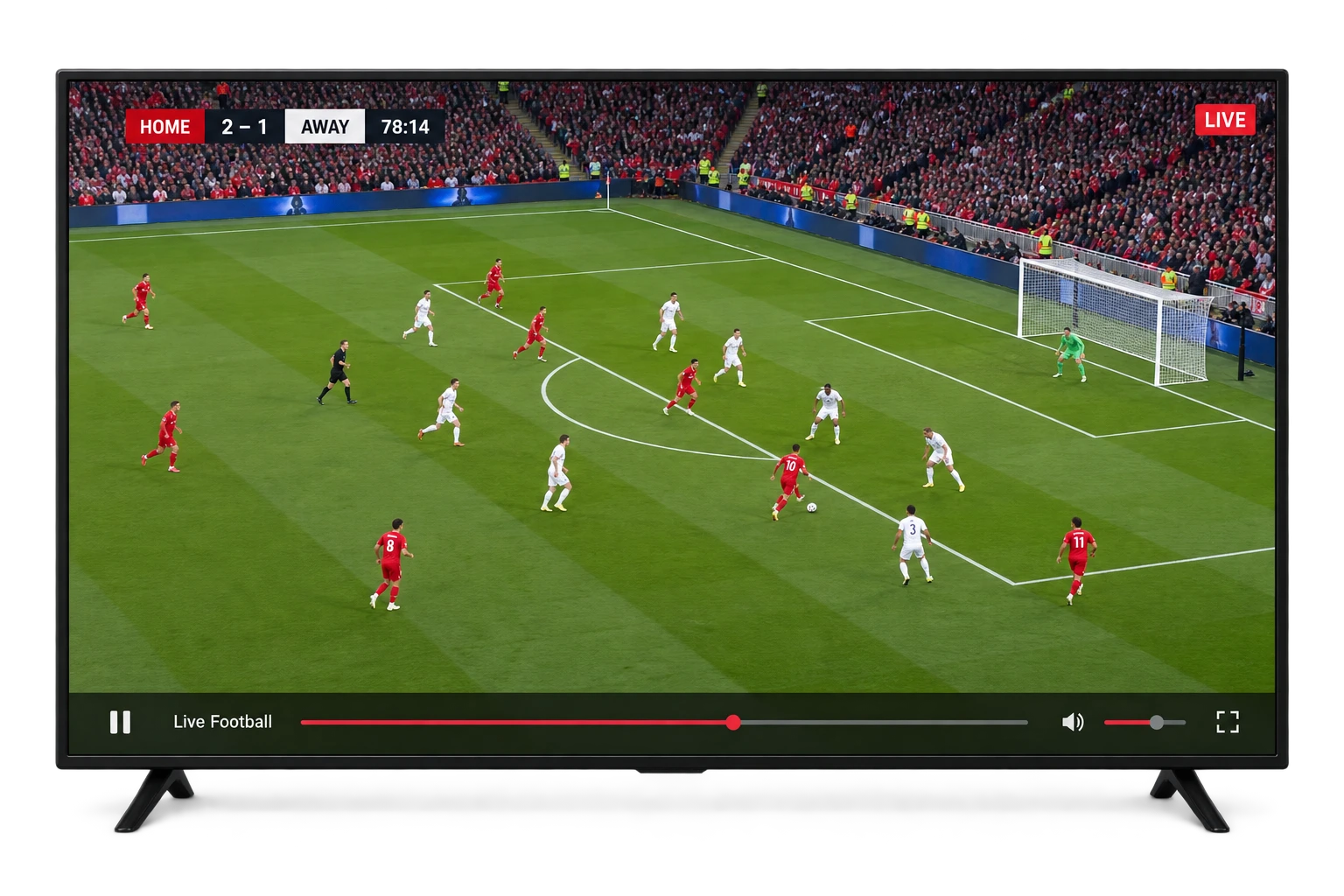
One screen at a time.
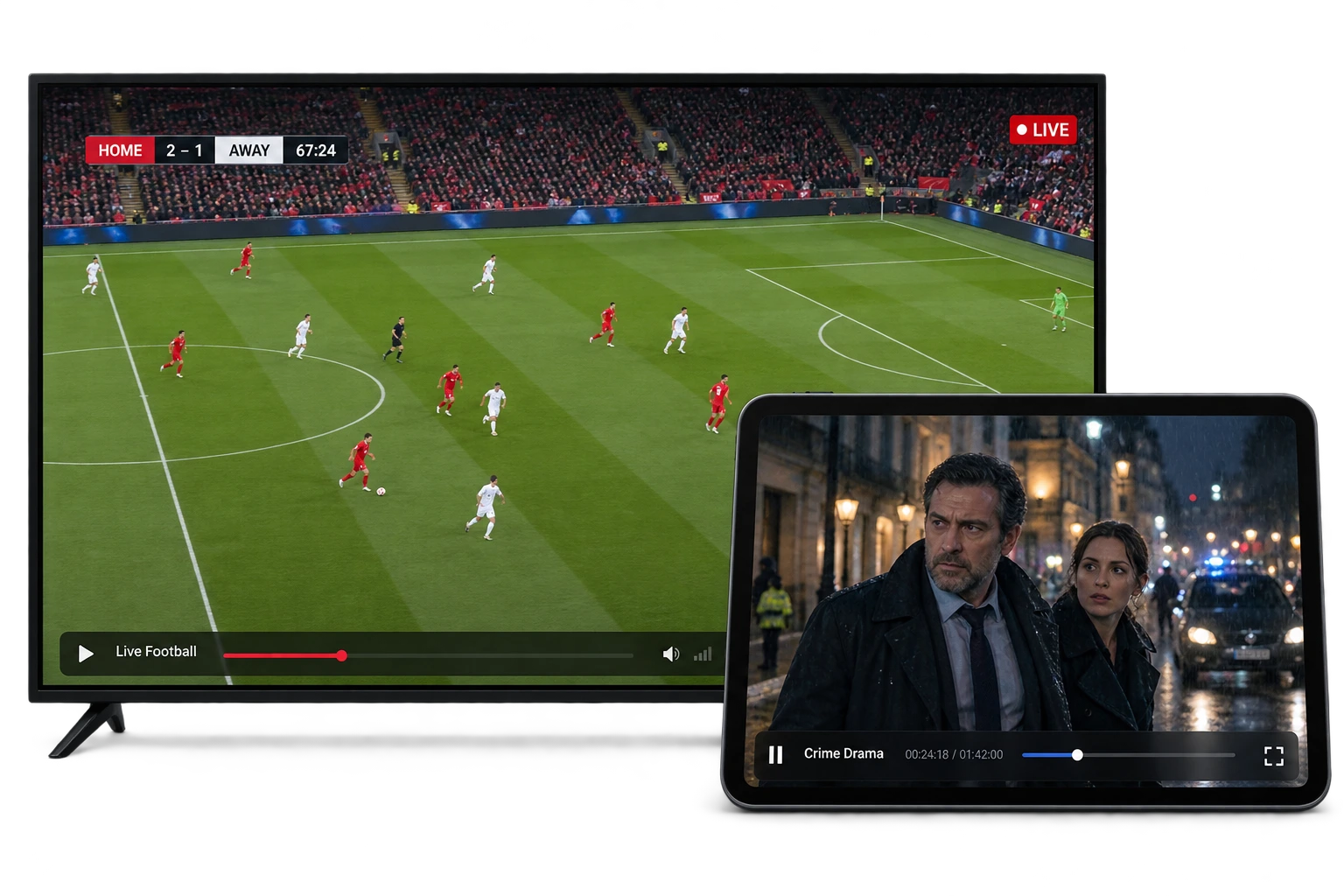
Two screens at the same time.
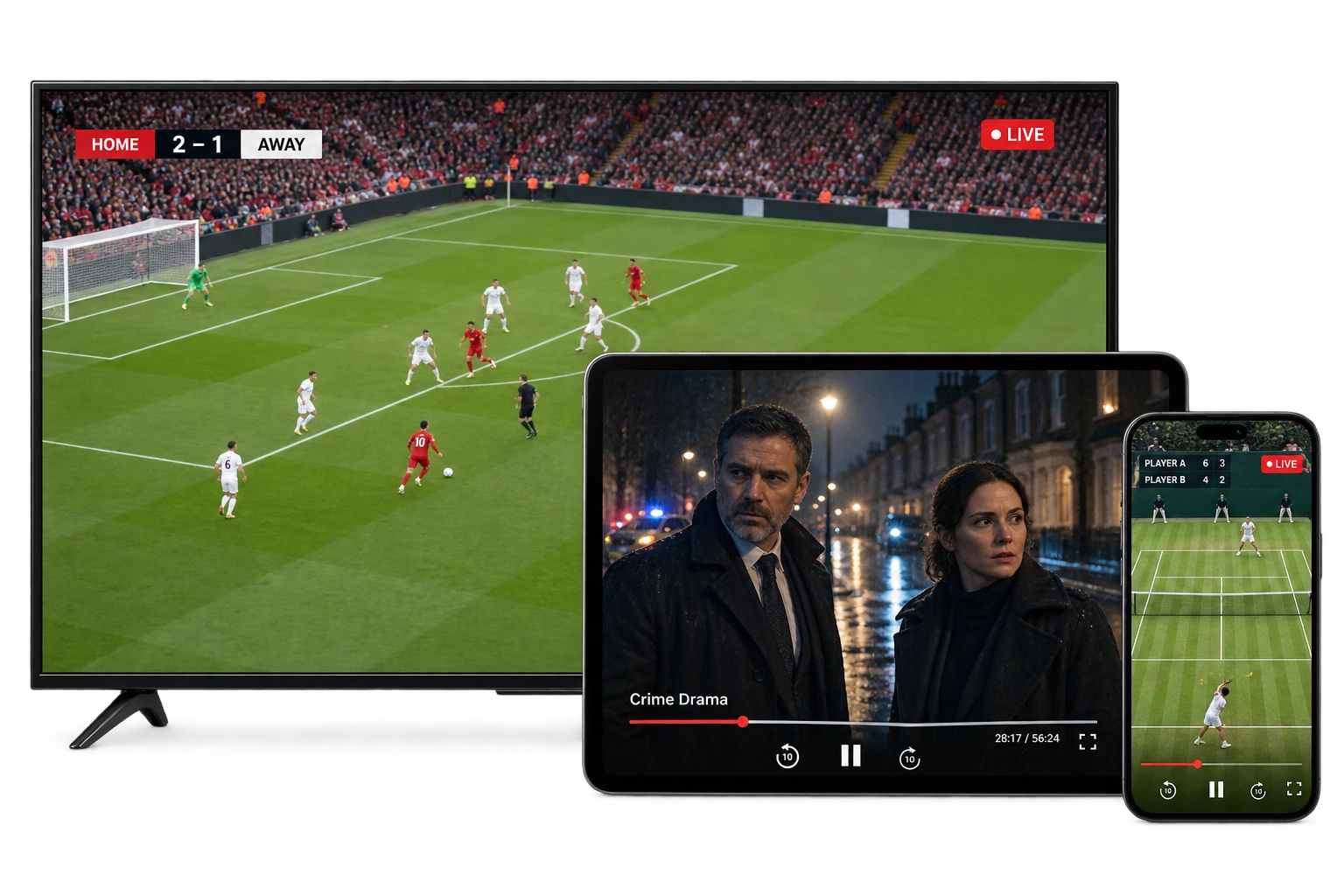
Three screens at the same time.
Installing a player on another screen leaves your plan’s stream allowance unchanged. When comparing IPTV multiple devices plans, choose based on the number of active streams you need.
The free 24-hour trial covers one device and one trial per customer. Choose the screen you most want to check before comparing paid plans for additional simultaneous streams.
Before watching on IPTV compatible devices, check your connection, system updates and player settings. Have your access details ready and decide which channel or programme to use for your first test.
IPTV device compatibility is one part of a working setup. If the app opens but playback repeatedly pauses, compare another channel on the same device and check the connection before changing apps. Make one change at a time so you can see what helped.
Use Ethernet where possible, or a strong, stable Wi-Fi connection.
If the screen cannot easily reach the router, check playback where you normally sit and repeat the test at your usual viewing time. Try Ethernet on the same screen if the device and room allow it.
Install available system and app updates before setting up your player.
Check which software version the developer lists for your chosen player. On IPTV compatible devices that are shared at home, note the model and current version before asking for setup help.
Have your subscription login or playlist ready to add to your player.
Use the free 24-hour trial to check playback, navigation and sound on one device. Choose your usual screen and connection. One trial is available per customer.
Test your setup before choosing a subscription plan.
Find out how to check IPTV device compatibility, choose a player for IPTV compatible devices and understand how many screens your plan can stream on together.
Yes, you can use a compatible IPTV player on supported Samsung and LG Smart TVs. The available apps depend on your TV model, operating system and app-store region. Choose a player available for your television, then follow the setup guide to add your subscription details.
For IPTV compatible devices in the Smart TV category, start by finding the exact model and checking which apps appear in its store. If the app listing is missing, check the TV’s region and system version before buying any licence. You can also ask us what to check if you send the model number and the player name.
If your television already uses a streaming stick or box, check that device too. You may be able to use the player there while keeping the same TV and remote arrangement you use now.
Not always. If your Smart TV supports a compatible IPTV player, you can set it up directly on the television. A streaming device is another option if your TV does not offer a suitable app or you prefer a different player interface.
Many IPTV compatible devices connect to a television through HDMI. If you already own one, check its model, available player apps and which input it uses. This lets you evaluate that setup before deciding whether any new equipment is useful.
For IPTV device compatibility, the most relevant model is the one running the player. If the app runs on the stick, the stick’s operating system and app store determine which players you can use.
The player and subscription are separate. Install a compatible player, then add the access details supplied with your IPTV subscription. Some apps may require a separate licence.
When choosing among IPTV compatible devices, check the cost of the player separately. A download can be free while some features require an in-app purchase. If you have already paid for a player, check its licence terms before assuming it covers another screen.
Yes. You can switch between IPTV compatible devices with a suitable player installed on each screen. With a one-device plan, stop playback on your current screen before starting on another. Switching devices does not increase your plan’s simultaneous connection limit.
When choosing an IPTV multiple devices plan for different rooms, think about when the viewing sessions overlap. If one person moves from a phone to a television, stop playback on the phone first when using a one-stream plan. If someone else is already watching on another TV, count that stream too.
Yes. Choose a two-device plan for two simultaneous streams, or a three-device plan for three. Each screen can play different content. Compare the subscription plans to choose the number of connections you need.
Before picking an IPTV multiple devices plan, check your household’s busiest viewing time. Two people watching together on one television use one stream. Two people watching different programmes on separate screens use two. Give each screen its own compatibility check before deciding how many active streams you need.
Yes. Request a free 24-hour trial on one device, with one trial per customer. Use it to check whether the player accepts your access details and whether playback, sound and controls meet your needs.
If you are choosing between several IPTV compatible devices, test the one you expect to use most. A change in player, operating system or network can affect another screen, so confirm its compatibility separately before paying for a multi-screen plan.
Start by identifying your device’s exact model and operating system. A television’s brand alone does not tell you which apps it supports. Two TVs from the same manufacturer can have different app stores, software versions and installation options. On a phone, tablet or computer, check the operating-system version before choosing a player.
Search your device’s official app store for the player you intend to use. Read the developer’s compatibility information and check whether the app supports the access format supplied with your subscription. Avoid assuming that an app available on Android TV is also available on every Samsung or LG television.
Before paying for a player licence or subscription, test the combination on your own screen. IPTV compatible devices still need a suitable app, valid access details and a stable connection. If you cannot find the app, send us your device model and operating-system version so we can help you check the available options.
For IPTV device compatibility, check the actual app listing even if a friend has a television from the same brand. The list of player apps can differ between models and regions. Note the app’s full name and the name of its developer if similarly named apps appear.
Compare IPTV compatible devices by whether the player supports the supplied login or playlist format, how easy it is to control, and what the licence costs. If the app does not offer the needed sign-in option, look for a suitable alternative before activating your trial.
Use the device and internet connection you plan to watch with regularly. Open the player, add your trial details and check that navigation, playback and the programme guide work as expected. On a television, try browsing with your remote control. On a phone or tablet, check that menus and playback controls are comfortable to use.
Test several available channels and an on-demand title rather than judging the setup from a single stream. Check picture, sound and loading behaviour during your usual viewing hours. If playback is unstable, compare a wired connection with your normal Wi-Fi setup where possible. Keep a note of your device model, player name and any error message when requesting help.
Give yourself time to return to the channel list, change channels and resume viewing after closing the app. On IPTV compatible devices you share with family, ask the person who normally uses the screen to try the remote or touchscreen for a few minutes.
A useful playback note includes the exact device model, the player name, the time, the channel or title and whether another stream on the same device worked. This helps you describe the problem when asking for support. Keep access credentials out of screenshots.
Test your existing device, player and broadband with a free 24-hour trial. One trial per customer, on one device. When you are ready to choose a paid plan, compare one, two or three simultaneous streams for the IPTV compatible devices you use at home.
Explore IPTV Ireland Fast with a free 24-hour trial. Compare subscription plans for 3, 6, 12 or 24 months, and find setup guides for compatible devices.
© 2026 IPTV Ireland Fast. All rights reserved.