
Follow our IPTV setup guides for Ireland to install a compatible player and connect your TV, streaming device, phone or computer using your access details.
Start your IPTV setup in three steps. Install a compatible player, add the access details you received and test a channel. Choose the device that runs the app. If a Fire TV Stick is connected to your television, follow the Fire TV Stick instructions.
Before starting your IPTV installation, have a compatible device, a stable internet connection, your access details and a supported player ready.
Before you begin, find your device model and check the name of the player you plan to use. Keep your access details to hand so you can match them to the fields you see during IPTV setup.
Check our supported devices before choosing a player for your TV, streaming device, phone or computer.
Make sure your device is connected to a stable internet connection.
Keep the login details provided with your trial or subscription ready.
Need access details to start? Request a free 24-hour trial for one device, with one trial per customer, or compare subscription plans.
Check your device guide for a compatible player and the installation instructions needed for your IPTV setup.
Choose your device below for IPTV installation and login instructions. Find the connection method supported by your player: Xtream Codes, an M3U link or MAC-based activation.
If you are unsure which app to install, start with our compatible devices guide. Then return to this IPTV setup guide and choose the panel for the device running your player.
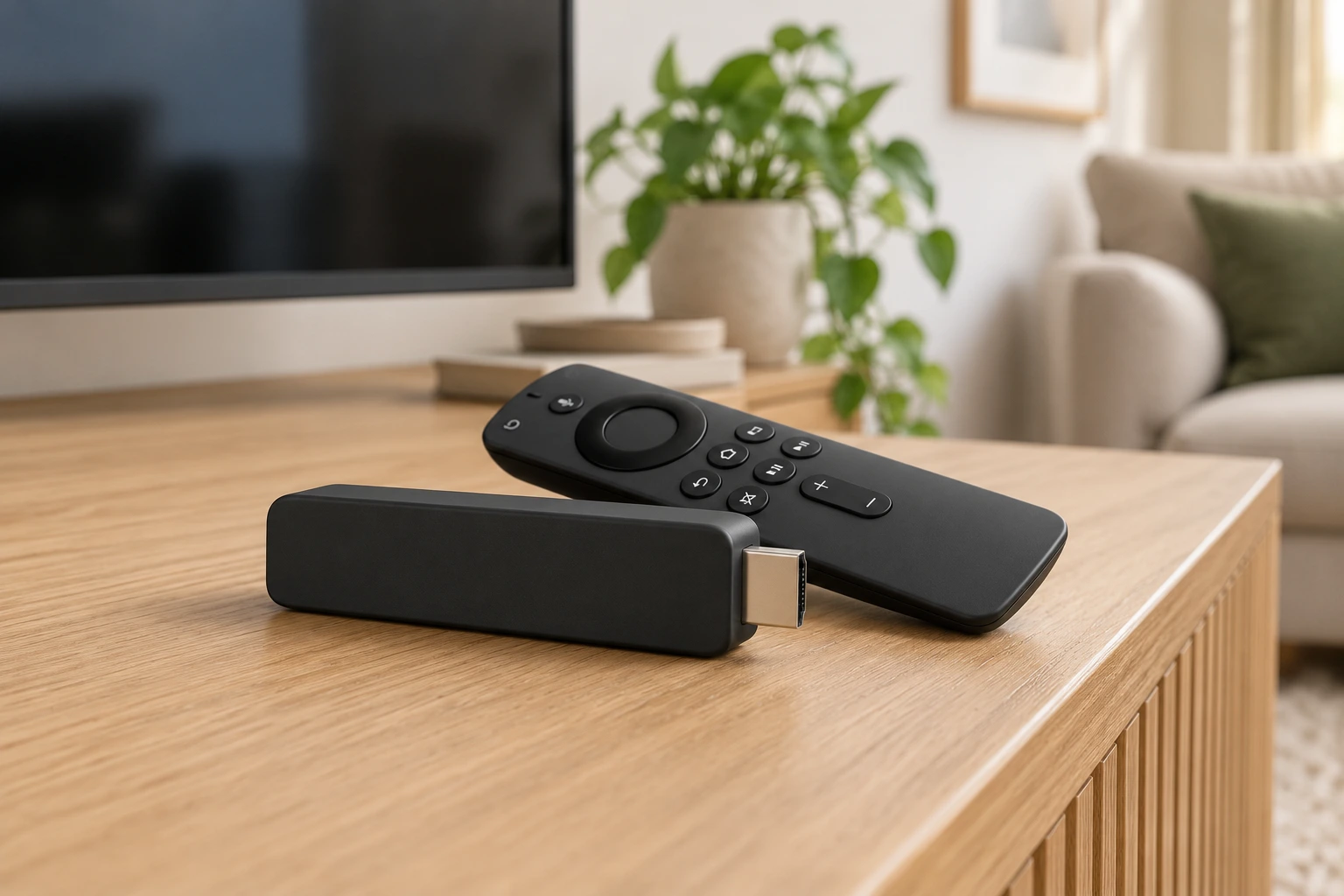
Follow this IPTV setup guide for your Fire TV Stick. Install a compatible player, then connect using the login details provided with your free trial or subscription.
On your Fire TV, open Find and search for your chosen IPTV player. If it is available for your device, select Get or Download, then open the app. If it is not listed, contact us with your Fire TV model and player name for installation guidance.
If you are learning how to set up IPTV on a Fire TV Stick that is already connected, switch your television to the HDMI input you use for the stick. Search for the player on the Fire TV home screen. If the app does not appear, send support the Fire TV model and the exact app name you searched for.
Open your player and choose the connection method it supports. For Xtream Codes, enter the server URL, username and password provided with your free trial or subscription. For M3U, paste your full playlist link. If your player uses MAC-based activation, contact our support team with the device identifier shown inside the app.
Use the exact details provided and check for typing errors or extra spaces. The available login options depend on your player.
To check your IPTV setup, allow the playlist to load, then open a channel to test playback. If your player supports a programme guide, let it finish updating. If content does not load, check your internet connection and access details before trying again.
Use the Fire TV remote to return to the channel list and open a second channel. If the app opens but the list stays empty, follow the playlist checks below. If channels appear and the picture stops during playback, go straight to the playback checks.
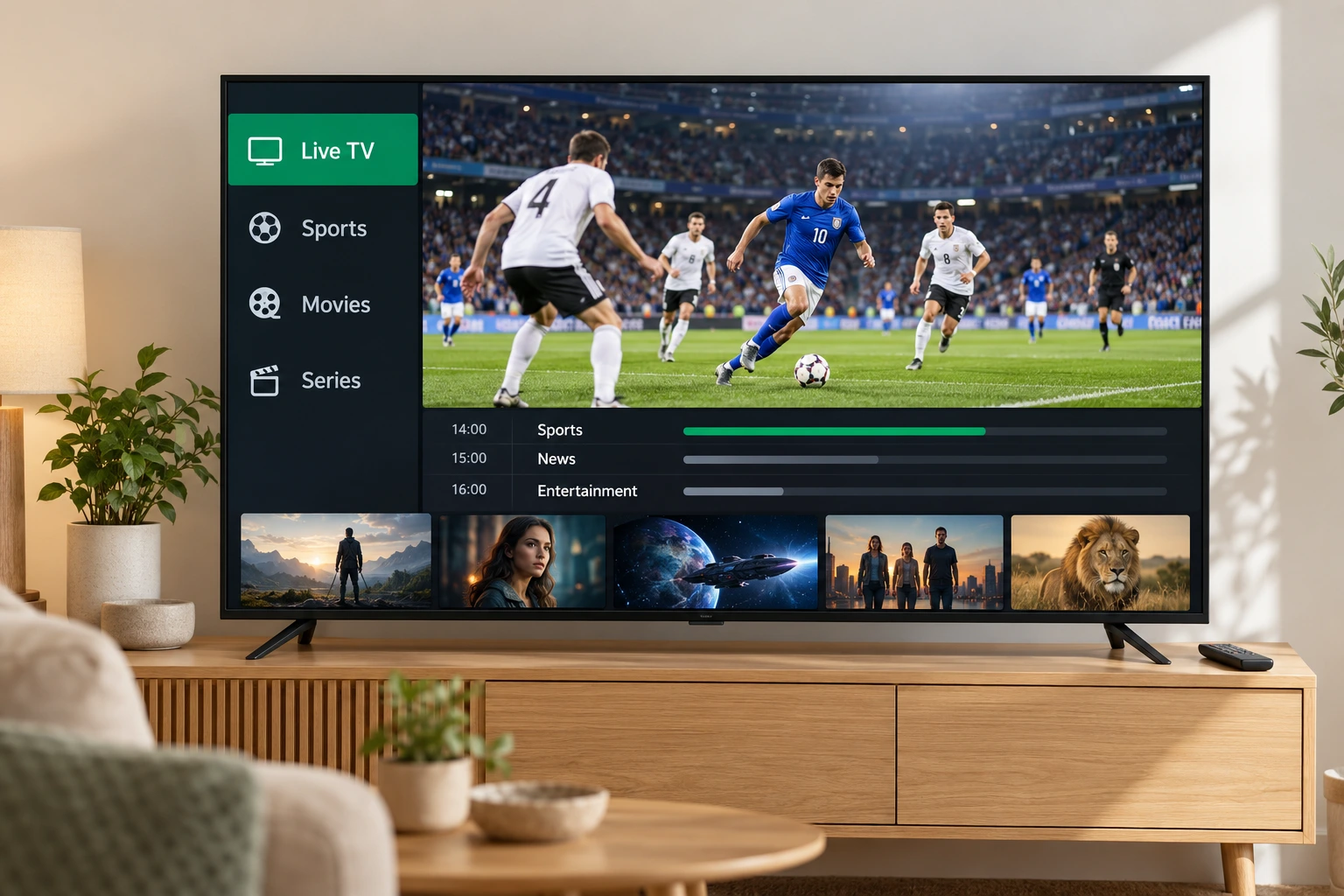
Complete your IPTV setup on a Samsung or LG Smart TV using a compatible player from your TV’s app store. For Android TV or Google TV televisions, follow the Android TV guide below.
On Samsung, press Home, open Apps and search for your chosen player. On LG, open Apps or LG Content Store and search for the player. Select Install, then launch the app. If it is not listed, contact us with your TV brand and model.
For this IPTV setup guide, use the store built into your TV. Before buying an app licence, confirm the exact model and check which access methods the app accepts. If you usually launch apps from a box plugged into the TV, use the guide for that box.
Check the connection options inside your player. If it supports Xtream Codes, enter your server URL, username and password. If it accepts M3U, use your full playlist link. For MAC-based setup, contact our support team with the device identifier displayed inside the player.
Some players require a separate app licence. Activating the player does not activate an IPTV subscription.
After your access details or playlist have been added, refresh the playlist or restart the app. Allow the content to load, then open a channel to test playback. If the list remains empty, check your details or contact support with your TV model and player name.
To finish your IPTV setup, use the TV remote to switch between two channels and check that you can get back to the channel list. If the menus work and playback is fine but the programme guide is blank, check whether the player supports a guide for your playlist.
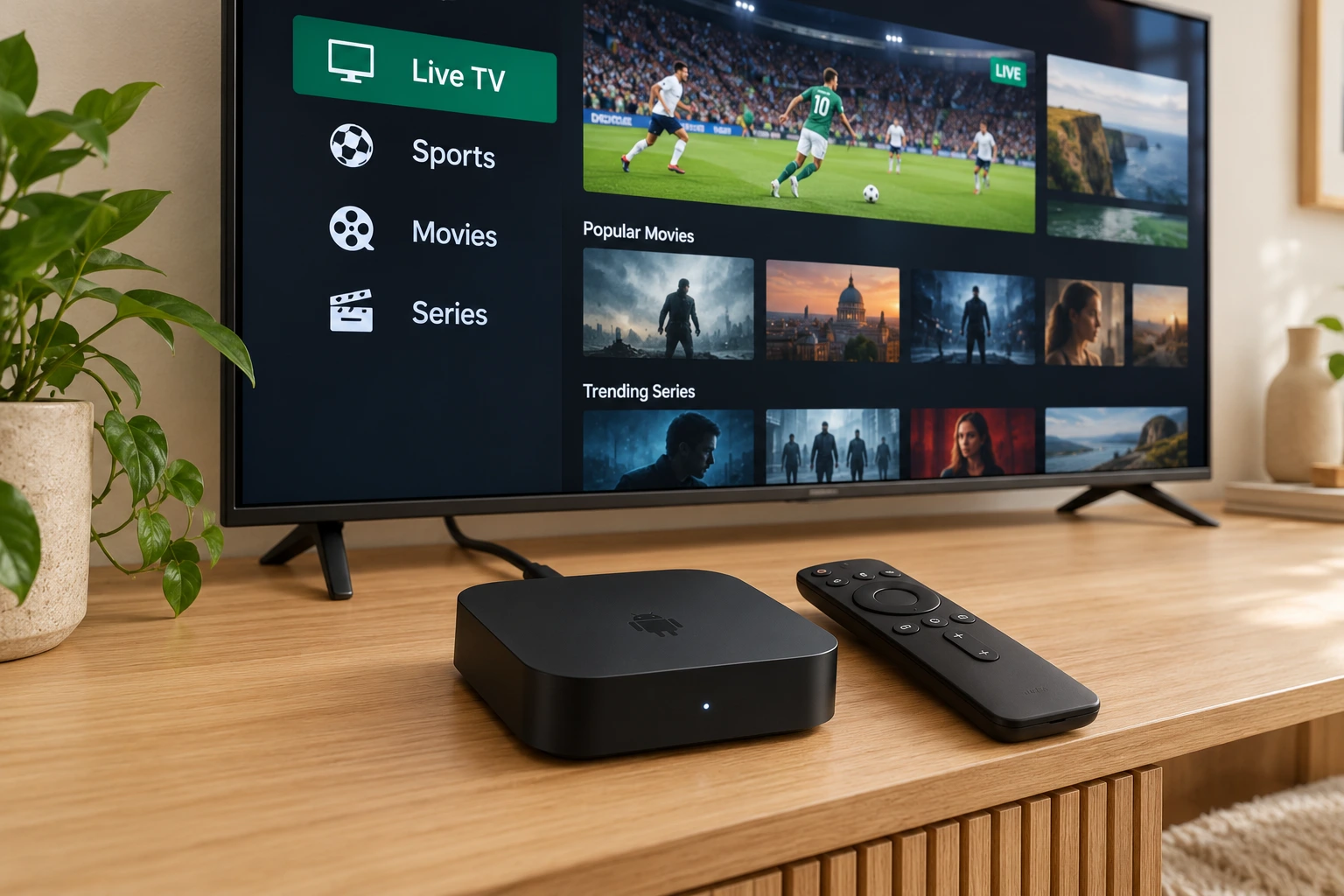
Follow this IPTV setup guide for Android TV and Google TV devices. Install a compatible player, then connect using the access details provided with your trial or subscription. Menu options may vary. See Google’s instructions for installing apps on Google TV.
On Android TV, open Apps, then Google Play Store, and search for your chosen IPTV player. On Google TV, use Search or the Apps tab to find it. Select Install and open the app once installation is complete.
Open the player and select its option to add a playlist or account. For Xtream Codes, enter the server URL, username and password supplied with your trial or subscription. For M3U, paste your full playlist link. If the app uses MAC-based setup, contact support with the identifier displayed inside the player.
Available connection methods depend on your player. Check your details for typing errors and extra spaces before saving.
Save your details and allow the player to load your content. Open a channel to test playback, and let the programme guide update if supported. If loading fails, check your internet connection and login details, then restart the player and try again.
If your IPTV setup appears to stall after you save, note whether you can still navigate the app. A player that responds to the remote but shows an empty list needs a different check from an app that has stopped responding. Check the saved details in the first case and reopen the app in the second.
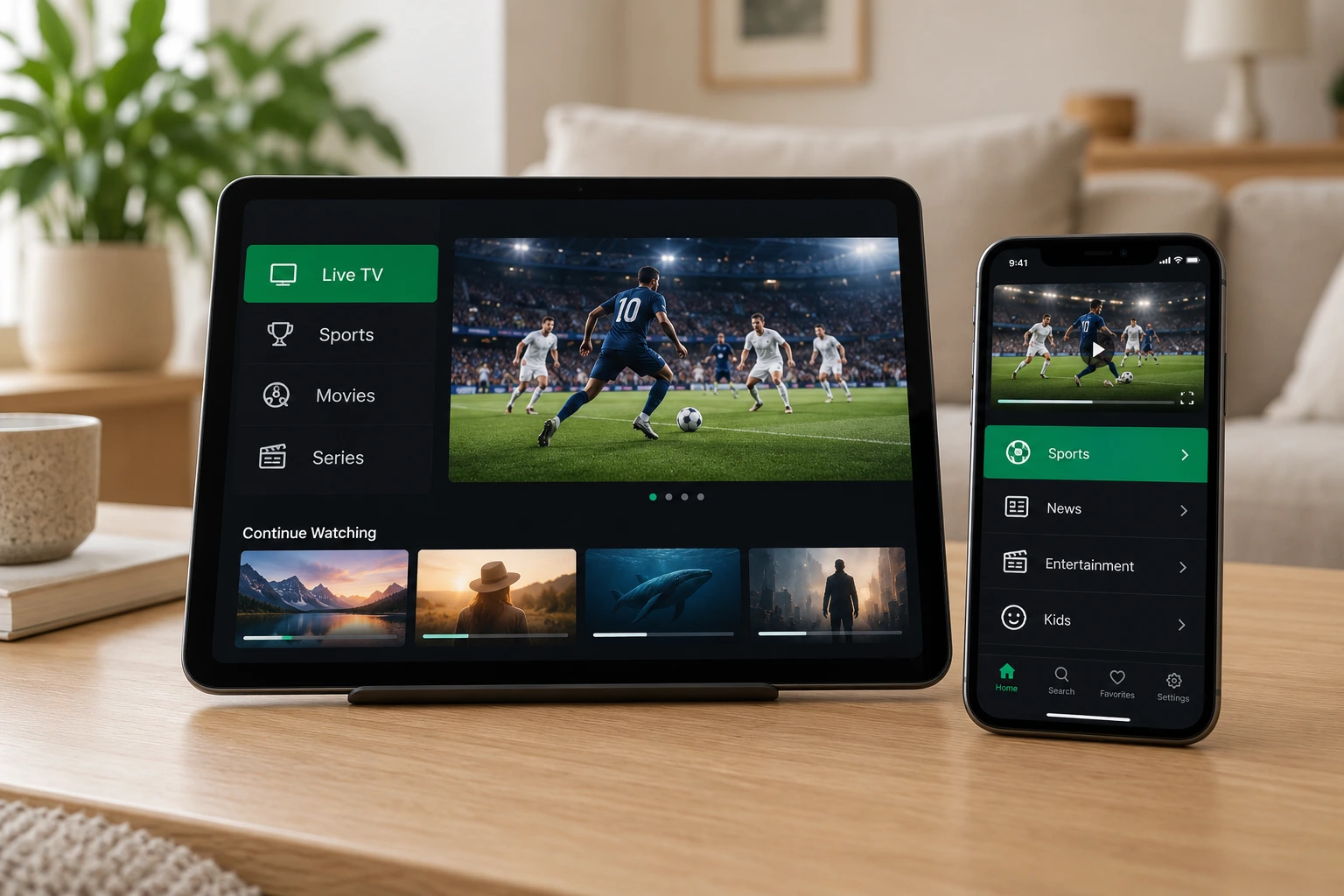
Complete your IPTV setup on iPhone or iPad using a compatible player from the App Store. Connect with the access details provided with your trial or subscription, using a login method supported by your app.
Open the App Store on your iPhone or iPad and search for your chosen IPTV player. Check its compatibility and pricing, then tap Get or the price button. Confirm the download when prompted and open the app once installed.
If you are learning how to set up IPTV on an iPhone or iPad, check the App Store listing for your device before downloading. Some players show paid features on first launch. Look for the option to add an account or playlist and check whether it is included before paying.
Open the player and choose its option to add an account or playlist. If it supports Xtream Codes, enter your server URL, username and password. If it supports M3U, paste the full playlist link supplied with your trial or subscription. Save your details and allow the content to load.
Login options depend on the app. Any player purchase or in-app subscription is separate from your IPTV service.
Open a channel and check that both picture and sound work. If playback fails, check your connection and access details, then close and reopen the player. When contacting support, include your device model, player name and the error shown.
For an IPTV setup check on a phone or tablet, start on the Wi-Fi connection you normally use. Choose a channel and let it play before switching to another one. If video plays silently, check the device volume and whether sound is being sent to Bluetooth headphones.
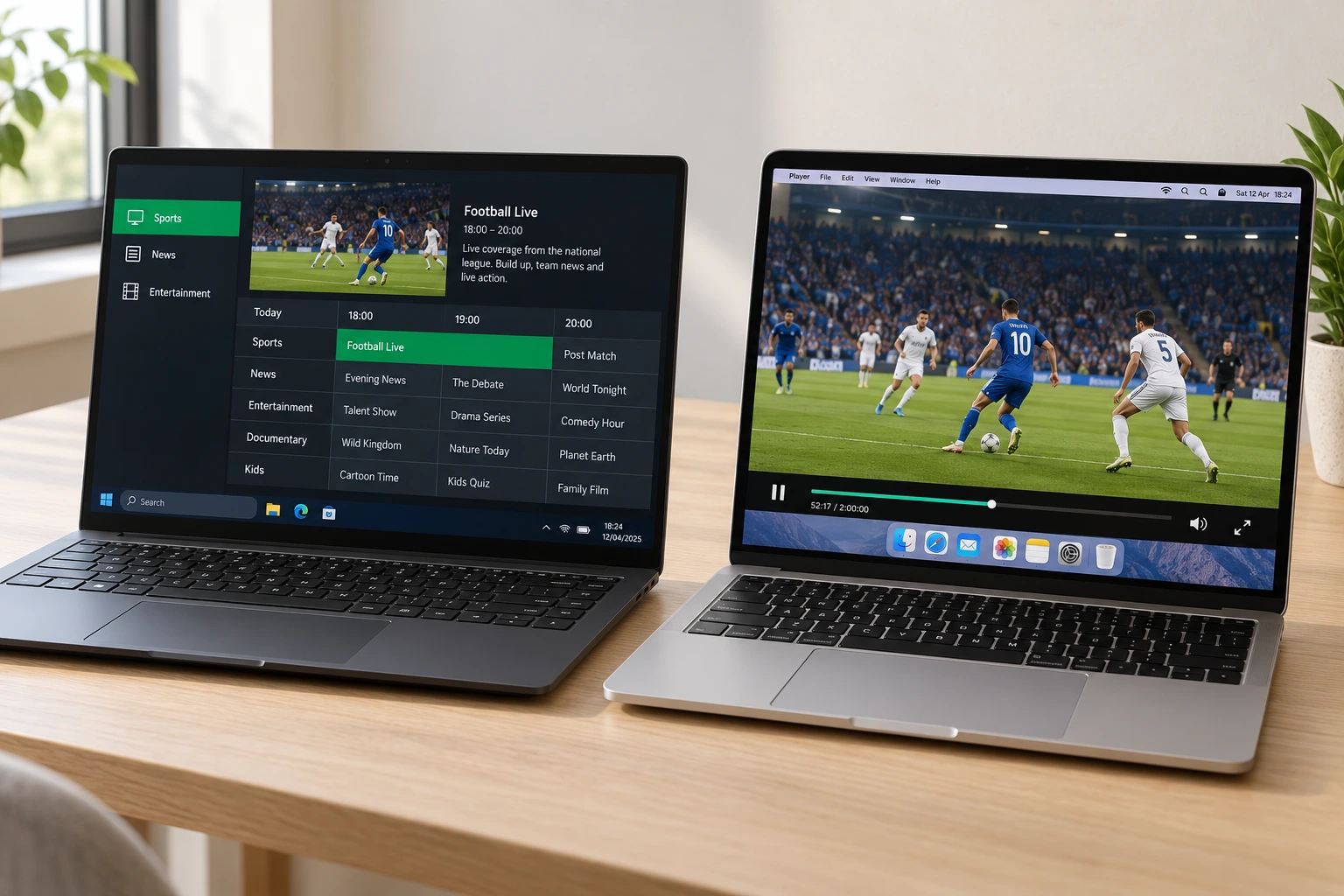
Follow our IPTV setup guide for Windows and Mac computers. Install a compatible desktop player, then connect using the access details provided with your trial or subscription.
Choose an IPTV player that supports your version of Windows or macOS. Download it from Microsoft Store, the Mac App Store or the developer’s official website, where available. Follow the installation instructions, then open the player.
In your player, choose the option to add an account, playlist or network stream. For Xtream Codes, enter the server URL, username and password supplied with your trial or subscription. For M3U, paste your full playlist link into the appropriate field. Save or open the playlist as instructed by your player.
During desktop IPTV setup, check the type of input the app is asking for. If the player asks for a network URL and you have an M3U link, use the full link. If you received separate account fields, choose the account option in a compatible player and enter each detail in its own field.
Connection options vary by player. If your app uses device-based activation instead, contact support with the identifier displayed inside the app.
Test your IPTV setup by opening a channel and checking both the picture and sound. If playback fails, check your connection and access details, then restart the player. Contact support with your operating system, player name and error message if the issue continues.
For your IPTV setup, choose the connection method supported by your player.
Use the format your provider supplied and your player accepts. If you received a server address, username and password, choose Xtream Codes in a compatible player. If you received a single playlist URL, choose the M3U option. For MAC-based activation, send support the identifier shown inside your player.
Server URL, username and password.
Your full playlist link.
The device identifier displayed inside your player.
Player activation and IPTV subscription are separate.
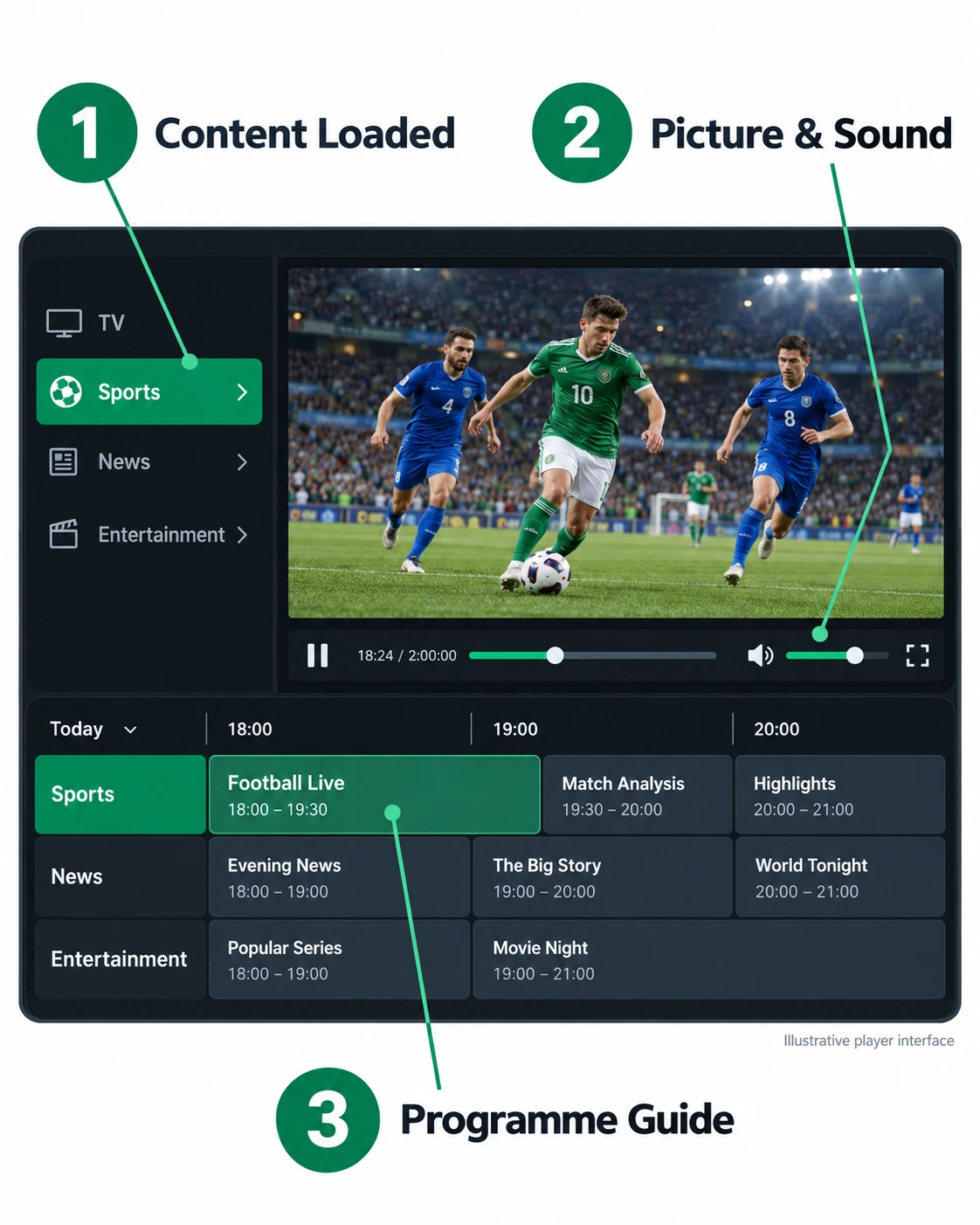
Complete these checks after your IPTV setup to confirm that your content loads, picture and sound work, and the programme guide appears where supported. The illustration highlights where to look; your player’s layout may differ.
At the end of this IPTV setup guide, check each part in order. First confirm that channels appear. Next test picture and sound on two channels. Then look at the programme guide if available. Knowing which check first failed makes troubleshooting quicker.
To verify your IPTV setup, open the playlist and confirm that channels or categories appear. Allow the initial loading to finish before refreshing. If the list remains empty, check that your trial or subscription is active and that your access details were entered correctly. Refresh the playlist once after correcting any errors.
Play a channel and check that the picture moves smoothly and the sound is audible. Confirm that your device and player are not muted, then try another channel for comparison. A problem affecting one stream may differ from an issue affecting every channel. Note what happens before moving to troubleshooting.
If your player and playlist support a programme guide, allow it to finish updating. Check your device’s date, time and time zone if programme times look incorrect. Guide availability can vary by channel. An empty guide alone does not mean your login has failed, especially when channels play normally.
Having trouble with your IPTV setup? Start with the checks below for login errors, an empty playlist or playback problems. If the issue continues, note the error message and contact our support team.
Still unable to sign in? Contact support with your device, player name and the exact error message. Keep your password and full playlist link private.
Tell support whether the playlist is empty or an error appears. Include your device and player name, without sharing your full playlist link publicly.
Contact support with your device, player and the channels affected. Mention whether another channel or connection worked, and any error displayed.
When you report an IPTV setup problem, mention whether playback fails immediately or starts and then stops. If one channel plays and another does not, include both channel names. This gives support a result they can compare with your device and connection details.
If you already know how to set up IPTV and need help with a specific issue, check the answers below for player licences, device limits and access formats.
Answers to common questions about IPTV installation, player activation and using your access details.
An IPTV player is the app used to open your playlist and play content. Your IPTV trial or subscription provides the access details separately. Installing or purchasing a player does not activate an IPTV subscription, and paying for your IPTV service does not automatically cover a separate player licence.
You can set up a compatible player on another device. However, simultaneous playback depends on the connection allowance of your plan. Check your subscription details or ask support before streaming on several devices at the same time.
Choose the connection method supported by your player. Xtream Codes uses a server URL, username and password, while M3U uses your full playlist link. Some players use device-based activation instead. Follow the option available in your app and use the matching access details.
Some app developers charge for a player licence or premium features. This payment is separate from your IPTV subscription. Check the app publisher, licence terms and supported devices before paying. Contact our support team if you are unsure which payment the app is requesting.
Send your device model, player name and the exact error message. Mention whether the problem affects login, playlist loading or playback, and which checks you have already tried. If you send a screenshot, hide your password and full playlist link.
To learn how to set up IPTV, start with the guide for your device above. Install a compatible player, choose its supported login method and enter the access details supplied with your trial or subscription. Once your content loads, test a channel and check the picture and sound. Player installation and subscription activation are separate steps.
Need IPTV setup help? Tell us your device model, player name and what happens on screen. Mention the steps you have already tried so we can help you with the next check.
Hide passwords and full playlist links in screenshots.
Explore IPTV Ireland Fast with a free 24-hour trial. Compare subscription plans for 3, 6, 12 or 24 months, and find setup guides for compatible devices.
© 2026 IPTV Ireland Fast. All rights reserved.