
This IPTV FAQ for Ireland answers common IPTV questions about trials, plans, compatible devices, channels and setup. Browse by topic below or jump to Orders & Policies for payment and refund information.
Use the IPTV Ireland FAQ before choosing a plan or when you need a quick check during setup. If you are new to the service, start with the device and trial questions. If you already have access details, jump to Setup & Support and find the answer that matches what you see on screen.

Start with the IPTV FAQ basics below, then follow the relevant device or subscription link for more detail.
IPTV stands for Internet Protocol Television. It delivers television over an internet connection. To watch, you need a compatible device, a suitable player and valid access details.
This IPTV FAQ starts with the three things you need to check separately. The device runs the app, the player opens the stream and your access details connect it to the service. For a fuller explanation of how viewing works, read What is IPTV? before choosing a player.
You need a stable internet connection, a compatible device and a player that supports the access details supplied with your trial or subscription. Check your device model and available apps before choosing a player. Our Compatible Devices page helps you check your options.
If you watch through a streaming stick connected to your television, check the model of the stick and look up its app options. If you open apps directly from the television menu, use the television’s model instead. The device that runs the player is the one to identify before asking your IPTV questions.
A player is the app that opens a stream. Your subscription supplies the viewing access you enter in that app. If an app is already installed, open it and check whether it accepts the login or playlist format supplied with your access details. The Plans & Devices section of this IPTV FAQ explains app licence costs separately.
Visit our Free Trial page and use the request button to contact us. Send your device model and the player you plan to use so we can help you prepare your setup. You can request a free 24-hour trial via WhatsApp, with one device per trial and one trial per customer. Confirm the activation time with support before you start.
Choose the screen you expect to watch on most often. During the trial, open a channel, check picture and sound and try the player controls on your usual internet connection. If you have IPTV questions about a second screen, check its compatibility separately before choosing a paid plan.
If you have not installed a player yet, open the setup guide for your device before arranging the trial. Check that the app opens and that you can find where to add access details. This lets you spend more of the trial checking the parts that matter to you, such as playback and navigation.
Compare subscription lengths and work out how many screens you need at the same time. This section also covers changing devices, player costs and what to confirm before you renew.
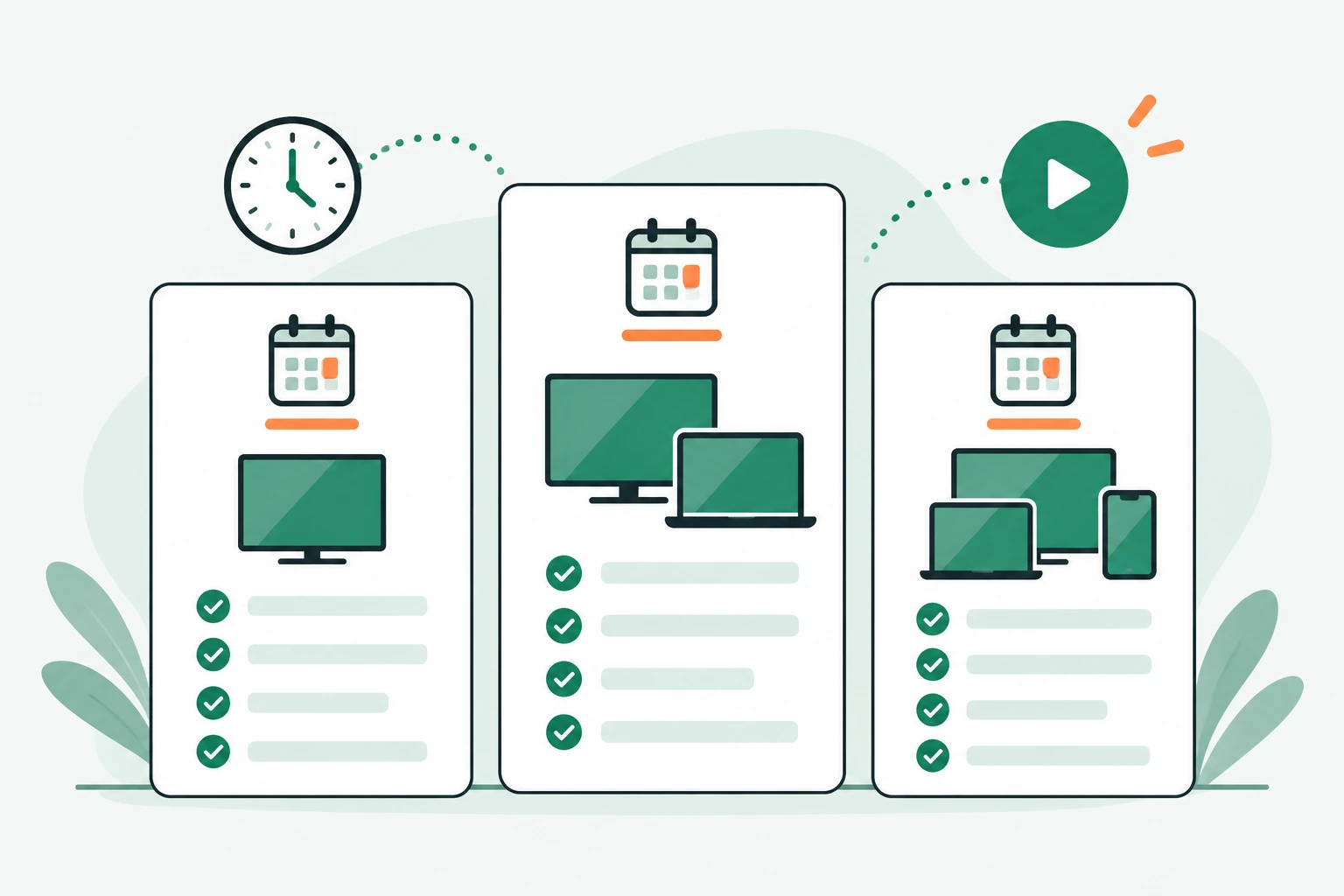
We offer subscriptions for 3, 6, 12 or 24 months, with options for 1, 2 or 3 simultaneous devices. Visit our Subscription Plans page to compare the available options and confirm the current price before ordering.
Use this IPTV FAQ to compare two choices independently. First pick how long you want the service. Then count how many screens will stream at the same time. For example, if only one television will play on most days but two people need separate streams at weekends, compare the two-stream options for the duration you prefer.
These options refer to the number of devices that can stream at the same time. A 1-device plan allows one active stream, while 2-device and 3-device plans allow up to two or three simultaneous streams respectively. Choose the allowance that matches how many screens you expect to use together.
A television and tablet playing separate streams at the same time use two connections. If you stop the television before opening the stream on the tablet, only one connection is active. When you read the device options in this IPTV FAQ, think about the busiest viewing time in your household.
You can use a compatible player on another supported device, provided you stay within your plan’s simultaneous-connection allowance. Stop playback on the first screen before starting on another if you have a 1-device plan. Some players use device-specific activation, so check whether your new screen needs separate setup or a player licence.
Before changing screens, check that the second device has a suitable player and can use your supplied access format. If the app shows its own device identifier or asks you to activate it, send support the model and app name. The IPTV Ireland FAQ covers what to share when you need help.
Player charges depend on the app developer and its licence terms. Before paying, check whether the feature you need is included, whether the charge recurs and whether the licence covers a second screen. If you see a payment prompt during setup, note the app name and what the prompt calls the charge. Those details help support answer IPTV questions about app costs.
Renewal is manual. If you want to continue after your current plan ends, contact support and say you are an existing customer. Choose a duration and simultaneous-stream allowance from the subscription plans. Ask support to confirm the price, the new start date and whether your access details will stay the same.
If your household now needs a different number of screens, use the device allowance examples in this IPTV FAQ before asking for a renewal. If you plan to change your player as well, mention the new device and app so you can check compatibility before paying.
Before paying for a renewal, check your current expiry date and confirm when the new term will begin. Keep the confirmation so you can refer to it if you have a question later. If access has already ended, tell support so they can explain the next step for your account.
Find out how to check a channel, judge picture quality on your own screen and see whether your player supports programme listings or catch-up.
Contact us with the names of the channels, programmes or events that matter to you. Mention any preferred language or regional version so we can check the relevant options.
Use the 24-hour trial to test availability and playback on your own device and connection before choosing a subscription.
Start with our channels page, then ask about any specific channel or regional version that matters to you. Include the exact name if several results look similar. When testing during the trial, check the channel you asked about and keep a note of the name shown in your player.
If you are looking for a particular event, give support its name and the date you want to watch. Channel names can refer to different regional feeds, and the programme you want may only be listed on one of them. Once you find the correct feed, see the programme guide answer in this IPTV FAQ for help checking the schedule.
Picture quality varies by channel and source. Not every stream is available in HD, Full HD or 4K, and playback also depends on your device, player and internet connection. Use the trialto check the available quality options on the screen you plan to watch with.
Use the same screen and connection you normally watch on when you compare quality. If one channel looks less clear than another, note which channel it was and what quality the player showed, where available. For IPTV questions about a particular stream, this gives support more detail than a general report about picture quality.
An electronic programme guide, or EPG, displays programme names and scheduled broadcast times inside a compatible player. Coverage and accuracy can vary by channel. If listings appear incorrect, check your player’s time-zone settings and refresh the guide.
For a quick EPG check, open a channel you recognise, then compare its guide entry with what is actually playing. If several listings are offset by the same amount, check the time zone. If only one channel has a blank listing and it still plays, note that channel separately.
A programme guide shows listings, while catch-up lets you replay earlier programmes where that feature is available. Having an EPG does not automatically mean a channel supports catch-up. Ask support about the channels you want to replay and check whether your player supports the available feature.
To check catch-up, open a particular past programme and see whether your player offers a replay option for it. During your trial, use this IPTV Ireland FAQ as a checklist and note both the channel and the programme. Support can answer a more specific question when you provide both.
Use this IPTV FAQ section to find setup instructions, check access problems and prepare the details our support team needs.
Visit our Setup Guides page and choose the instructions for your device and player. Before starting, check that the app supports the access format supplied with your trial or subscription. If your device or player is not listed, contact support with its exact name and model. Using VLC on a computer? The official VLC guide explains how to open a network stream using a compatible stream URL.
The setup guide has steps for common devices. Start by matching the device that runs the app and then use the method supported by your player. This IPTV FAQ can help you decide what to check first if you get stuck during installation or when entering your details.
Check that you entered each detail in the correct field, with no extra spaces. Use the access method supplied for your player and check whether your trial or subscription is active. If access still fails, contact support with your player name and the exact error message. Keep passwords and access links out of public screenshots.
Check whether the player wants separate account fields or a single playlist link. Choose the option that matches what you received. If you can sign in and see a list of channels, move on to the playback checks in this IPTV FAQ and tell support where the problem first appears.
Check whether buffering affects one stream or several. Pause other downloads, restart your player and test another available channel. If possible, compare Ethernet with your usual Wi-Fi connection. Note the affected channel, time and device so support can investigate. Buffering can have several causes, so a faster internet plan alone may not solve it.
If your plan allows one stream, stop playback on any other screen before testing again. For the trial, use the device you arranged with support. Change one thing at a time and repeat the same playback check. Note whether the stream starts and then stalls or whether it never begins.
If playback is usually fine in one room and unreliable in another, test the same device closer to the router where possible. Use the same channel so you can compare the result. If other streaming apps also pause on that device, mention it alongside the checks you tried from this IPTV FAQ.
Try another channel to see whether the issue affects a single stream or the whole service. Reopen the affected channel and check your device’s volume and audio output. If other channels work, report the channel name, the time and whether the problem affects picture, sound or both.
If audio plays without picture, tell support whether you see a black screen, a still image or an error message. If the picture plays without sound, check whether audio is being sent to headphones or another output. The IPTV Ireland FAQ support checklist below shows what else to include.
Send your device model, IPTV player name, the exact error message and when the problem started. Explain whether it affects login, one channel or several streams.
Mention the checks you have already tried. If you attach a screenshot, hide passwords, private access links and payment details. If this IPTV FAQ does not resolve your issue, use our contact options to send your request.
A useful message tells support what changed just before the issue started. For instance, mention if you updated the app, moved to another screen or switched your internet connection. Include the time and whether a second channel worked. You can send several related IPTV questions together with those details.
Before ordering, review the IPTV FAQ answers below about subscriptions, payment information and where to find our terms and policies.
Visit our Subscriptions page to compare the available durations and simultaneous-device options. Use the ordering button for your chosen plan and follow the instructions provided. Before paying, confirm the plan, total price, device compatibility and activation arrangements.
Before ordering, write down the duration you want, how many screens need to stream together and the device you will set up first. Use the plans section of this IPTV FAQ if you are unsure how to count active streams. Confirm the order details through the contact option shown for your plan.
Confirm the payment methods currently available when placing your order. Check the total amount, currency and payment instructions before completing the transaction. If anything is unclear, ask support to explain it before you pay.
Read our Refund Policy for cancellation and refund conditions. We offer a full refund before activation. After activation, our additional refund arrangements focus on technical problems and service failures, without restricting applicable statutory rights.
The policy also explains how to submit a request and how approved refunds are processed.
Our Terms & Conditions explain the conditions that apply to using the service. Our Privacy Policy explains how personal information is handled. You can access both pages through the footer and review them before ordering or sending information to support.
For specific IPTV questions about an order, keep any written confirmation handy when you contact the team. If your question is about the terms or your personal information, use the footer to open the policy that applies to your question, then mention the relevant section when you ask for help.
If this IPTV FAQ has not answered your question, send our team the details of what you need help with.
Use this IPTV Ireland FAQ to find the closest topic, then tell support whether you are choosing a plan, arranging a trial or checking an existing setup. Include the device model and the player name when your question is about installation or playback.
Explore IPTV Ireland Fast with a free 24-hour trial. Compare subscription plans for 3, 6, 12 or 24 months, and find setup guides for compatible devices.
© 2026 IPTV Ireland Fast. All rights reserved.