
How to Get Subtitles on IPTV: Settings and Common Problems
Find available subtitle tracks, improve readability and troubleshoot missing or mistimed captions. Follow checks suited to your player, device and content source.
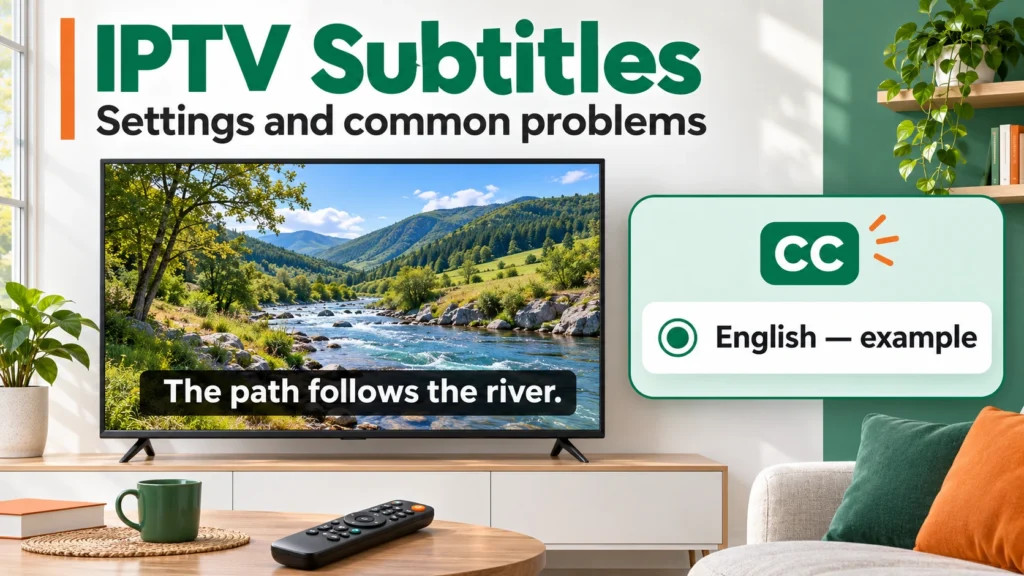
On this page
Here is how to get subtitles on IPTV: start playback, open your player’s subtitle or combined audio/subtitle control, select an available supported track and confirm it appears. Controls vary by app and device. If your language is missing, check the programme’s subtitle availability or a supported external-file workflow; a caption switch cannot create a missing track.
Understand the different types of IPTV subtitles
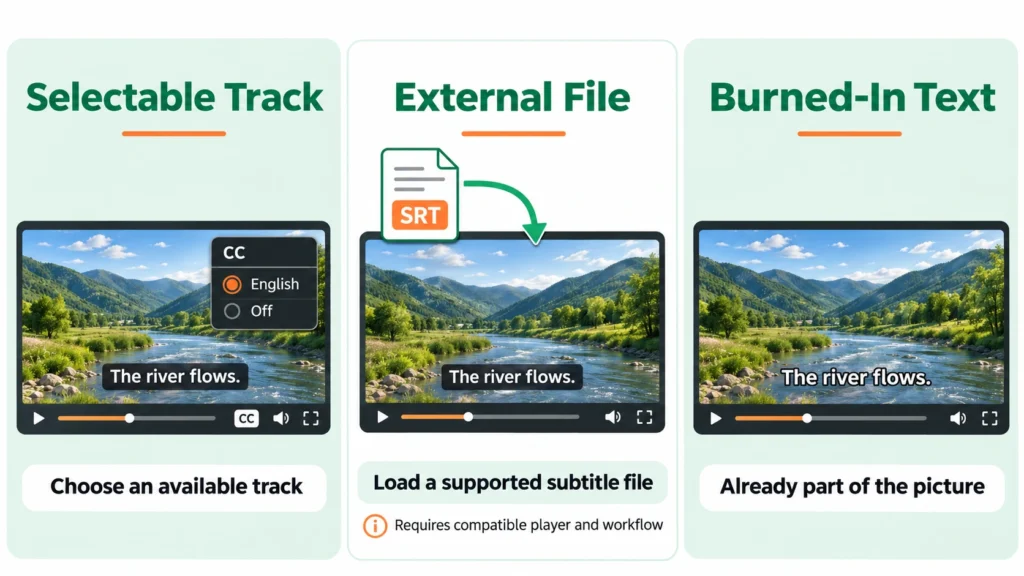
Selectable subtitles arrive with or alongside the media and can be selected when the player supports their format. Some use text; others use images. A separate subtitle file, such as a supported SRT file, needs a compatible attachment workflow. It is not automatically usable with every stream.
Burned-in subtitles are already part of the video picture. They are different from a selectable overlay. VideoLAN’s Windows FAQ confirms that VLC cannot disable burned-in text and distinguishes styling for text-based formats. The subtitle-track switch controls a separate layer; it cannot remove words already encoded into the picture.
Closed captions, often labelled CC, and subtitles for deaf and hard-of-hearing viewers, often labelled SDH, can include speaker information and sound cues. Labels and coverage vary. Audio language, interface language and subtitle language are separate choices: changing one does not guarantee another changes.
Understanding how to get subtitles on IPTV begins with identifying which type you have. Write down what is visible: no listed track, a selected track without text, unreadable captions or a timing gap. That observation determines which check to try first. Neither a playlist nor an electronic programme guide guarantees captions. Automatic transcription or translation, where a particular system supports it, is a separate capability from selecting supplied tracks; do not assume it is available or accurate on your setup.
1. Check the programme before changing IPTV subtitle settings
Identify the exact item: a live programme, on-demand film or particular episode. Record the version or edition where known. A channel name alone is insufficient because subtitle availability can vary between programmes, sources and versions of the same title.
Before experimenting with IPTV subtitle settings, ask your provider whether that specific item carries the desired language and whether the track is compatible with your supported setup. “Does this episode include English subtitles in this player?” is more useful than “Do you have subtitles?”
When learning how to get subtitles on IPTV, use an item whose caption availability has been confirmed as your comparison. Keep a simple note of the item, track label, setting changed and result so you can repeat the comparison. If it displays captions, you have evidence that at least that combination of content, player and device works. You have not established coverage for every programme.
If availability is unconfirmed, say so rather than treating an empty track list as proof of missing source captions. The app may not expose or support the format. Deciding how to get subtitles on IPTV therefore requires both source information and observation in the player.
2. How to get subtitles on IPTV using your player’s controls
Identify the installed app, developer and version before following detailed instructions. Similar app names do not guarantee identical menus, and a mobile interface may differ from a television build.
Use this generic sequence:
- Start the authorised programme you want to watch.
- Reveal the playback controls using your normal remote or touch action.
- Look for a documented subtitle, caption or combined audio/subtitle control. CC is one possible label, not a universal button.
- Select the available language or track you need.
- Close the control overlay and watch a passage containing dialogue.
That sequence explains how to get subtitles on IPTV without inventing a shared menu. If only audio tracks appear, do not assume selecting a different spoken language also enables subtitles.
As a documented example, the VLC for Android 3.X playback guide describes a combined audio/subtitle window with available subtitle-track selection and disabling. Its layout is an example for that documented platform/version, not a current universal television interface.
If you cannot locate equivalent controls, consult the exact developer documentation. Our player-selection guide explains what to verify when assessing supported functions. How to get subtitles on IPTV is a compatibility question before it becomes a reason to replace your player.
3. Check language preferences and device caption settings
A preferred language tells a supported player what you would like it to choose. It does not establish that the programme includes that track. Note both the preference and the actual tracks listed during playback.
For how to get subtitles on IPTV on Google TV, distinguish the device preference from the app’s own controls. Google’s accessibility guidance gives this device path: from the Google TV home screen, open Settings → Accessibility → Captions, turn on Display and choose options. Google warns that these preferences might not apply to certain apps.
This is not a Samsung Tizen, LG webOS or generic Android-phone path. Check the manufacturer’s documentation if your layout differs. A device caption preference does not generate captions for every stream.
After choosing a track, change to another confirmed-captioned item, then close and reopen the app normally. Observe whether the selection persists or needs choosing again. For viewers asking how to get subtitles on IPTV consistently, that distinction matters: a successful selection in one session does not prove a global preference controls every title.
4. Make supported subtitles readable
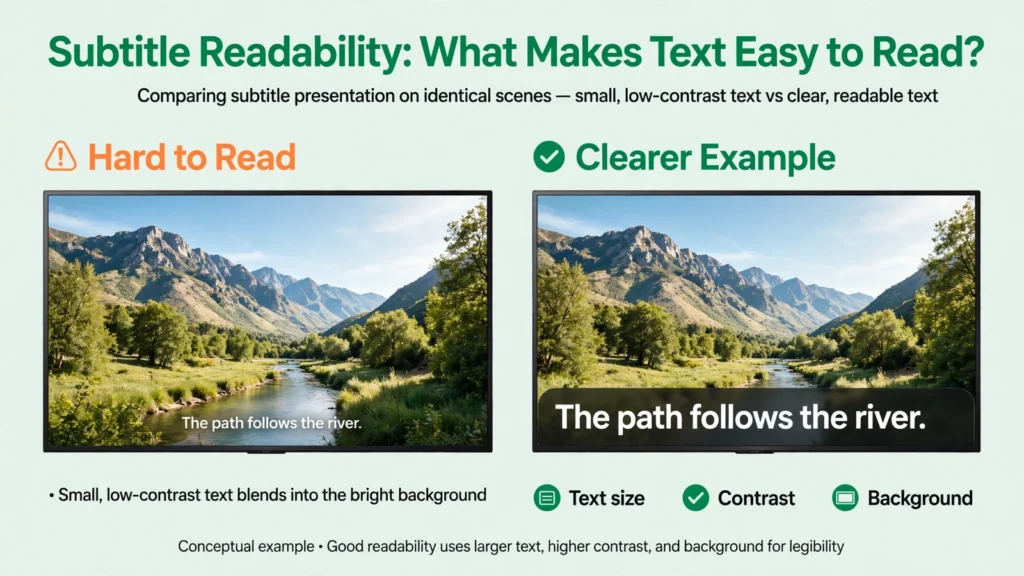
Readability is a separate question from availability. Sit at your normal viewing distance and watch captions over both bright and dark scenes. Where supported, test text size, contrast, background, outline and placement individually.
The VLC for Android 3.X subtitle-settings documentation describes size, colour, background and bold options. It also documents text encoding. These are documented controls for that interface, not a promise that every subtitle format or app responds identically.
When investigating how to get subtitles on IPTV that you can comfortably read, start with the smallest relevant change. Try a background before also altering size and position; otherwise you will not know which adjustment helped.
Image-based tracks may not respond like text-based tracks, while burned-in captions cannot be restyled as a separate layer. If words appear cut off, inspect picture-fit or zoom settings against the device documentation, preserving the original choice. Cropping is a possibility to check, not an established cause.
Also distinguish captions from a temporary menu overlay. If two text layers remain during playback, one might be burned into the picture while another is selectable. Knowing how to get subtitles on IPTV includes identifying which layer your control actually changes.
5. Investigate IPTV subtitles not working
Describe the failure before attempting a fix. “IPTV subtitles not working” could mean no track is listed, a selected track stays invisible, the wrong language appears, characters are garbled, two layers overlap or captions disappear after changing programmes.
For how to get subtitles on IPTV when a track is listed but invisible, confirm selection, dismiss overlays and watch a dialogue passage. Then compare another item known to carry compatible captions. Keep the app, device and other settings unchanged during that first comparison.
For garbled characters, check the documented text-encoding option if your player offers one. Encoding concerns how text is interpreted; it does not translate dialogue or create missing captions. Record the original setting before adjusting it, and restore it if the result worsens.
An officially supported alternative player can provide another comparison where feasible. Close the previous playback session and respect your provider’s simultaneous-connection allowance. Use the same device and source where supported; any remaining differences limit the conclusion.
Learning how to get subtitles on IPTV through comparisons means collecting clues, not declaring a provider or player fault from one result. Captions working on an on-demand title establish that combination only; they do not establish that the same player handles every live broadcast subtitle format.
For how to get subtitles on IPTV when the second comparison also fails, record both outcomes without ruling out item-specific or format differences. The two items may share a source limitation, while the player may have different support for their formats. Avoid blanket decoder changes, deleting app data or reinstalling as the first step. If the whole app fails, use the separate Smarters troubleshooting guide where relevant to your installation.
6. How to get subtitles on IPTV when timing is wrong
First identify what is out of sync. Do the spoken words match the video while subtitles appear late? Or are audio and picture themselves misaligned? A subtitle-delay adjustment addresses a different relationship from an audio-delay adjustment.
If picture plays but sound is missing, use the audio troubleshooting guide rather than changing subtitle timing.
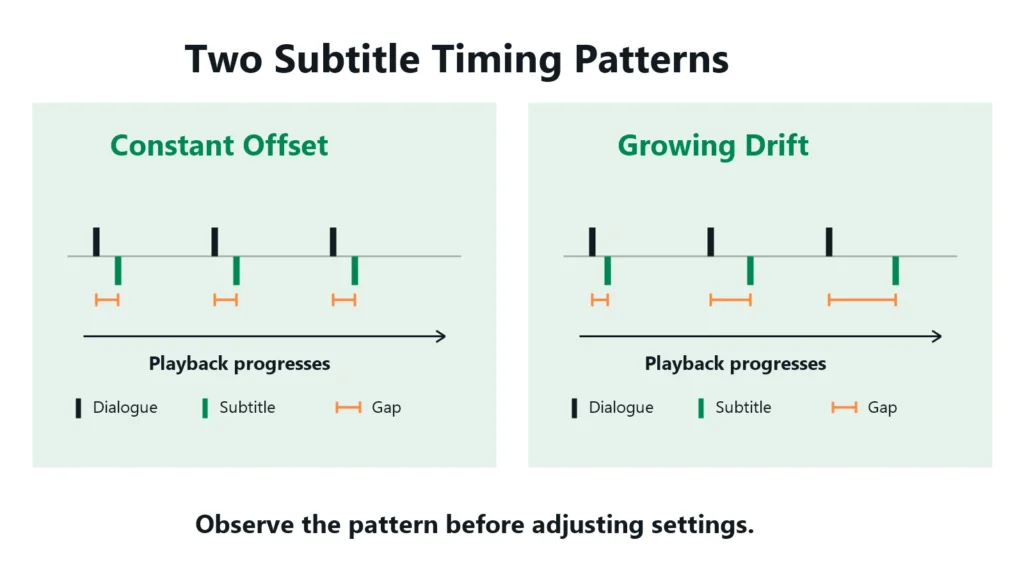
A constant offset means captions appear consistently early or late by roughly the same interval. Progressive drift means the gap grows as playback continues. These patterns describe what you observe; neither proves a particular technical cause.
If your player documents subtitle delay, record its starting value, make one small adjustment and observe several dialogue exchanges. Reverse or reset the change if it moves captions the wrong way. Do not assume plus/minus signs or desktop shortcuts work identically across apps.
The VLC Android 3.X playback documentation describes a subtitle-delay control separately from audio delay. That establishes an option in its documented interface, not delay support in every IPTV player.
For how to get subtitles on IPTV with a steady offset, an appropriate supported adjustment may help. If the gap grows or changes abruptly, a fixed delay may not resolve it. A mismatched programme edit is one possibility, not a diagnosis.
Keep the question of how to get subtitles on IPTV aligned with the actual pattern: note whether the mismatch begins immediately, increases or changes after a particular scene. That evidence is more useful than repeatedly increasing a delay setting.
7. Use an external subtitle file only when the workflow supports it
A legitimate external file can be useful when you have the correct programme, episode, edit and language, and the player supports attaching its format to that media. A matching title alone is insufficient if versions contain different introductions, cuts or scene timings.
The VLC Android 3.X playback documentation describes Select subtitle file within the subtitle options for loading an existing file. That documented function does not guarantee attachment works with every live stream, remote source, device build or other player.
When considering how to get subtitles on IPTV through an external file, verify the complete workflow first. A supported SRT file for an on-demand item is different from attaching captions to an ongoing live broadcast. Ask the app developer about your exact scenario if documentation is unclear.
Use legitimately obtained files from a trustworthy source. Do not upload private playlist links to public subtitle sites, install executables or codec packages offered as captions, or open suspicious archives to proceed.
After attachment, check language, readability and timing. If no suitable supplied track or supported external file exists, acknowledge that limit. Knowing how to get subtitles on IPTV also means recognising when local settings cannot supply what is absent and asking support a precise question.
Match the subtitle symptom to the next useful check
Use this table when deciding how to get subtitles on IPTV without changing unrelated settings. Each explanation is a possibility, not a confirmed diagnosis.
| Observation | Possible explanation | Next check |
|---|---|---|
| No subtitle track listed | Source availability is uncertain, or the player does not expose/support the format | Confirm the exact programme and compare a known-captioned item |
| Selected track is invisible | No caption occurs in that passage, rendering differs or display settings interfere | Watch dialogue, dismiss overlays and test another confirmed track/item |
| Wrong language appears | Track selection, labelling or source content may differ from expectations | Compare the chosen label with the actual text and ask about availability |
| Garbled characters | Text encoding or the subtitle data may be involved | Use documented encoding controls where applicable; preserve the original setting |
| Two layers of text | Selectable captions, burned-in text or another caption system may overlap | Identify which layer changes when one documented control is disabled |
| Captions disappear after switching | Selection may be item-specific, or the next programme lacks a compatible track | Inspect the new item’s track list and selection |
| Constant early/late offset | A stable timing mismatch needs investigation | Try a small, reversible subtitle-delay adjustment if supported |
| Progressively increasing gap | Timing correspondence may change over the programme | Check the episode/edit and report the drift pattern |
| Text remains when subtitles are disabled | It may be burned into the picture | Confirm the text type rather than repeatedly changing track controls |
A hypothetical example: captions are present but hard to read
Imagine a viewer watching a confirmed-captioned on-demand title. The selected track appears, but pale words are difficult to distinguish over a bright scene. The player offers a subtitle-background setting.
They leave the programme, language, text size and timing unchanged, then enable that background alone. Suppose the words become easier to distinguish from the picture. This would support keeping that readability adjustment for the current setup; it would not establish that every subtitle format supports it.
In this example, how to get subtitles on IPTV is already resolved at the availability and selection stages. The remaining task is presentation. Changing accounts, searching for another subscription or adjusting audio delay would address different questions.
If the same setting produces no change, the viewer records that result and checks whether the displayed captions are text-based, image-based or burned in. Understanding how to get subtitles on IPTV helps separate those possibilities without inventing a guaranteed fix. This scenario illustrates a comparison, not a real customer test or measured accessibility result.
How to get subtitles on IPTV: what to send support
Ask the provider about source availability, the exact programme, languages and supported access. Ask the app developer about documented track handling, styling, external-file workflows or a reproducible display problem. Both may be relevant when a source and player interact.
A useful question about how to get subtitles on IPTV identifies the item and what the app shows. “This episode lists an English track, but selecting it leaves no visible captions during dialogue” is more actionable than “subtitles broken”.
Include:
- Exact app title, developer and version.
- Device model and operating-system version.
- Live or on-demand content, plus an item/episode reference without private access data.
- Desired language and the track labels actually shown.
- The symptom: missing, invisible, unreadable, garbled, duplicated or mistimed.
- Date and time with timezone, using Irish local time where relevant.
- Changes tried, original settings and observed outcomes.
Redact passwords, tokens, account identifiers and private server or playlist URLs from screenshots. Our device compatibility guidance can help frame the platform information, but it cannot establish a particular programme’s caption coverage.
When asking how to get subtitles on IPTV, send observations rather than a conclusion you cannot verify. A single successful comparison narrows investigation; it does not prove every component works universally.
Frequently asked questions
Do all IPTV channels have subtitles?
No. Availability can vary by programme, source, version and language, and the player must handle the supplied format. For how to get subtitles on IPTV on a particular channel, ask about the exact programme rather than assuming continuous caption coverage from the channel name.
Can I add subtitles to live TV?
Only where the source and player provide a suitable supported workflow. Selecting a supplied live caption track is different from attaching an external file. A player that accepts a subtitle file for one video does not necessarily support that arrangement for every live stream.
Why does my preferred language not appear?
A preference cannot create a track the programme does not provide or the app cannot expose. Check the actual available list and ask about that item. How to get subtitles on IPTV in your chosen language depends on both availability and supported handling, independently of the audio or menu language.
Do TV caption settings affect every player?
No. Device settings and an app’s own implementation are separate. Google TV explicitly warns that caption preferences may not apply to certain apps. Check the installed player’s documentation and observe the result rather than assuming a device switch forces captions onto every stream.
Can I turn off burned-in subtitles?
Not through a separate subtitle-track switch: they are part of the video picture. If you need a version without that text, ask the source whether one exists. Learning how to get subtitles on IPTV includes recognising that selectable captions and burned-in text need different expectations.
Can I fix subtitles that become progressively late?
A fixed delay may not correct progressive drift. Check the exact episode or edit, observe whether the gap grows or jumps, and report the pattern. If considering how to get subtitles on IPTV back in sync, avoid repeatedly changing both audio and subtitle timing; preserve a clear comparison.
Does changing player or paying premium guarantee captions?
No. Another supported player may expose a compatible track differently, but payment does not create missing source captions or languages. Verify the specific feature, content and device before purchasing. A useful outcome can be keeping your player and confirming the source limitation.
Your next step
Confirm the programme’s available tracks, identify the installed player and make the smallest relevant adjustment. If you still need to establish how to get subtitles on IPTV for your particular combination, use the supported setup guide to clarify the device and access method before changing purchases. Keep unresolved language or format availability explicit when contacting support.