
IPTV Smarters Not Working? 9 Practical Checks
Identify whether the problem is the app, account, playlist or playback, with checks that respect your device and Smarters version.
On this page
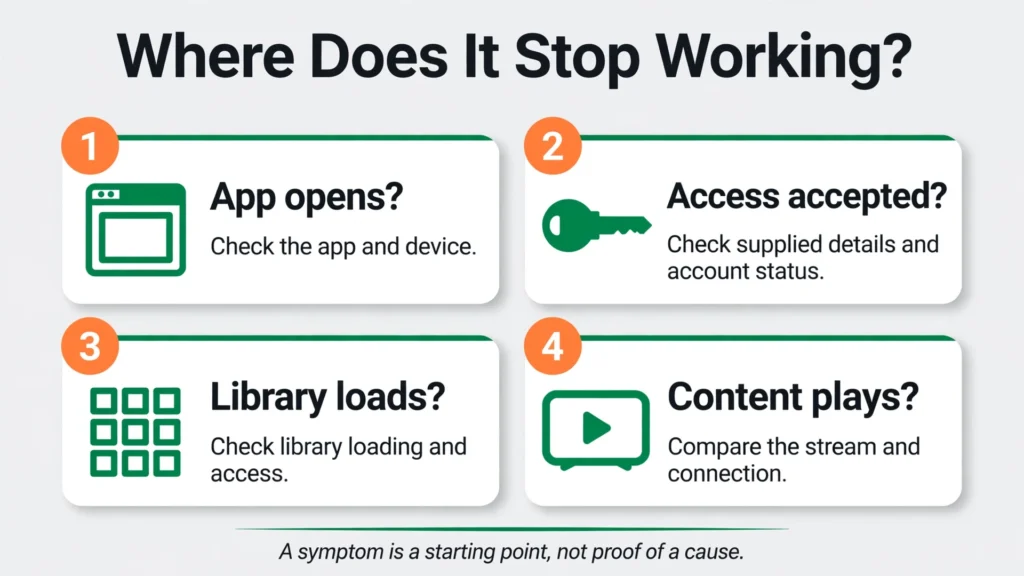
IPTV Smarters not working? Start by identifying where it fails: before the app opens, when access is checked, while the library loads, or during playback. Reopen or restart for launch problems, verify supplied details for login trouble, and investigate individual streams separately from widespread buffering. The right action also depends on your exact app, developer and device. These nine checks help you collect useful evidence without unnecessarily deleting saved access or buying another subscription.
IPTV Smarters not working? Identify the symptom first
A loading circle, rejected login and sudden closure are different observations. Use the closest row below to choose your starting point; none establishes a cause by itself.
| Symptom | First useful check | What it may suggest | Right support route |
|---|---|---|---|
| App will not open or crashes | Reopen, restart and record the failure stage | An app or device problem needs investigation | App developer; device support if other apps fail |
| Login rejected | Compare the supplied access method and details | Details, access status or app handling may be involved | Provider for access; developer for demonstrated app behaviour |
| Empty or loading library | Confirm account access and whether all categories are affected | Source response, format or app loading may be involved | Provider first for source/access checks |
| One stream fails | Try another entitled stream in the same app | The issue may be limited to that item | Provider, with the item and time |
| Widespread buffering | Compare streams and broader connection behaviour | Playback, delivery or network conditions need investigation | Provider, developer or network support according to evidence |
| Paid app but no channels | Identify what the payment purchased | Player features and content access may be confused | App seller for app purchases; provider for content |
Avoid treating “IPTV Smarters not working” as a single diagnosis. Write down what you actually see before changing anything. An app that opens normally can still have a software problem at login or playback; an app that rejects access does not automatically establish a provider fault.
9 practical checks for your Smarters app
Start with the check matching your symptom. Keep a short record of the action and result, changing one thing at a time. If the next failure occurs at a different stage, record that difference rather than describing the whole test as simply successful or unsuccessful.
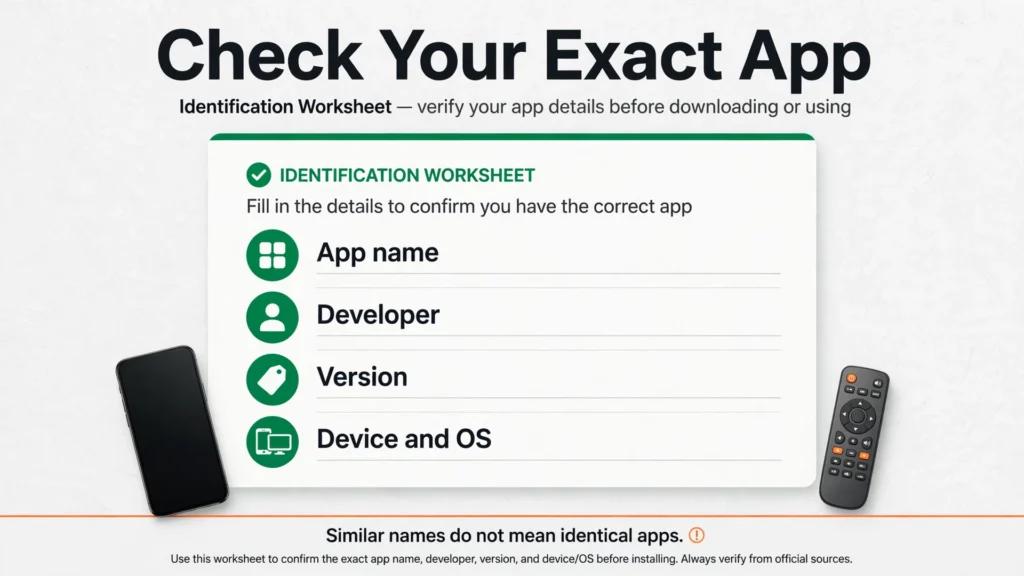
1. Confirm the exact app, developer, version and device
Action: Start with the installed app’s information and its original distribution page. Record its full title, developer, version, device model and operating system. If the app cannot open, look for information through the device’s documented app-management controls or original store entry.
What to observe: Do the app title, publisher and original distribution source match? Is the version for your actual platform?
The Smarters Pro developer website links to its store listings. Its Google Play mobile listing identifies Tech Smarters. These are identity references, not confirmation that every similarly named player belongs to the same developer.
When researching IPTV Smarters not working, match advice to those details. A screenshot from another app or TV platform may describe controls you do not have.
Do not assume legacy IPTV Smarters Pro, Smarters Player Lite and every rebranded player share ownership or instructions. If identity remains uncertain, establish provenance before installing an update or entering credentials elsewhere. For IPTV Smarters not working on an unfamiliar installation, this is the most useful starting point.
2. Record when the failure happens and compare its scope
Action: Follow the normal sequence once: opening, access, library loading and playback. Note the first point that fails, the exact redacted message and whether the app remains responsive. Avoid repeated login attempts that add no new information.
What to observe: Does the problem repeat at the same stage, and is its scope one item, one category or the whole app?
A useful IPTV Smarters not working report might say, “The library appears, but selecting any item closes the app.” That is more specific than “nothing works” and directs attention beyond initial login.
Compare the scope without changing settings: one item or several, one category or every category, one app or other apps too. Record the last working state and any known change, such as an update or newly supplied access details.
For IPTV Smarters not working intermittently, include when it recurs. A timing pattern helps support investigate, but it does not prove an outage or congestion. Keep observations separate from explanations you have not established.
3. IPTV Smarters keeps crashing: reopen and restart appropriately
Action: If IPTV Smarters keeps crashing, close the unresponsive app using instructions for your device, then reopen it. If the failure repeats, restart the device normally and try the same action again.
What to observe: After reopening or restarting separately, does the app reach a screen it could not reach before?
Google’s Android phone guidance supports restart, updates and app troubleshooting, while noting that settings vary. Apple’s iPhone and iPad guidance similarly recommends closing and reopening, restarting and checking updates. Neither page supplies a universal television menu.
For IPTV Smarters not working immediately after launch, observe whether restarting changes the failure stage. Opening successfully but failing during library loading is a different result from closing before any screen appears.
If several unrelated apps also crash, investigate the device more broadly. If only this player fails consistently, record the repeatable action for its developer. With IPTV Smarters not working after a restart, move to compatibility and updates rather than repeating restarts indefinitely.
4. Check official app/system updates and device support
Action: Open the original trusted store or developer distribution page for your exact installation. Check for an offered app update and review the device’s official system-update guidance. Record existing versions before making changes, then repeat the same failed action afterward.
What to observe: After an official update, does the same action fail again? Record which version changed.
For IPTV Smarters not working following an update, the sequence is useful evidence, not proof that the update caused it. Tell support what changed and whether the problem existed beforehand.
Read device requirements and regional eligibility on the relevant listing. The existence of an overseas listing does not establish that an Irish account can install the same build. Do not replace your installation with a similarly named app simply because it appears newer.
If IPTV Smarters not working coincides with an unsupported device or unavailable update, ask the developer about that exact combination. Avoid random APK mirrors or downgrades based on anonymous comments. Preserve the original installation while you establish your options.
5. IPTV Smarters login failed: verify the supplied access method and details
Action: For an IPTV Smarters login failed message, first identify which account the screen expects. Provider access details, an app-premium account and an app-store account serve different purposes. Use the method your provider supplied and your installed version supports.
For server, username and password input, our Xtream Codes login checks explain how to distinguish the supplied fields from a playlist URL.
What to observe: Does the error persist with the supplied method and unchanged provider details? Note any different wording without exposing access.
Compare the original instructions carefully: username, password, accidental spaces, similar-looking characters and any supplied server information. Preserve the specified protocol, port and path. There is no universal rule that all server addresses end at a port or contain no path.
When investigating IPTV Smarters not working at login, ask whether the provider has changed the access details. Do not improvise addresses, switch HTTPS to HTTP or paste private links into public validators. The setup guide provides supporting access context.
Generic rejection wording does not reveal an exact HTTP status, prove expiry or establish a ban. For IPTV Smarters not working despite matching details, ask the provider to confirm access status and the supported method before changing unrelated settings.
If you were supplied a playlist, check the M3U file and URL input guide before changing account fields.
6. Confirm provider activation, access period and permitted sessions
Action: Ask your provider whether access is activated, currently valid and permitted on the device or method you are using. Also confirm the simultaneous-session allowance. Being able to install an app on several devices does not establish permission to play on all of them together.
What to observe: What does the provider confirm about activation, dates and allowed sessions? Separate that confirmation from your own assumptions.
For IPTV Smarters not working during a comparison, stop playback on the original device before trying another supported device. Do not assume closing the picture instantly clears every provider-side session; ask support if the allowance remains unclear.
Check what you paid for, including the seller and purchase description. The Smarters Pro terms describe a standalone player that does not supply channels. Paying for app features therefore does not establish a separate provider entitlement.
If IPTV Smarters not working follows a missed renewal or pending activation, obtain confirmation from your actual provider. Renewal arrangements vary. Avoid buying replacement access merely to test a generic error whose cause remains unknown.
7. IPTV Smarters not loading channels: investigate the library separately
Action: With IPTV Smarters not loading channels, note whether access appears accepted, categories appear, the library stays empty or loading never completes. Those observations help distinguish library retrieval from a stream that fails after selection.
What to observe: Are all categories empty, or are streams available while only guide information is missing?
Check whether a visible search or category filter explains the limited view, where your version provides one. Ask the provider whether the supplied source remains current and compatible with your app’s supported input format.
For IPTV Smarters not working at this stage, use a refresh or reload only if the installed app documents that function. Do not follow an invented settings path or repeatedly remove and re-add a working profile.
An empty library can involve access, the source response, supported format or app/device behaviour. It does not identify one cause. If IPTV Smarters not working leaves every category empty, send that scope to the provider; if their checks do not resolve it, share the same evidence with the app developer.
8. Separate playback, network and stream-specific problems
Action: Once the library loads, try another entitled stream in the same app, on the same device and connection. If only one item fails, report that item and the time. If several fail, investigate the broader pattern before changing the player.
What to observe: Does the pattern follow a particular stream, app, device or connection? Record what else changed during each comparison.
For IPTV Smarters not working during playback, distinguish buffering from closure, missing subtitles or absent programme-guide data. These are different symptoms; faster broadband will not necessarily address them.
Use the buffering guide for sustained interruptions and the broadband-speed guide when assessing household capacity. Keep speed testing separate from diagnosing a rejected login.
If appropriate, compare the same device and app on another authorised connection, considering mobile-data charges. Changing networks alters local conditions and the route to the service. Improvement is a clue, not proof of ISP throttling. For IPTV Smarters not working across several streams, record each comparison without disabling security protections or changing several variables together.
9. Preserve access before clearing data or reinstalling
Action: Before a reset, confirm that you can restore provider details, relevant settings and app purchases where applicable. Verify that the original trusted app remains obtainable for your device and region. If restoration is uncertain, contact support before deleting anything.
What to observe: Can you recover access and obtain the same trusted app again? If not, preserve the current installation and ask for help.
For IPTV Smarters not working on Android, distinguish cache from storage. Google’s storage guidance describes cache as temporary data and clearing storage as deleting app data. Options vary by device.
A documented cache-clearing option may be a lower-impact step than clearing storage, but it is not a guaranteed fix. App data removal can erase saved access and preferences.
On iPhone or iPad, deleting and downloading again can lose locally stored data; it is not equivalent to clearing cache. For IPTV Smarters not working after earlier checks, consider reinstalling only with a recovery plan. A factory reset is not a routine next step.
IPTV Smarters not working on your device: platform differences
The device matters as much as the app title. Use the table to select the correct documentation, rather than translating phone taps into television remote actions.
| Platform | Appropriate starting actions | Important limit |
|---|---|---|
| Android phone/tablet | Follow device guidance for reopening, restart, official updates and any available cache controls | Phone menus vary; cache and storage are different |
| iPhone/iPad | Follow Apple’s guidance for close/reopen, restart and updates | Deletion risks local data; this is not Apple TV or macOS guidance |
| Android/Google TV | Consult the device manufacturer’s or Google TV documentation for restart and updates | Android phone paths do not establish TV paths; exact menus are unverified here |
| Other smart TVs, Fire TV and desktop | Identify the exact platform and trusted app source before troubleshooting | Availability and procedures require platform-specific verification |
For IPTV Smarters not working on a television, record the model rather than just “smart TV”. A remote-control interface, store eligibility and operating system can differ substantially between televisions. Keep the installed app while checking whether it can be downloaded again.
One example: app problem or provider access?
Consider a hypothetical viewer whose app opens and displays its library, then closes when one item is selected. No real customer test or measured result is being described.
They first select a different entitled item, keeping the device, app and connection unchanged. Suppose that item plays. This narrows the observation to the original selection or its handling; it does not establish why it fails.
Next, if support recommends an alternative supported player, they stop the original session and compare the same item on the same device and connection. They keep the account details and source unchanged. Success there would make differences in player handling worth investigating. It would not prove the first app is faulty: playback format support, timing and how each player requests the source can differ.
For IPTV Smarters not working in this scenario, the useful report describes what changed and what happened. It does not announce a universal player fault.
If this viewer instead encountered rejected access, provider confirmation that it was inactive would support an account-related explanation. With IPTV Smarters not working, the evidence determines the support route; the error text alone does not. A successful comparison on a different device would change several variables and should be reported as such.
IPTV Smarters not working: choose the right support
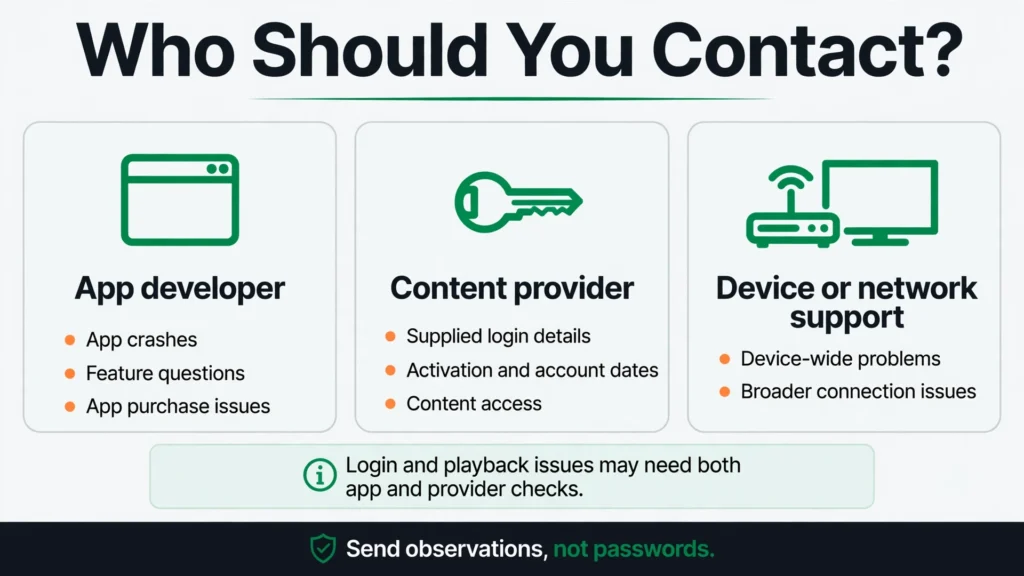
Contact the app developer for reproducible app-function problems or app-feature purchase questions. The Smarters Pro contact page distinguishes application support from externally supplied content. Login and playback can involve either side, so describe the evidence rather than assigning blame.
Contact your content provider for supplied credentials, activation, access periods, library sources and content entitlement. They can confirm account facts; the app developer can investigate software handling. A login or playback symptom can require information from both, rather than belonging exclusively to one support team. If IPTV Smarters not working concerns access supplied by IPTV Ireland Fast, use our existing support page.
Device support becomes relevant when unrelated apps or system functions also fail. Network support becomes relevant when broader connection evidence points that way.
Include:
- Full app title, developer and version.
- Device model and operating-system version.
- Exact message, with private information redacted.
- Date and Irish local time, stating GMT or IST as applicable.
- Failure stage, affected items and whether other apps work.
- Last working state, known changes and checks already tried.
- For each comparison, what stayed the same, what changed and what happened afterwards.
Do not include passwords, private playlist/server access URLs, tokens or unnecessary network identifiers. A useful report explains the failure without exposing access.
Frequently asked questions
Why did it stop suddenly?
Possible changes include the app, device software, provider access, source availability or connection conditions. Sudden timing does not identify which changed. For IPTV Smarters not working unexpectedly, record the last successful use and first failure, then investigate the relevant stage. Do not treat unrelated online complaints as confirmation of your cause.
Does buying Smarters include channels?
For the verified Smarters Pro product, the developer describes a standalone player without supplied channels. App-feature purchases and provider access are separate. Check the seller and purchase description if you expected content. A premium upgrade does not itself renew a provider account or restore its library.
Can the same error mean several things?
Yes. Generic access or loading wording may not explain the underlying cause. For IPTV Smarters not working with an “invalid details” message, compare supplied details and obtain access confirmation. Do not translate the wording into a specific server status, hacked account or ban without supporting evidence.
Should I clear cache or reinstall?
Start with reopening, restarting and official updates appropriate to your device. Use documented cache controls only where available. Before deleting data or reinstalling, preserve recovery details and check trusted download availability. If you cannot restore access, pause and ask support. Deletion is not a harmless diagnostic shortcut.
What if it works on one device?
That is a useful comparison, but different devices can use different builds, formats or network connections. Close overlapping sessions and respect the account allowance. For IPTV Smarters not working on one device, report both configurations and results. Success elsewhere does not prove that every provider function or network route is healthy.
What if the app is missing from my store?
Check the exact developer, device compatibility and your store region through trusted sources. An overseas listing does not prove Irish installation eligibility. Ask the developer about your model before uninstalling an existing copy. Avoid lookalike apps and unofficial download mirrors offered as automatic replacements.
When should I contact my provider instead?
Contact the provider when you need confirmation of supplied access, activation, account dates, permitted sessions or library entitlement. Include the failure stage and comparisons already made. If the issue is demonstrated app behaviour, the developer may also need that report. Neither support route requires buying another subscription first.
Your next step
Identify the app, locate the first failing stage and perform the matching low-impact check. For IPTV Smarters not working after those checks, send a concise, redacted report to the relevant support team. Preserve recoverable access and change one variable at a time so the next result is useful.