
IPTV M3U Playlist: 7 Essential Setup and Troubleshooting Checks
Understand the difference between a playlist file, a playlist URL and guide data, then follow seven checks to load your supplied access and investigate failures.
On this page
An IPTV M3U playlist is a text-based list of media locations, often with labels and optional metadata. Confirm whether you received a file or a remote catalogue URL, load it through a compatible player’s supported input, then test an authorised item. The list is not the video itself, and programme-guide data is separate. Visible entries alone do not establish successful playback or current access.
Choose the IPTV M3U playlist input before loading
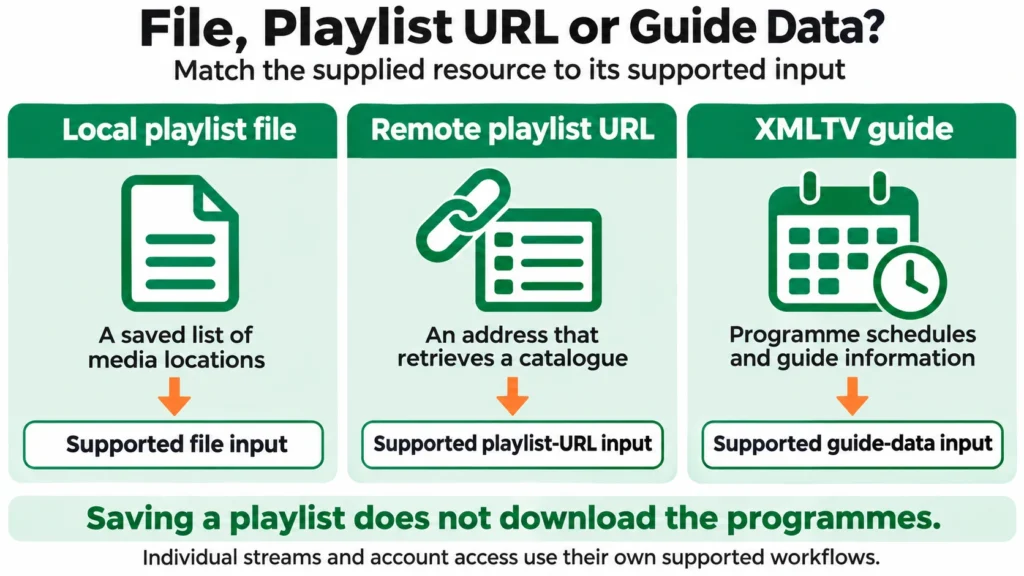
Several resources can arrive with setup instructions, but they do different jobs. A downloaded playlist may contain network addresses; saving it does not save the programmes. A remote address retrieves a resource whose contents still need to match the player’s supported input.
Use this table to identify what was supplied. Its input descriptions are conceptual, not menu names shared by every app.
| Supplied resource | What it represents | Where it belongs | What it does not prove |
|---|---|---|---|
| Local playlist file | A saved list of media locations and supported labels/metadata | A compatible player’s documented playlist-file input | The referenced programmes were downloaded or remain accessible |
| Remote channel-playlist URL | An address used to obtain a channel catalogue | A supported remote-playlist input | Automatic refresh, permanent access or playable items |
| Individual stream/HLS manifest | A resource describing media playback rather than necessarily a channel catalogue | A compatible supported media/network workflow | A library of channels or a full TV interface |
| XMLTV guide | Programme schedules and related guide information | The player’s supported guide-data configuration | Video streams, viewing rights or catch-up footage |
| Account/identifier-based access | A service/player-specific supported access arrangement | That edition’s genuine account or activation workflow | A universal URL that can be constructed manually |
An IPTV M3U playlist should be handled according to its actual role. If the sender has provided a guide address alongside a catalogue address, keep their purposes distinct. If the method remains unclear, confirm it before importing anything.
1. Identify what your service actually supplied
Start with the original instructions and make a quick input record:
- Resource type: downloaded file, remote catalogue, individual stream, guide source or supported account/activation method.
- Player: exact title, developer and installed platform edition.
- Device: the hardware and operating system actually running that player.
- Intended input: the documented method both the service and app support.
If you received server, username and password details instead of a playlist, use our Xtream Codes setup checks to confirm the supported account-input method.
An address in a message is not automatically the resource your chosen input expects. For example, a guide link belongs to a different task from adding media locations. Resolve that distinction before saving another configuration.
Confirm the intended app, developer, edition and device. A native television player and an app on an attached streaming device may use different workflows. Record where the software actually runs rather than identifying the setup only by the television’s brand.
Before adding an IPTV M3U playlist, ask the sender which resource and player method they intend you to use. Do not derive a supposed playlist endpoint from a server name and login details, or assume another account format can be converted by hand.
Our player-selection guide covers supported inputs and practical app requirements. A player purchase and service access remain separate matters; verify what each seller provides rather than assuming either automatically supplies the other.
The format of an IPTV M3U playlist does not establish included channels, access duration, simultaneous use or geographic conditions. Those questions belong to the supplied service arrangement. A compatible input is one requirement for playback, not confirmation of every entitlement or feature.
2. Preserve the M3U playlist URL or original M3U file
For an M3U playlist URL, copy the complete supplied address without extra spaces, line breaks, quotation marks or surrounding message text. Preserve meaningful parameters and case-sensitive characters. Do not casually reorder, decode or reconstruct it to make it look simpler.
The address need not end in .m3u to return a playlist. Conversely, a filename-looking suffix does not establish what the response contains. Keep the supplied protocol and required components; changing HTTPS to HTTP is not a generic compatibility fix.
Protect the supplied access details
Treat an IPTV M3U playlist link as private even if it opens without a password prompt. Credentials or tokens may already be embedded in the access information. Do not put the full address into public validators, screenshots, forum comments or prompts.
For a trusted supplied file, retain an untouched original. Use the player’s supported local-file route rather than pasting its entire contents into a URL field. If appropriate, inspect it locally without uploading it to an unknown checking service.
An error page can be saved under a misleading filename, so the extension alone is insufficient. Likewise, a successful HTTP response does not prove valid list contents or playable streams. Check an IPTV M3U playlist privately and preserve evidence of the result without exposing its access details.
3. Load the IPTV M3U playlist through a supported workflow
Use documentation for the installed edition. A supported general sequence is:
- Confirm that the player accepts the supplied resource type.
- Choose its actual playlist-file or remote-playlist input.
- Select the trusted file or paste the complete supplied URL.
- Save using the app’s genuine offered control.
- Perform a documented load or refresh if required.
- Observe whether entries appear or an error is reported.
Do not invent an Add Playlist screen or combine account fields and playlist access into a fictional form. If the available controls do not match the supplied method, establish support before experimenting with another input.
The Kodi IPTV Simple README documents local-path and remote-URL M3U resources, plus optional caching and refresh behaviour. Those are capabilities of that addon/documentation, not evidence that every player has the same settings or updates lists identically.
For an IPTV M3U playlist supplied as a downloaded file, remember that the saved copy is a snapshot unless a supported process updates or replaces it. A remote URL also does not guarantee automatic refresh or perpetual access. Check the actual implementation.
A scoped VLC Desktop 3.0 example
VideoLAN’s VLC Desktop 3.0 Media documentation describes Media → Open Network Stream, entering a network URL and selecting Play. This is a documented desktop network-input example for supported media, not a universal mobile/TV interface or a guarantee that an authenticated catalogue will work.
For the wider computer workflow, our Windows and Mac laptop setup guide separates desktop opening routes, playback tests and sound-output checks.
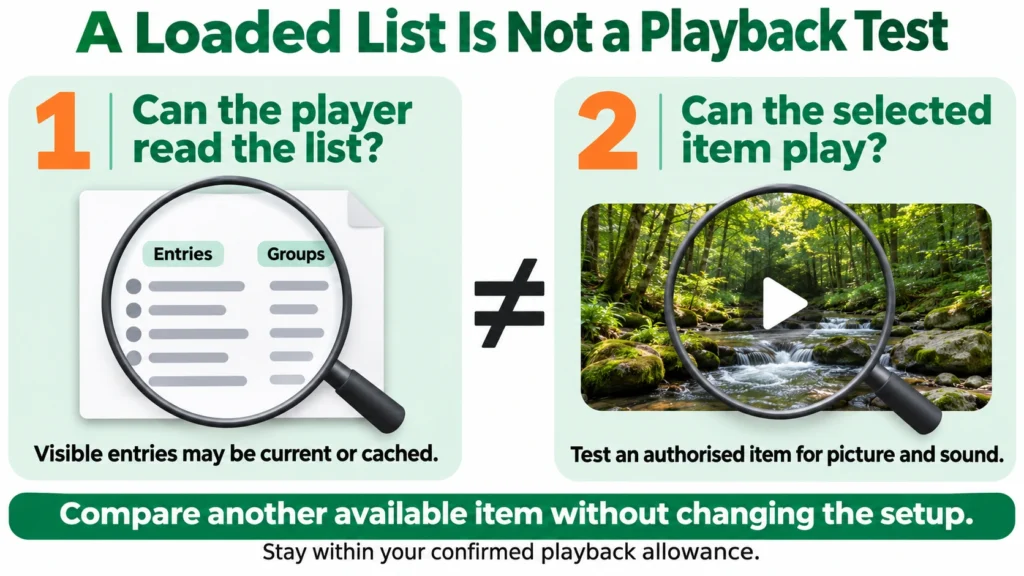
Loading an IPTV M3U playlist through a supported route answers the input question. It does not establish a full guide interface or verify the streams referenced by its entries.
4. Separate IPTV M3U playlist entries from playable media
If names or groups appear, the app has some list data. It may be current or cached. Do not treat the visible catalogue as proof of a fresh successful retrieval, valid access to every item or working playback.
For an IPTV M3U playlist that appears unchanged, inspect any documented refresh status or load error available in your player. Record what it actually reports. Do not infer that a success notification means both list retrieval and media playback have been verified.
Use a controlled item comparison:
- Stop other counted playback or recording activity as required by the selected allowance.
- Open one authorised item on the current player/device.
- Observe picture, sound and whether playback continues normally.
- Try another appropriate authorised item where available, keeping the setup unchanged.
- Note whether the problem affects one item, all tested items or another stage entirely.
Follow supported session-release behaviour rather than inventing a waiting period. A working sample does not establish the entire catalogue’s condition or future stability.
An empty IPTV M3U playlist display differs from loaded names with failed video. Buffering differs from a steady picture without sound. For interruptions, use our buffering troubleshooting guide; preserve the playlist input while investigating that distinct symptom.
Changing the list, player and network together can hide which comparison mattered. Keep the original settings and describe the observation before choosing the next action.
5. Distinguish M3U, M3U8, HLS and programme-guide data
An IPTV M3U playlist used as a channel catalogue is not the same role as a manifest used to deliver one media presentation. The .m3u8 suffix denotes UTF-8 M3U usage; it does not by itself identify a multichannel library or better resolution.
RFC 8216, the informational HLS specification, describes M3U-derived, UTF-8 playlists. In its HLS model, a master playlist can describe alternative versions of content, while a media playlist references media segments. This specification is about HLS, not every optional extension used in IPTV channel catalogues.
Renaming a file does not convert its contents or protocol, grant access or add codec support. Ask what the supplied resource represents rather than using its suffix as a quality setting.
Metadata also needs scope. The Kodi README demonstrates supported labels and guide-related attributes such as tvg-id, alongside a separate XMLTV source. Other players may interpret metadata differently, and those conventions do not prove an EPG is included.
An IPTV M3U playlist can reference guide information in some implementations, but schedules still need supported source data and appropriate mapping. If video works while listings are absent, consult the EPG setup guide instead of rewriting working stream addresses.
Do not guess an XMLTV endpoint, impose a default timezone correction or add a catch-up flag expecting it to create archive access. Guide data, local recording and provider catch-up are different capabilities with their own requirements.
6. Investigate an M3U playlist not working by the failed stage
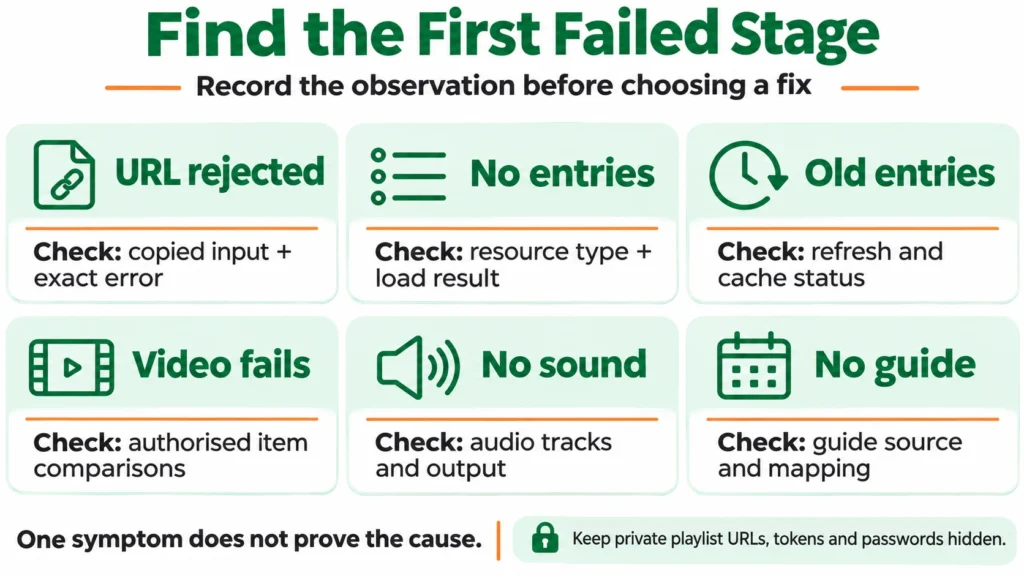
Describe the first failure. A rejected address, no visible entries, old entries and failed playback require different evidence. “M3U playlist not working” is a starting description, not a diagnosis.
For an IPTV M3U playlist with no entries, confirm the supported input, any visible filter and the actual load result. The app may have rejected the response or may not be showing what you expect. Do not announce an outage from a blank screen alone.
Retrieving the list and reaching a referenced stream are separate requests. If support reports a 403, 404 or timeout, establish which request failed before interpreting it. A 403 does not universally mean an expired subscription, and an accessible list does not establish accessible media.
| Observation | Next evidence or check | What not to conclude |
|---|---|---|
| URL rejected | Compare the complete copied input and exact error with the supported method | The source is permanently unavailable or the account expired |
| No entries appear | Check resource type, supported parsing, visible filters and load outcome | The provider has a universal outage |
| Old entries remain | Inspect documented refresh/cache status and the supplied resource’s date/version if known | The app fetched a fresh catalogue successfully |
| Entries appear but video fails | Compare authorised items and capture the actual playback error | Reading the catalogue verified each referenced stream |
| Picture plays without sound | Use the separate audio/track/output checks | The playlist input must be replaced |
| Video plays without programme listings | Check the supported guide source and mapping | Working media URLs need rewriting |
For picture without sound, follow our audio troubleshooting guide. Keep that investigation separate from whether the IPTV M3U playlist can be read.
Avoid repeated refresh loops, security disabling, DNS/VPN changes or factory resets as default responses. Before deletion or reimport, preserve access and relevant customisation: favourites or grouping may change depending on the player. Do not assume every app loses the same settings or that a backup restores every purchase.
7. Record an IPTV M3U playlist report and choose the next action
A useful IPTV M3U playlist report identifies the resource type and the first failed stage. Send the device model/OS, app title/developer/version, whether the input was a file or remote address, and the exact redacted message.
Keep the report short enough to compare with the next test:
- Input: file or remote URL, without including private contents or addresses.
- First failed stage: input, list display, selected media, sound or guide.
- Comparison: which tested items behaved differently and what remained unchanged.
- Load evidence: the actual documented status/error, or “unknown” if none is available.
Include the observation date and local time with timezone. For Ireland, use the applicable local timezone rather than assuming one fixed UTC offset throughout the year. Note whether one item or all tested items failed, and whether the displayed list could be cached.
Describe comparisons and changes in order. For example, report that the catalogue appeared, one authorised item played silently and another played with sound. That is more informative than asserting that the complete service or device is broken.
Route player-specific input questions to the app developer and service-supplied source/access questions to the service. These routes help clarify responsibilities; they do not establish fault. Ask for confirmation of supported format or fresh legitimately supplied details when appropriate.
Never post a full private IPTV M3U playlist URL, token or password in a public support request. Redact screenshots and logs, including hidden-looking address parameters. Share the input type and observation instead of the access itself.
A new plan, different hardware or another player is not the automatic answer. First establish which requirement is unsupported or what evidence is missing. Preserve any working stage while the remaining question is investigated.
A hypothetical example: the catalogue works but the guide is missing
Imagine an unspecified viewer who receives a legitimate remote catalogue and confirmation that their player supports its input. They preserve the original information, load it using the documented workflow and see channel entries.
The viewer does not assume that the visible list proves fresh retrieval or full service health. Within their permitted access, they test one authorised item, stop appropriately and compare another. Suppose both display picture and sound, but neither shows programme listings.
Those outcomes are fictional. They illustrate an IPTV M3U playlist investigation, not a real model/app test, verified Irish store listing or measured performance result. The observations support playback for the two tested items under those conditions, not every catalogue entry.
The next question concerns guide provision and mapping. The viewer asks whether a supported XMLTV source is supplied and records the guide-loading result. They leave the working media addresses alone rather than guessing another endpoint or repeatedly replacing the catalogue.
If guide information later appears after a supported correction, that would address the tested guide arrangement only. The example shows why an IPTV M3U playlist, the streams it references and the programme guide should be checked separately. One stage can work while another remains unresolved.
IPTV M3U playlist updates: files and URLs
Keep track of where a saved copy came from and when it was obtained. An older downloaded catalogue may differ from a newly supplied version without either file being inherently corrupt. Confirm whether your workflow expects manual replacement or a documented update process.
A remote IPTV M3U playlist is also subject to the player’s loading behaviour and what the provider currently returns. Retaining the same address does not establish that the app fetched new data, that entries changed or that access continues indefinitely.
Before replacing an original, record useful settings and verify the intended update method. If the provider supplies a new file, preserve the old copy privately until you understand the change. Do not run repeated imports merely because a timestamp or label looks unfamiliar.
The practical goal is a recoverable setup with a known source. A documented update and a small playback comparison provide useful evidence; a changed filename or successful download alone cannot establish the condition of every referenced item.
Frequently asked questions
What is an IPTV M3U playlist?
It is a text-based list of media locations, often with labels and optional player-supported information. It helps a compatible app locate media but is not the programme video itself. Playback still depends on supported handling, available referenced streams and the applicable access conditions.
Should I use an M3U file or a playlist URL?
Use the resource and input your service and player support. A supplied M3U file belongs in a supported file workflow; a remote catalogue address belongs in the appropriate URL workflow. Do not switch formats by guessing an endpoint or pasting file contents into an address field.
Is M3U8 the same as a channel list?
Not necessarily. It can serve an HLS playback-manifest role rather than catalogue multiple channels. The suffix alone does not establish the resource’s purpose or picture quality. Confirm what was supplied instead of assuming a similarly named file belongs in the same input.
Why are names visible but video fails?
The player can display current or cached list data while a referenced item fails separately. Test authorised items and record the actual error. An IPTV M3U playlist appearing on screen does not establish current access to every stream, successful decoding or a healthy output path.
Does downloading the playlist allow offline viewing?
Not for programmes merely referenced by network addresses. Saving an IPTV M3U playlist saves the list, not those videos. Any separate authorised download or recording capability must be verified independently; the presence of a local playlist does not create it.
Does the playlist include EPG, recording or catch-up?
Not automatically. An IPTV M3U playlist may contain supported metadata or references, but guide data and other capabilities need their own compatible sources and functions. Programme listings do not supply archives, and a flag does not establish recording support or permission.
Is it safe to share the playlist URL?
Treat it as private access information. A link may contain credentials or a token even when no login box appears. Share redacted observations with support rather than publishing the complete IPTV M3U playlist address or uploading its contents to an unknown checking service.
Your next step
Identify the supplied input, preserve it privately and follow the compatible player’s documented workflow. Test entries, selected media and guide data separately. If an IPTV M3U playlist supplied by IPTV Ireland Fast remains unclear or fails at a specific stage, contact our support team with a redacted report before replacing working settings or purchasing another setup.