
IPTV No Sound? 7 Practical Checks to Restore Audio
Find out whether missing IPTV sound comes from one channel, your player or the audio output, with practical checks for tracks, speakers and connected devices.
On this page
IPTV no sound? Check mute, set a moderate volume and confirm the selected audio output first. Then compare another channel and another app on the same device before changing audio formats. These comparisons help identify which part of the setup needs attention; they do not prove a cause. Record what changes, preserve working access and avoid resetting the player or television as your opening move.
Identify the IPTV no sound symptom before changing settings
Complete silence, quiet dialogue, distorted sound and audio that arrives late are different observations. This guide primarily addresses a moving picture with no audible sound. If music is audible but voices are difficult to hear, describe that distinction rather than reporting total silence.
For an IPTV no sound investigation, note whether the picture moves normally, freezes or stops at the same time. Sound that cuts out alongside stalled video needs a different comparison from a steady picture with continuous silence. Our buffering guide covers playback interruptions in more detail.
Think of the setup as a sequence: the programme supplies an audio track, the player handles it, the selected output carries it and the speakers reproduce it. A working picture does not confirm every audio stage is functioning.
Keep a short record of the affected programme, selected output and changes already tried. An IPTV no sound report becomes much more useful when it distinguishes what you observed from what you suspect. You do not need to identify a codec or diagnose the hardware before beginning these checks.
1. Find the scope of the IPTV no sound problem
Start with the affected channel or item and observe it during a passage where sound is expected. A quiet scene or a programme break is not a useful test of whether audio is available. Then select another authorised item in the same player, keeping the device, output and volume unchanged. Record whether both are silent or only the original selection.
Next, stop that playback and try another app or a known working input on the same device. Use content you know should contain sound. This provides a comparison without immediately changing the entire setup.
For IPTV no sound limited to one item, retain its name and the time of the failure for support. A second item working narrows the observation, but does not prove that the first source is faulty. The player may handle their audio differently.
If another app works, the speakers can produce sound under that tested arrangement. It does not prove every output format or connection is healthy. If unrelated inputs are also silent, broaden the investigation to the selected output and equipment rather than assuming the provider caused it.
Do not open additional simultaneous streams unless your plan permits them. Stop the original playback before testing another device. With IPTV no sound, a useful comparison changes as little as possible so the result has a clear meaning.
2. Check mute, volume and the selected output
For IPTV no sound, check the player volume or mute control if your version provides one, then the television and any soundbar or receiver separately. Keep levels moderate before changing outputs: a previously silent device could become unexpectedly loud when the correct route is selected.
On a Windows laptop or MacBook, use the laptop picture and sound checks to distinguish player volume from the selected operating-system output.
Notice which equipment responds to the remote. A volume indicator on a streaming box is not confirmation that the soundbar’s own volume changed. Check the relevant device’s documented controls rather than repeatedly pressing buttons without observing a response.
TCL’s Google TV sound guidance recommends checking mute, volume, comparison playback and the selected output, including external or Bluetooth devices. It notes that speaker behaviour and menus vary by model. Treat its instructions as TCL Google TV guidance rather than a universal television path.
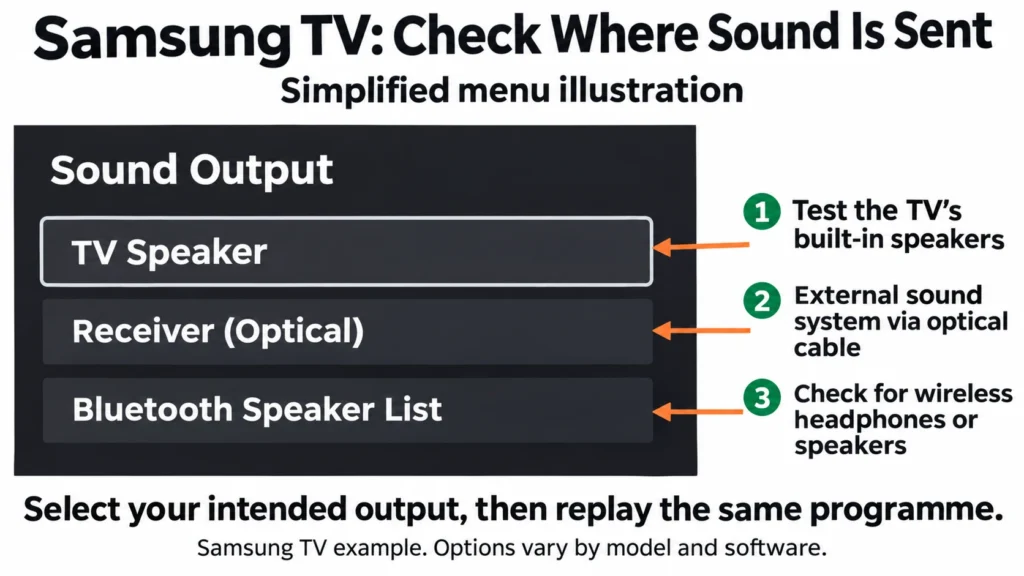
If another source is audible but this session still has IPTV no sound, inspect where its audio is being sent. Headphones, a receiver or a Bluetooth speaker may be selected while you are listening beside the television.
Use supported output controls to select the device you intend to hear. Do not toggle mute blindly: first observe the current state, then unmute where necessary. A paired device is not necessarily the active output, so check the selected route rather than deleting every saved Bluetooth pairing. Observe whether sound moves there before changing anything else. If IPTV no sound is resolved by correcting a route, retain that observation; it does not establish that an app update or another subscription was needed.
3. Select an available audio track
For IPTV no sound, open the player’s documented audio or language control during playback, where available. Record the selected track and the alternatives actually shown. App title, developer, version and device matter when finding instructions; there is no shared menu path for every player.
An audio track carries sound. A subtitle track carries captions or associated visual information. Choosing subtitle language does not necessarily change the spoken language, and enabling captions does not repair missing audio. Our subtitle guide explains those separate controls.
For IPTV no sound affecting one programme, try another available audio track if the player supports selection. Keep the output route and other settings unchanged. Watch a suitable passage and note whether sound appears, remains absent or differs in language.
A working alternative narrows the problem to a particular combination of track and handling. It does not reveal the silent track’s codec, prove that it is empty or establish its condition at the source.
Do not assume an English track, audio description or surround option is supplied for every item. A listed option also does not guarantee usable playback on every device. If IPTV no sound persists across the available tracks, preserve those results for the format and output checks instead of inventing another track to select. After switching, return to a passage where dialogue or another audible event is expected. If an alternative works, note its displayed label so you can select it again; do not rename it as a particular codec unless the player actually provides that information.
4. Review IPTV audio settings and format compatibility
Audio compatibility involves more than the presence of a speaker. The stream has an audio format, the player must handle it and the chosen output path must support what is sent onward. Record the existing IPTV audio settings before changing one documented option.
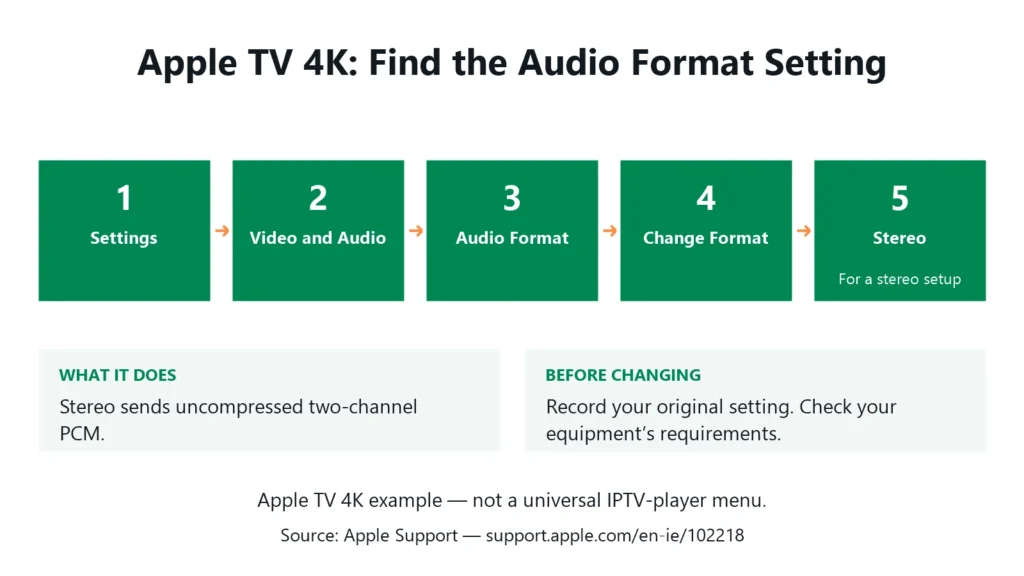
PCM describes a digital audio representation. Stereo describes a two-channel layout. They are not interchangeable terms: a device option may combine them, but that does not make their meanings identical.
Passthrough sends supported encoded audio onward for compatible downstream equipment to handle. Whether it is available or appropriate depends on the app, device, connection and receiver. It is not automatically the best choice merely because an external sound system is attached.
For IPTV no sound where format compatibility is uncertain, consult the manufacturer’s instructions for an appropriate controlled test. A supported stereo or PCM output choice may help investigate that path. Save the original setting, change one option and restore it if the result does not help.
As a scoped example, Apple’s Apple TV 4K audio guidance describes manual format options when the automatically selected format is unsuitable. Its Stereo option sends uncompressed two-channel PCM and is intended for a stereo setup. These device-specific options do not establish equivalent controls on another television or player.
Changing an output setting does not guarantee the app can decode an unsupported source codec or convert it into another format. For IPTV no sound, avoid blanket advice to disable a named format, always enable passthrough or download codec packs. Follow documented capabilities rather than treating every audio option as a repair switch.
5. Isolate HDMI, soundbar and Bluetooth routing
First identify the physical arrangement. An external streaming box connected to a television has a box-to-TV HDMI link. A player running directly on the television does not have that external link, so checking an imaginary streaming-box cable would add nothing.
A television sending sound to a soundbar over ARC/eARC uses a separate return-audio connection. The appropriate labelled ports matter for that television-to-soundbar arrangement; an ordinary box-to-TV connection does not universally need an ARC/eARC port.
For IPTV no sound through a soundbar, use supported television settings to compare the same item through the TV speakers where possible. Keep the track and player unchanged. If the speakers work, investigate the external output route while retaining the limits of that comparison: different routes may handle audio differently.
Check that the receiver or soundbar is on the intended input. Compare its displayed selection with the connection actually in use, using the equipment manuals. Follow manufacturer instructions for reconnecting cables or restarting connected equipment; do not dismantle devices.
If headphones receive sound unexpectedly, inspect their routing through the documented controls. Disconnect an unused Bluetooth audio device appropriately and retest the intended output.
IPTV no sound on one route does not prove a cable is defective or that a more expensive replacement will fix it. Record the working and silent combinations before making purchases. Model-specific behaviour also determines whether internal and external speakers can play together.
6. Restart and update the affected player or device
Close the affected player normally, reopen it and repeat the same playback comparison. If the issue persists, perform a proper device restart through documented controls. Standby and restart may be different actions, so check the manufacturer’s instructions rather than assuming a dark screen means the system restarted.
Google’s Google TV troubleshooting guidance includes system updates and restart. It also warns that a factory reset erases device data and recommends trying other troubleshooting first. Its soundbar example concerns TCL 6-Series equipment, so those settings should not be copied onto every Google TV.
For IPTV no sound after reopening, check for official stable updates appropriate to the app and device. Record existing versions, install through the trusted distribution route and test again after completion. Avoid changing format settings during the same comparison. If Smarters also freezes or fails to load, our Smarters troubleshooting guide covers those wider symptoms; keep their results separate from the sound test.
A different result after restarting or updating is useful evidence, not proof of the original cause. If IPTV no sound remains, keep the failure description rather than repeatedly performing the same action without learning anything new.
Clearing app data, reinstalling and factory resetting are later escalation choices with consequences. They can remove saved accounts, playlists or preferences. Establish how to restore access, obtain the original trusted app and recover relevant purchases before considering them with support.
7. Escalate IPTV no audio with useful evidence
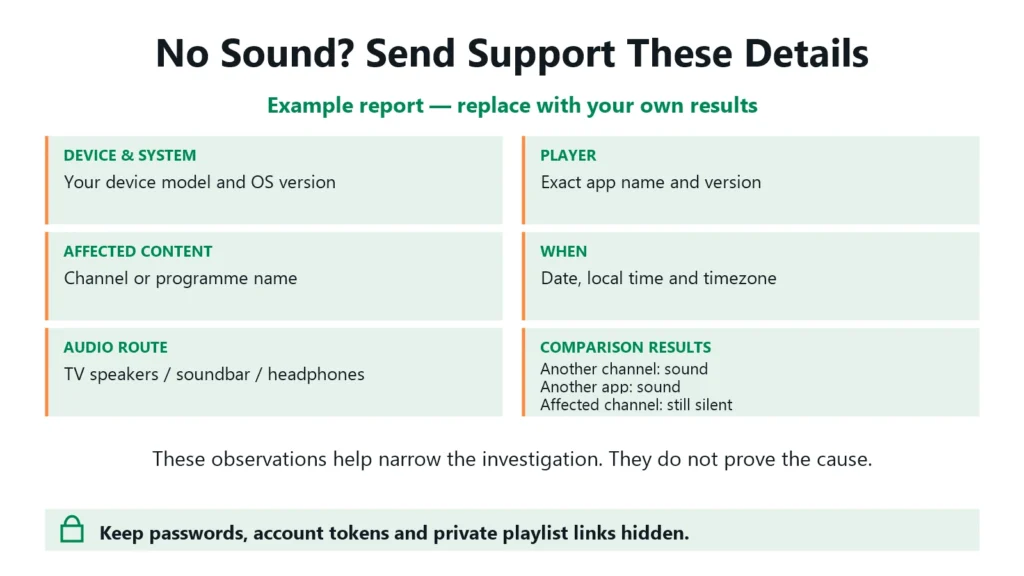
An IPTV no audio support request should identify the affected part of the setup as precisely as the comparisons allow. Contact the provider about a particular source or supplied track; contact the app developer about reproducible player behaviour. Device or sound-system support may be relevant when failures extend across unrelated apps or inputs.
One silent channel does not establish a provider outage. All channels silent in one app does not prove a television fault. Explain the pattern and let the evidence guide further checks.
For IPTV no sound with a steady picture, a broadband upgrade is not the default next step. Network investigation becomes more relevant when video also stalls or sound breaks up alongside playback interruptions. Preserve that distinction in your report.
Copy and complete this checklist:
- Device model and operating-system version:
- Exact app title, developer and version:
- Affected channel, episode or item:
- Date, time and timezone:
- Picture behaviour: normal, stalled or intermittent:
- Selected audio track and other tracks tried:
- Output route and connected equipment:
- Another channel result:
- Another app or input result:
- Changes tried and their outcomes:
Use Irish local time with its timezone when relevant, and include the date so support can identify the observation. Do not post credentials, tokens, private playlist/server links or unnecessary account information. Redact screenshots before sharing them.
A useful IPTV no sound report can leave questions unanswered. “TV speakers work, but the soundbar is silent on this item” is an observation; “the soundbar is broken” is a diagnosis the comparison has not established.
IPTV no sound: match the symptom to the next useful test
Use this table to keep an IPTV no sound investigation focused. None of the observations identifies a universal cause on its own.
| Observation | Useful next test | What the observation cannot prove |
|---|---|---|
| One channel is silent | Try another entitled item, then available tracks on the affected one | That the provider has an outage or the silent track uses a particular codec |
| One app is silent | Compare another app on the same output, then inspect the affected player’s track selection | That every speaker, connection and format works correctly |
| All tested inputs are silent | Check mute, selected output and the relevant equipment controls | That the television hardware has failed |
| TV speakers work but the soundbar does not | Check external routing, receiver input and documented format compatibility | That the cable or soundbar is defective |
| Headphones receive sound unexpectedly | Select the intended output through supported controls and retest | That the player has lost the source audio |
| Sound breaks up while video stalls | Investigate playback interruptions as well as the audio path | That more broadband speed is the only answer |
| Audio is delayed rather than absent | Observe the relationship between sound and picture before considering documented sync controls | That raising volume or selecting subtitles addresses the mismatch |
A hypothetical household example: test the route before replacing equipment
Imagine a household watching through a native television app and a connected soundbar. A programme has a moving picture but no audible sound. They note the track selection and keep the volume moderate before making comparisons.
They first try another entitled channel in the same player. Suppose it is also silent. They stop that playback and compare another app through the soundbar; suppose that is silent too. These results widen the investigation beyond the original programme without establishing a hardware fault.
Next, using the television’s documented output control, they select TV speakers and retry the original item. Suppose sound becomes audible. The useful result is that this item can produce sound through that tested route. External routing, receiver input and format compatibility remain questions to investigate.
For IPTV no sound in this hypothetical setup, changing the provider subscription would not follow from the evidence collected. Nor would immediately buying a premium HDMI cable. The viewer records the difference between routes and consults the relevant equipment guidance.
A different outcome would lead elsewhere. If the soundbar worked with another channel and another app, but the original item stayed silent across its available tracks, the viewer could stop and send that narrow pattern to support. There would be no need to invent a successful format change simply to finish the example.
If the soundbar later works after one supported adjustment, the viewer records that change and retests. This remains a fictional illustration of controlled comparisons, not a real customer case or measured repair result. IPTV no sound can be investigated productively without claiming certainty after every successful step.
IPTV sound not working: frequently asked questions
What can cause IPTV no sound with a moving picture?
Video and audio have different handling requirements. A moving picture does not establish that the selected audio track, decoding, output route and speakers all work. For IPTV no sound with normal video, begin with mute/output checks and controlled comparisons rather than assuming the entire stream or device is healthy.
Is internet speed always responsible?
No. Complete silence with steady video does not make connection speed the automatic cause. If audio breaks up while playback pauses, investigate interruptions too. For IPTV sound not working, the timing and scope of the symptom help determine whether the next check belongs in playback delivery or the audio path.
Are PCM and stereo the same thing?
No. PCM describes a digital audio representation, while stereo describes two channels. A particular setting can combine them, as in Apple’s documented two-channel PCM output, but the terms are not synonyms. Check the manufacturer’s meaning and the connected equipment before changing an option.
Should passthrough always be enabled?
No. It depends on compatible downstream equipment and support throughout the route. For IPTV sound not working after a format change, preserve the observation and return to the original setting if the test did not help. Do not assume the same option exists or behaves identically on every player.
Why is only one channel silent?
The observation may involve that source track or how the player and output handle it, but does not establish a specific fault. With IPTV no sound limited to one channel, compare another item and any available alternative tracks. Send the item, time and results to support without declaring an outage.
Can subtitles restore the audio?
No. Subtitles are a separate visual function. They may help you follow available dialogue text, but selecting them does not restore the sound signal or change output routing. An IPTV no audio issue should still be investigated through the track, player and speaker path.
Is a factory reset necessary?
Not as a routine first response. It can erase access and settings while leaving the underlying source or compatibility issue unresolved. For IPTV no sound after earlier checks, seek targeted support and establish recovery details before any reset. A scoped comparison is usually more informative than deleting the whole configuration.
Your next step
Identify the affected items, selected track and intended output, then make the smallest useful comparison. Resolve the existing IPTV no sound problem before purchasing another subscription. If you need to assess whether your player supports the required controls and device, use the player-selection guide to frame that question and retain your results for support.