
IPTV Catch-Up: 7 Essential Checks Before You Watch
Learn what makes a past programme playable, how catch-up differs from pausing or recording, and which checks help when replay is missing or fails.
On this page
IPTV catch-up lets you watch earlier programmes supplied through a service’s archive, provided your account, chosen programme and player support that access. It differs from a personal recording you arrange yourself and from pausing within an available live buffer. To use it, confirm actual archive availability, select the supported replay route and check that the intended earlier programme plays with picture and sound.
Compare live viewing, replay, pause and recording
Before changing settings, identify which viewing feature you need. These capabilities can appear beside each other in a player while depending on different media and access arrangements.
| Feature | Where the media comes from | Prerequisite | What not to assume |
|---|---|---|---|
| Live playback | The current channel stream | Working live access and a compatible player | Live access proves earlier programmes are available |
| Service archive / catch-up | Earlier programming supplied by the service | Eligible account, retained programme and supported replay route | Every channel or past listing has playable media |
| Pause / timeshift | An available local or remote buffer or window | Support in the actual playback setup | A pause control proves a service archive exists |
| Personal recording / DVR | Media captured and retained by a recording system | A functioning capture arrangement, storage and permission | Pressing record now retrieves a missed programme |
| Video on demand / VOD | A separate on-demand library | Access to that item and compatible playback | The library contains the channel’s earlier schedule |
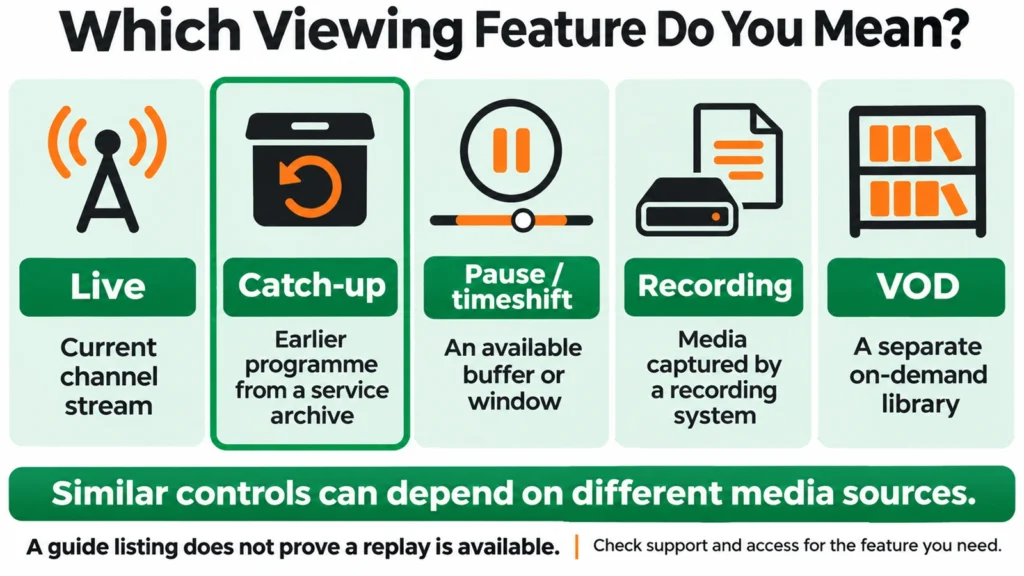
An electronic programme guide, or EPG, supplies programme information. Its listing is separate from the media required for IPTV catch-up. A past title, date or replay badge gives you something to investigate; it does not establish that the programme remains available or that your account can play it.
1. Confirm IPTV catch-up eligibility for your account and programme
Start with the programme you actually want to watch. Ask whether your account supports service archives, whether the particular channel and programme are covered, and which dates remain available. Then confirm the device, player edition and input method the service supports.
Treat a general claim such as “all features” as a starting point for clarification. A premium subscription, a working live channel or a familiar programme title does not answer those specific questions. Neither does an archive option appearing in an app you installed independently.
Check IPTV catch-up channels for the intended programme
When asking about IPTV catch-up channels, request confirmation for the exact channel edition you use. Similarly named entries may be different feeds. Avoid treating a list of live channels as a verified archive catalogue.
For IPTV Ireland Fast, actual archive support, programme coverage and retention have not been independently confirmed. You can ask support about your intended programme and player before choosing access. Do not assume a subscription or trial includes replay. A 24-hour trial describes an access duration; it is not evidence of a 24-hour archive window.
Keep four answers together in your setup notes:
- Account: whether archive access is included for the access actually offered.
- Programme: the exact channel edition, broadcast date and intended time slot.
- Availability: whether that particular earlier programme is currently offered.
- Player: the supported edition and service input used to request replay.
A useful question names those details rather than asking only whether an app has a replay button. If support remains unconfirmed, pause the purchase decision. Buying another app, plan or device without that answer can leave the same eligibility question unresolved.
For IPTV catch-up, the useful confirmation concerns the programme you need, rather than a general statement that an app has replay features. Keep the reply with your setup notes so you can compare the promised method with your actual test.
2. Verify the IPTV catch-up player edition and supplied access method
Record the app’s full title, developer and version, together with your device model and operating system. An app name alone is insufficient when checking IPTV catch-up compatibility: editions on different platforms need not offer identical functionality.
Match catch-up TV on IPTV to the supplied access
For catch-up TV on IPTV, the supplied access method matters as much as the app’s feature description.
Next, identify how you added the service. Note the input type, such as a supplied playlist or account login, without copying its private contents into a public message. A working input can establish live access while leaving the archive method unsupported or unspecified.
Use the service’s documented access method and the player’s instructions for that edition. Do not turn login fields into a guessed archive address or add timestamp information to a stream URL. A plausible-looking address is not a verified method.
The official Kodi IPTV Simple documentation provides one implementation example: it supports catch-up when the provider supports it, while playback controls depend on the provider and inputstream. That documents a particular setup, not universal player compatibility or confirmation that an Irish subscription includes archives.
Before paying for a different player, compare the exact edition’s stated capability with the access method your service supplies. Our guide to choosing an IPTV app can help organise that comparison; the archive question still needs its own answer.
A missing IPTV catch-up option does not justify installing an unknown package or changing device identifiers. First establish whether the feature should appear in your existing setup. If the developer needs evidence, provide the version and device details rather than credentials or a full playlist.
3. Check the IPTV catch-up programme, channel mapping and Irish local time
For IPTV catch-up, the selected guide entry needs to identify the intended broadcast. Check the channel edition, programme date, scheduled start and scheduled end. A correct title attached to the wrong channel or date can send your investigation in the wrong direction.
Inspect the device’s current date, time and timezone. For viewing in Ireland, use the applicable Irish local timezone with daylight-saving handling. Do not impose a fixed offset throughout the year or apply a one-hour correction simply because playback starts at an unexpected point.
Then compare the guide information with the programme you intended to select. Titles and schedules can be inaccurate, and the actual broadcast may not align neatly with its listed boundaries. Write down what you observe before changing anything.
Keep guide display correction separate from archive request timing. In Kodi IPTV Simple, for example, the maintained documentation distinguishes EPG time shifting from catch-up time correction. Those controls serve different purposes in that implementation; changing one is not a universal repair for the other.
If channel matching or guide information needs attention, follow the EPG and channel-mapping guide rather than rebuilding the guide as an experiment. Confirm the supplied mapping before editing offsets, and retain the original values if a documented adjustment becomes necessary.
Choose a finished past programme for the first IPTV catch-up test. A future listing cannot demonstrate archive playback, while a currently airing programme raises a separate restart-live question. Ask whether that behaviour is supported instead of assuming an unfinished broadcast is already available from its beginning.
4. Make a controlled IPTV catch-up replay test
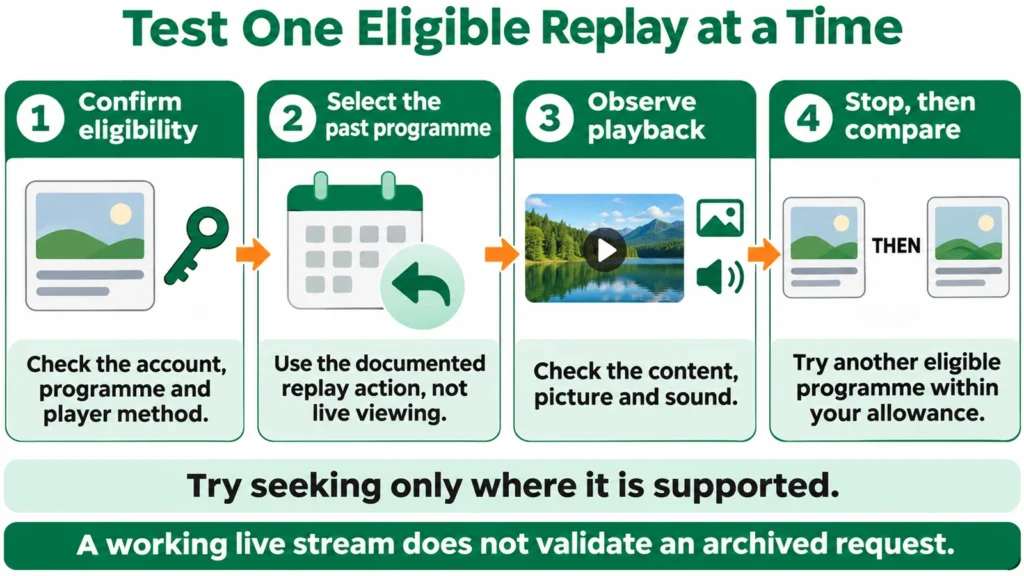
Use one eligible past programme and your existing authorised setup. Keep the device, player, account and connection unchanged during the first comparison. This makes the result easier to interpret than switching apps and settings together.
Find the player’s genuine, documented archive or guide route. There is no universal long-press action, badge colour or menu path. In Kodi IPTV Simple specifically, the documentation describes a “Play programme” action from EPG entry information when provider catch-up is supported. Use that as a scoped example, not instructions for every player.
Work through this small test:
- Confirm that the selected past programme is eligible for your account and setup.
- Open its supported replay action, checking that you selected the earlier programme rather than live viewing.
- Start playback and compare the observed content with the intended broadcast. Do not rely solely on the guide title remaining visible.
- Check picture and sound separately. Note a blank screen, silence, displayed error or unexpected content precisely.
- Try a small seek only if seeking is supported. Record its result separately from whether playback started.
- Stop the replay appropriately before trying another eligible programme within your actual stream allowance.
- Compare the second result with the first, noting which conditions stayed the same.
Respect the selected simultaneous-stream allowance throughout, including recordings if the service counts them. Avoid opening several players to compare them at once. If session handling is unclear, ask about the supported procedure rather than assuming a fixed release timeout.
Live playback can be a separate comparison after stopping the replay. A working live stream is useful evidence, but it does not validate an archived request. Likewise, a replay starting successfully does not establish that every other programme is available.
Keep the IPTV catch-up result narrow: which programme opened, what appeared, whether audio worked and whether supported seeking behaved as expected. A failed seek or incorrect starting point is an observation requiring investigation, not proof that your broadband or provider caused it.
5. Understand IPTV catch-up limits, pause and recording separately
Ask what archive window actually applies to your account, channel and programme. Guide coverage, retained media and access rights are related questions, but they are not interchangeable. A guide displaying older dates does not guarantee those broadcasts remain playable.
Older entries may remain visible after their media becomes unavailable. That is one possible explanation for a failed replay, not a diagnosis you can make from the listing alone. Increasing a player’s displayed window cannot create retained media or grant access.
For IPTV catch-up, confirm both the stated availability period and the selected programme’s actual eligibility. A general window still leaves room for a particular item to be unavailable. Do not invent a licensing explanation, assume deliberate removal or promise an unlimited archive when support has supplied no such evidence.
Pause and seek controls need their own assessment. The official Inputstream FFmpeg Direct page describes archive support and timeshifting across a supplied replay span. This illustrates how replay and timeshift controls can overlap; it does not establish support on every device or a retention period for your service.
Controls alone therefore do not tell you where media is stored. A buffer can be local or remote depending on the implementation. The absence of seeking also does not automatically mean all archive playback is impossible.
Personal recording is a separate arrangement. VLC Desktop’s recording documentation describes capturing content being played and saving the recording locally. It illustrates personal capture, without establishing that every source permits recording or that a missed broadcast can be recovered.
Our IPTV recording guide covers the capture and storage questions. Pressing record today cannot retrieve yesterday’s missed programme unless separate archive access supplies it. Nor should you assume the television can always be off: confirm which equipment or backend must operate for your actual arrangement.
Finally, IPTV catch-up access is not automatically an offline download or a permanent copy. Ask about any saving permission and supported download feature separately. The ability to watch something now does not promise indefinite access or continuation on another device.
6. Investigate IPTV catch-up not working by stage
Describe where the attempt fails before choosing a fix. “No archive option”, “opens live” and “picture without sound” are different observations. Keeping them separate prevents unrelated changes and gives support a clearer starting point.
Use this table to organise evidence about IPTV catch-up not working:
| Observation | Useful next check | Unsupported conclusion |
|---|---|---|
| No archive route appears | Actual account entitlement, player edition and supported input method | Buying any premium player will add archives |
| An old programme is listed but will not play | Programme eligibility, applicable window and exact displayed error | Every visible listing must have retained media |
| Replay opens the current live stream | Selected action and the documented archive method | The whole service is down |
| Wrong programme or starting point | Exact channel mapping, selected timestamps and observed content | Every mismatch needs a one-hour shift |
| Picture plays without sound | Audio behaviour on that replay and a permitted comparison | The archive itself is missing |
| One replay fails while others work | The particular programme, date and repeatable result | Every archive on that channel is broken |
| All tested replays fail while live works | Archive eligibility and access compatibility for those tested items | All live and archived services have failed |
If IPTV catch-up opens with picture but no sound, keep the replay context in your notes while following the audio troubleshooting guide. Identify whether the comparison programme has sound before changing broader audio settings.
Record an error against the actual attempt that produced it. If an HTTP status is shown, preserve the status and context without exposing the private request. A 403 alone does not establish an expired subscription, a particular licensing restriction or the cause of a wider failure.
Avoid repeated cache-clearing loops, security changes, region workarounds or a destructive reset as an initial response. They can remove useful evidence without answering whether the programme is supported. Do not rewrite private URLs to test an imagined endpoint.
If a documented reinstall or reimport becomes appropriate, first preserve the recovery information and existing supported settings securely. Make one justified change, repeat the same permitted test and note the difference. For IPTV catch-up troubleshooting, a reproducible result is more useful than a long list of unrecorded changes.
7. Report IPTV catch-up results precisely and choose the next step
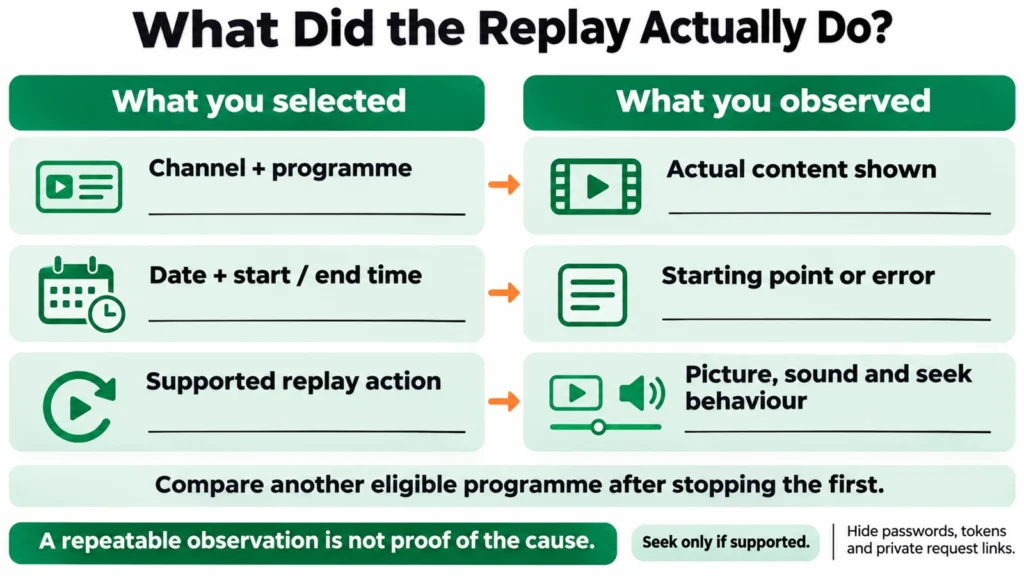
Prepare a short report that lets someone identify the programme and reproduce the viewing route. “Replay failed” leaves too much unspecified; the programme, action and observed result make it actionable.
Include:
- Device model, operating system, app title, developer and version.
- Input-method type only, without passwords, tokens or private access addresses.
- Exact channel edition and selected programme, with date, start, end and applicable timezone.
- The replay action chosen and what actually appeared after selecting it.
- Any displayed error, with private request details removed.
- Whether live playback worked in a separate permitted comparison.
- Another eligible programme’s result, if one was available to test.
- Any supported change made between attempts, including whether it affected the result.
Review screenshots before sharing. Remove credentials, private URLs and account identifiers. Redact personal information in programme titles, notifications or other visible areas where relevant. Keep any unredacted diagnostic material secure rather than posting complete logs publicly.
Direct player-control questions to the developer and account or archive-availability questions to the service. Those are clarification routes, not proof of responsibility. A developer may need the service’s documented method, while support may need the exact app edition to assess compatibility.
Ask one practical question: “Is this programme supported through this method on this edition, and what should I test next?” If IPTV catch-up is unavailable for that combination, establish the supported alternatives before spending more. A plan upgrade should follow confirmed capability, rather than serve as a speculative fix.
Hypothetical example: two programmes, different results
This is a hypothetical IPTV catch-up example, not a customer report or a hands-on test of a particular service.
A viewer in Ireland finds a past guide entry on an unspecified player and device. Before trying it, they obtain confirmation that the account, selected programme and player method are eligible. They check the channel edition, broadcast date and Irish local-time setting without applying an offset.
Using the documented archive action, they start the intended programme. It does not play, and they record the displayed error with private details removed. They stop the attempt appropriately, then test a second eligible programme within their allowance. That programme opens with picture and sound.
A separate live comparison also works. The viewer reports all three observations, together with the first programme’s exact date and time. The successful comparison narrows the observed IPTV catch-up problem to the failed attempt; it does not explain its cause or prove that every other archive works.
The first failure remains unresolved pending support evidence. The viewer has not verified a universal retention window, repaired the service or established that their internet connection caused the problem.
Frequently asked questions
What is IPTV catch-up?
It is access to earlier programming supplied through a service archive using a compatible supported player route. Your actual account, channel, programme and date must be eligible. A past guide entry alone does not establish playback availability.
Is catch-up the same as pause or timeshift?
No. IPTV catch-up concerns earlier service-supplied programming; pause and timeshift operate within an available buffer or window. That window can be local or remote. Similar controls may appear during archive playback, so their presence does not identify the media’s source.
Do I need to record the programme first?
Service-supplied IPTV catch-up does not normally require you to schedule your own recording. Personal DVR playback does require the recording system to have captured and retained the programme. Confirm the actual arrangement rather than assuming that a recording button creates access to past broadcasts.
How many days are available?
There is no universal number of IPTV catch-up days. Ask about the account, channel and programme concerned, and distinguish actual media availability from guide coverage. A trial’s duration does not establish an archive window.
Why is a programme in the guide but not playable?
The guide contains metadata rather than proof of retained, accessible media. Check programme eligibility, the supported replay method and the exact error. Unavailable media is one possibility; the listing alone cannot identify the cause.
Can I use any IPTV player or just add a tag?
No universal player compatibility is established. Confirm the particular edition and supplied method. Adding an IPTV catch-up tag or enabling an option may configure handling, but it cannot create missing recordings, purchase access or guarantee playback.
Can I download or keep a replay forever?
Do not assume so. Archive access does not automatically include offline saving or permanent retention. Check the actual service permissions and player features separately before relying on a replay being available later.
Your next step
For your next IPTV catch-up attempt, confirm support for the intended programme and player, then run the controlled test within the access offered. Keep the resulting evidence so any follow-up starts with a specific question.