
Can You Record IPTV? 7 Practical Checks Before You Start
Check whether your player and device can save IPTV programmes, estimate storage needs and test scheduled recordings without confusing them with catch-up.
On this page
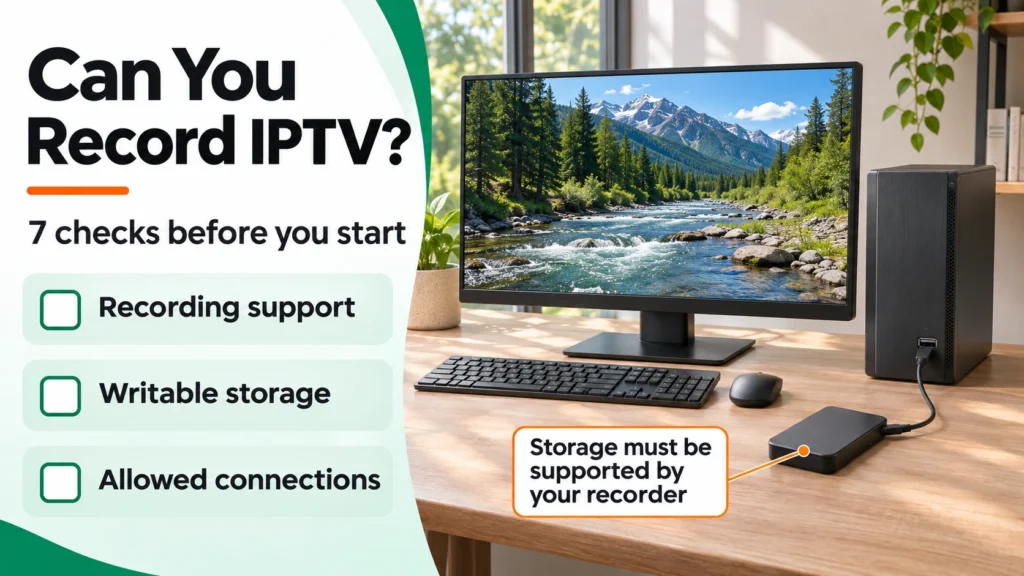
Can you record IPTV? Yes, where supported and permitted. You need a compatible recording app or backend, a usable authorised source, writable storage and enough allowed simultaneous access for the intended activity. A playlist, programme guide, premium player or visible Record button does not establish all those requirements. Confirm the setup, then test a short recording before trusting a scheduled programme.
Understand recording, catch-up and timeshift first
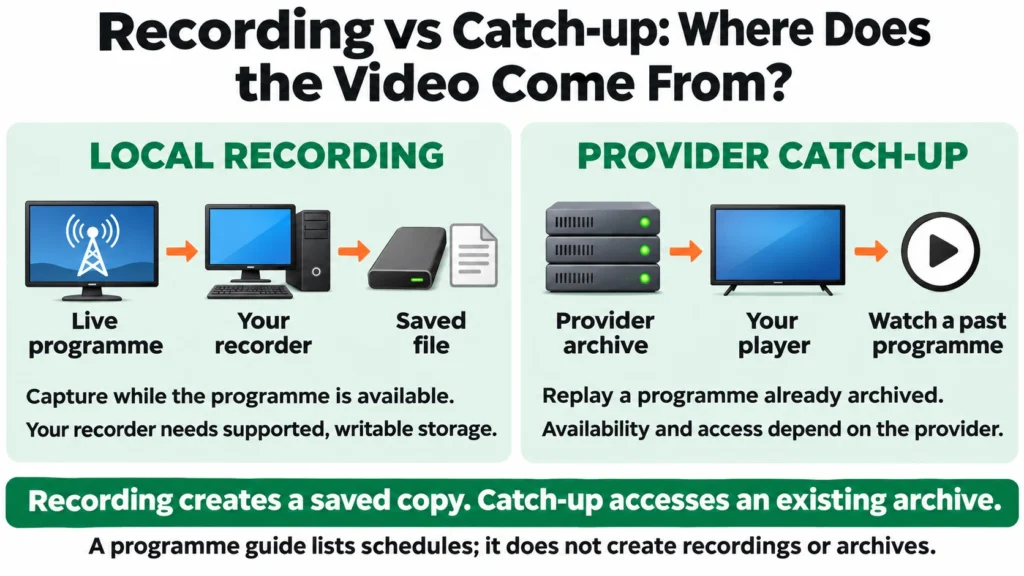
Local recording creates a new saved file on storage the recording application can use. A separate home DVR or server can perform that work independently of the screen you watch. Provider-operated cloud recording, if offered, stores recordings through the provider’s system under its own conditions.
Catch-up is different: it replays a past programme from an available provider archive. Temporary timeshift supports a pause or rewind window where implemented; it should not be assumed to create a permanent file you can keep. These are capabilities to verify, not features supplied by every player or subscription.
Can you record IPTV simply because yesterday’s programmes appear in the guide? No. The guide describes schedules. It does not create past footage or establish an archive, and a recording timer is an instruction to attempt capture rather than proof of a completed file.
Begin by choosing your actual goal. Saving an upcoming programme requires different checks from replaying something already broadcast. Being clear about that goal prevents buying storage for a feature that actually relies on a provider archive, or expecting a guide to recover something never captured.
1. Can you record IPTV with your exact player and device?
Record the app’s full title, developer and version, together with the device model and operating system. Then check the actual developer’s documentation for recording, timers and supported destinations. The ability to open a playlist is not evidence that the app can save it.
A television interface can also control a recorder running elsewhere. The official Kodi PVR overview, marked for version 20, distinguishes the frontend from the backend that supplies PVR capabilities. Installing a client does not establish a functioning recording system, and available functions depend on the chosen backend.
Can you record IPTV through a player that shows a recording option? Treat the option as a reason to investigate its requirements. Ask whether it performs local capture, requests a server job or needs another component. Do not infer compatibility from its label alone.
Our player-selection guide helps assess documented features. Confirm the specific edition rather than combining claims about similarly named products. Can you record IPTV on a particular television or streaming device? The answer must follow that model, operating system and supported application, not the general device category.
2. Confirm source access and permitted use
Use a source you are authorised to access and record. Check the service/content terms and applicable rights before capturing, retaining or sharing programmes. Subscription access alone does not establish permission to record everything, keep copies indefinitely or redistribute them.
Can you record IPTV when the app accepts your playlist? Successful access answers a technical playback question, not every permission or compatibility question. A visible button also does not override source restrictions.
Ask the provider about the specific activity: manual capture, unattended recording or recording while watching another item. Keep its answer separate from the app developer’s confirmation of software support. You may need both pieces of information before a useful test is possible.
If access protection or an unsupported source prevents recording, stop at that limitation. Do not extract credentials, circumvent protection or work around session limits. If a permitted compatible source is available for a comparison, keep its requirements separate. A successful capture from that source would not establish that the original source can also be recorded.
3. Choose writable storage and estimate recording capacity
Find the destination the recorder will actually use. Check free space, application permissions and supported storage options for that device. A USB socket does not establish that your app can write recordings to a connected drive.
For a separate server, inspect the server’s destination rather than the television’s free space. Verify that the recorder can still find it when a scheduled job begins. If a drive must be formatted, back up anything needed first: formatting erases its existing data. Do not choose a filesystem based on generic advice; support varies by device and application.
Can you record IPTV for a whole programme with the available space? Estimate using the recorded bitrate and duration, then leave headroom:
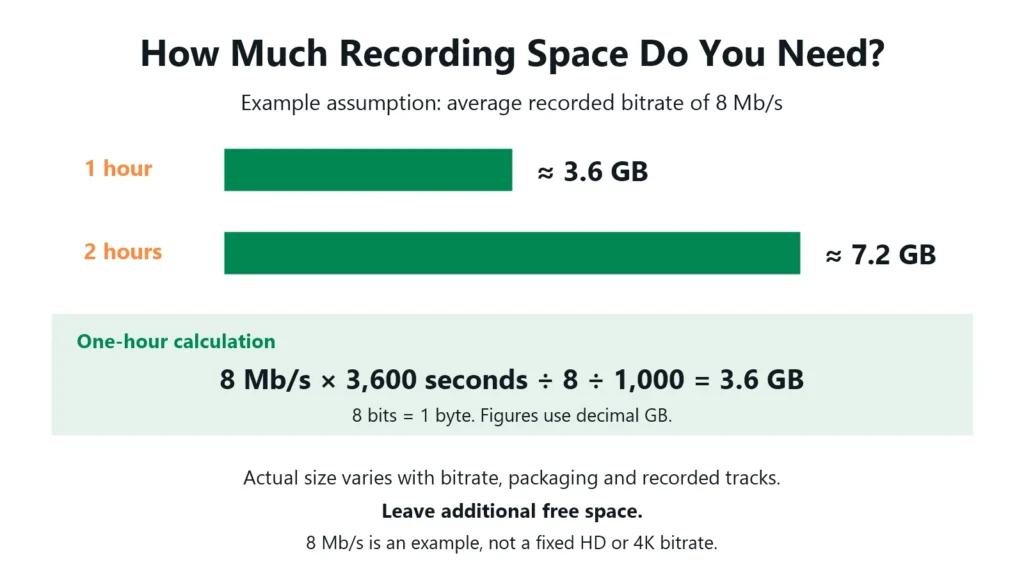
Approximate decimal GB = average recorded bitrate in Mb/s × duration in seconds ÷ 8 ÷ 1,000.
At an assumed 8 Mb/s for one hour:
8 × 3,600 ÷ 8 ÷ 1,000 = 3.6 GB.
Two hours would use approximately 7.2 GB under the same assumption. This is not a fixed bitrate for HD or 4K. Variable bitrate, packaging and extra tracks can alter the result. Decimal GB and binary GiB are different units, so displayed figures may use different conventions.
Can you record IPTV longer by choosing a bigger drive? Only if the recorder supports that destination and can write to it. Where practical, compare actual file growth during a supported test with your estimate instead of treating the arithmetic as a guarantee. Also check whether the documented destination imposes a per-file limit: enough total free space does not necessarily mean one long recording can be saved as a single file. Follow the device and app documentation rather than formatting a drive by trial and error.
4. How to record IPTV: test a short manual capture
When deciding how to record IPTV, use authorised content and the installed app’s documented workflow. Keep the test short and change as little as possible:
- Confirm the destination. Note the selected folder or recording library and its available space.
- Start and stop normally. Use the supported recording control while the chosen content is available; stop through the documented control.
- Locate the saved recording. Check the actual destination rather than relying only on a recording indicator or list entry.
- Replay the result. Check the beginning, middle and end with audio, and compare its duration with the attempted capture.
A nonzero file size proves only that some data exists; it does not establish a complete, usable programme. Note any interruptions. Where the app exposes a file destination, check that the file remains accessible after reopening it and that the configured destination has not changed. If the system manages recordings in a library instead, use its documented replay and status controls.
Can you record IPTV successfully for a short sample but still encounter problems later? Yes. The result validates only the tested source, destination and circumstances. It does not establish unattended scheduling, long-duration reliability or operation while the device sleeps.
A documented VLC desktop 3.0 example
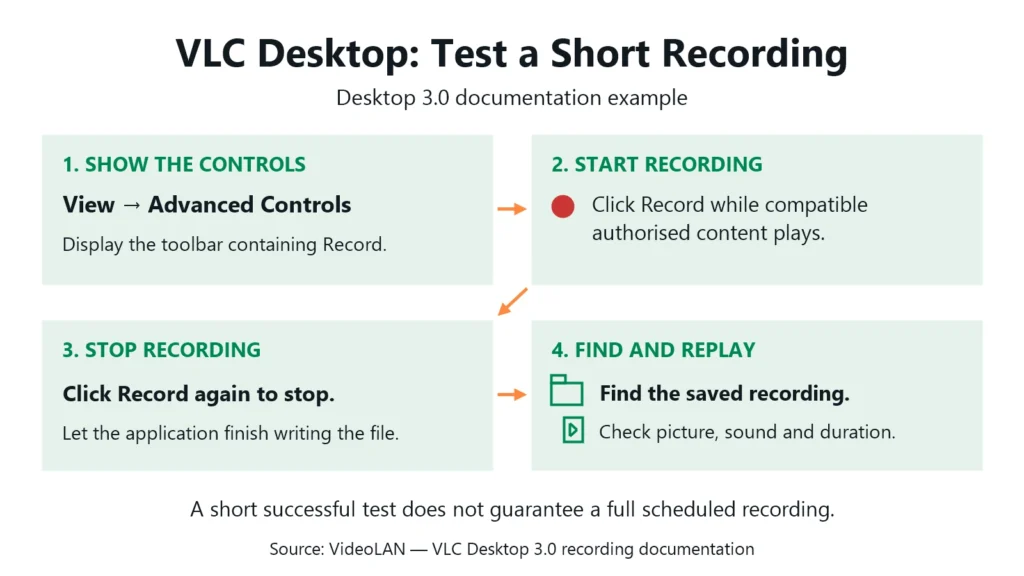
The VideoLAN desktop 3.0 recording documentation describes View → Advanced Controls to expose the recording toolbar. While compatible authorised content plays, use the real Record control to start capture and use it again to stop. The documentation also describes a configurable recordings folder.
This is a scoped manual desktop example. It does not promise the same interface on mobile or television, automatic series scheduling, cloud recording or successful capture of every encrypted or adaptive source. No particular file extension or conversion behaviour is assumed.
Can you record IPTV this way after the desired opening has already passed? Manual capture does not promise recovery of missed material. Can you record IPTV through your own setup using equivalent controls? Verify its actual documentation rather than transferring this desktop menu to another app.
5. Verify schedules, guide times and the actual recorder
A saved timer, a started job, data written and a completed file replayed are four different outcomes. Inspect each stage during a permitted timer test. A programme listed as scheduled is not evidence that the recorder will remain available or the destination will be writable.
Check the intended channel, date and local time. In Ireland, use the appropriate local timezone, such as Europe/Dublin where available, rather than fixing UTC+1 throughout the year. Verify guide mapping too: a timer based on another channel’s schedule may target the wrong programme.
Our EPG setup guide covers listings, mapping and displayed times. Can you record IPTV accurately from a guide with incorrect times? Resolve the mismatch before relying on its programme boundaries.
Identify the machine doing the work. As an architecture example, Channels DVR Server requirements describe an always-on computer or NAS running the recorder. This illustrates a separate-server arrangement; it does not establish compatibility with your provider or inclusion in any subscription here.
Can you record IPTV with the television screen off? That depends on whether the actual recorder remains operational. A separate server differs from an app capturing on the viewing device. Can you record IPTV with padding before or after a programme? Only where supported; additional capture also uses storage and session time. Test the intended behaviour rather than assuming standby or timer persistence works universally.
6. Can you record IPTV while watching another channel?
Recording can open an additional source session. Watching one programme while capturing another may therefore require more permitted simultaneous access. Confirm how your provider and recorder count the intended activity before attempting it.
Registered devices and simultaneous streams are different allowances. Having three devices listed on an account does not automatically permit three active sources. Equally, a plan allowing two connections does not establish that every player/backend combination can perform any two activities you choose.
Can you record IPTV and watch the same channel using one connection? Some systems may reuse a source session, but you must not assume your setup does. Ask about the precise arrangement, including any other active household playback.
Stop unnecessary sessions, follow the documented limits and test within them. Do not deliberately exceed an allowance to see whether the source will tolerate it. Keep a note of what was active when a test began so later errors can be interpreted in context.
Can you record IPTV reliably merely by buying more connections? Additional permitted access addresses only one possible requirement. It does not provide recording software, writable storage, a running recorder or source compatibility. Establish which requirement is actually missing before changing a plan.
7. Troubleshoot incomplete IPTV recording with evidence
Classify the failure first. Did the timer never start, did no file appear, did the file stop early, or does the saved copy have picture/audio problems? A destination that disappeared needs a different investigation from a job that completed but cannot be replayed. If one playback app fails, try another trusted compatible player where appropriate; a different result is a compatibility clue, not proof that the saved data is complete or undamaged.
Inspect the recorder’s supported status information or logs, then compare the scheduled time, actual duration, available storage and recorder uptime. Note network interruptions and concurrent source sessions. Preserve the original settings before changing one variable.
Can you record IPTV manually but not with a timer? Focus the next test on what changed: timing, recorder availability or the unattended destination. Do not assume successful live playback proves the later scheduled capture was possible.
If playback interruptions also appear in recordings, consult the buffering troubleshooting guide. A connection investigation may be relevant, but the saved file alone does not establish which component interrupted capture.
Can you record IPTV after a failed test without resetting everything? Often the next useful action is a more precise supported comparison or a targeted support request. Avoid leading with a factory reset, reinstall or subscription upgrade. Those actions can remove working access or change several conditions before you have identified the failing stage.
Compare recording, home DVR, catch-up and timeshift
Before asking “Can you record IPTV using this feature?”, check whether it creates a new file or accesses material already stored elsewhere.
| Method | Where content is stored | What must be verified | What it does not guarantee |
|---|---|---|---|
| Local recording | A destination writable by the recording app | App support, source permission, free space, write access and operation during capture | Timers, standby capture or compatibility with every stream |
| Separate home DVR | Storage used by the recording computer or server | Backend/source compatibility, server availability, destination and client arrangement | That the television client alone can perform recording |
| Provider catch-up | An archive made available through the provider | Programme availability, access period and supported playback | A permanent local copy or coverage of every past programme |
| Timeshift | A temporary buffer managed by the supported system | Buffer location, duration and supported pause/rewind behaviour | A durable recording that remains after the session ends |
Provider-operated cloud recording is another possible arrangement where offered. Verify its own availability and retention terms; do not treat it as a feature every IPTV service supplies.
A hypothetical example: storage estimate, manual test, timer test
Imagine a viewer whose source permission, recording support and destination have already been confirmed. They want to capture a two-hour programme. For planning only, they assume an average recorded bitrate of 8 Mb/s.
Using the formula above, one hour is approximately 3.6 decimal GB and two hours approximately 7.2 GB. They leave additional free space because the assumption may differ from actual file growth. No resolution or named product is implied by those figures.
Can you record IPTV for that duration simply because enough space appears available? The viewer checks rather than assuming. First they perform a short manual capture, stop normally and inspect its saved file. Suppose picture, audio and the sampled beginning, middle and end replay successfully.
They next schedule a separate short timer test within their allowed access. They confirm the recorder stays operational, inspect whether the job starts and replay the resulting file. Suppose this also succeeds: it supports that limited timer test, not a guarantee about the future two-hour programme.
Can you record IPTV unattended with confidence from those results alone? They still need to preserve the tested conditions and check the completed programme afterward. The outcomes here are fictional, illustrating a sensible sequence rather than reporting real hardware tests or a provider-compatible product configuration.
What to send when you need IPTV recording support
Contact the app/backend developer about documented controls, storage handling and job behaviour. Ask the provider about supplied source compatibility, permitted recording and connection rules. Their answers may cover different parts of the same setup.
A useful “can you record IPTV?” support request includes observations about your equipment rather than a conclusion such as “the server is broken”. Copy and complete this checklist:
- Device model, operating system and app/developer/version:
- Recording backend and version, if separate:
- Affected channel or item:
- Scheduled start/end, date and timezone:
- Actual recorded duration or whether no file appeared:
- Destination type, available free space and whether it remained accessible:
- Exact redacted job message or supported log excerpt:
- Concurrent viewing or recording sessions:
- Manual and scheduled tests tried, with their outcomes:
Do not include passwords, tokens or private playlist/server URLs. Redact screenshots and logs before sharing them. A report can explicitly state uncertainty: knowing that a timer was saved while its start status is unknown is still useful evidence.
Frequently asked questions
Can every IPTV app record?
No. Playback support does not establish recording or timers, and a frontend may depend on a separate backend. Can you record IPTV with your installed edition? Check its actual developer documentation, source compatibility and supported storage before treating a premium label or recording icon as confirmation.
Is recording the same as catch-up?
No. Recording creates a saved copy through a supported recorder; catch-up accesses an available archive. Can you record IPTV without catch-up? Potentially, where the recording requirements are met. Likewise, archive playback may be available without giving you a local recording function or permission to retain copies.
Can you record IPTV on Firestick?
Only if the exact device model, operating system, recording application or backend, authorised source and storage arrangement support the task. Verify those details rather than assuming every Fire TV device behaves alike. There is no universal recording menu or guaranteed external-drive workflow established here.
Can you watch another channel while recording?
Only where the setup supports it and the source allowance covers the active sessions. Can you record IPTV while someone else watches on another device? Count their activity too, according to the provider’s rules. Do not equate device registrations with simultaneous-stream permission.
Does the television need to stay on?
The actual recorder must remain able to capture. An independent server may operate while the viewing screen is off; a local app depends on the recording device’s supported behaviour. Test the intended power state. Turning off a display and putting the recorder to sleep are different actions.
Can you record IPTV without running out of space?
Estimate from average recorded bitrate and duration, then leave headroom. At an assumed 8 Mb/s, one hour is about 3.6 decimal GB and two hours about 7.2 GB. Actual size varies, and the recorder must support the destination regardless of how much nominal capacity it has.
Can an EPG recover a programme that already aired?
No. A guide supplies schedule information, not missing footage. You would need an existing recording or an available authorised archive. Can you record IPTV retrospectively just by selecting an old listing? The listing alone does not establish any source from which that programme can be captured.
Your next step
Confirm permission, exact recording support, writable storage and allowed access, then perform the manual and timer tests separately. Before buying software, a drive or another plan, ask the relevant support team: “Can you record IPTV with my current arrangement and intended use?” If your question concerns access supplied by IPTV Ireland Fast, use our support page without assuming recording or catch-up is included.