
How to Stop IPTV Buffering: 9 Practical Checks
A step-by-step guide to finding why IPTV pauses or freezes, with practical connection, device and player checks for viewers in Ireland.
On this page
To work out how to stop IPTV buffering, compare one thing at a time: the stream, the viewing device, its connection and household activity. Start by recording what happens, then use the nine checks below to narrow the possibilities. A loading pause, a lost connection and jerky motion need different investigations. No setting guarantees uninterrupted viewing, but controlled comparisons can help you choose a useful next action before buying equipment or resetting everything.
Before you start: note your device model, player version, the time and whether one stream or several are affected. Keep passwords and private access URLs out of screenshots and messages. If the service, player and device are easy to confuse, read our explanation of how IPTV works.
How to stop IPTV buffering: start with the symptom
Describe the behaviour before changing settings. “Freezing” might mean repeated loading, a disconnected app or continuous but uneven motion. Knowing the difference helps you decide how to stop IPTV buffering without treating every playback problem as a broadband-speed issue.
| Symptom | First comparison | Possible implication | Next action |
|---|---|---|---|
| Picture pauses and a loading indicator appears repeatedly. | Try another available stream, closing the first. | The interruption may be stream-specific or shared across the setup. | Record the pattern, then compare the connection. |
| App reports offline or loses its connection. | Check network status on the viewing device. | Connectivity or session access needs investigation. | Record the message before restarting. |
| Motion looks jerky without loading pauses. | Compare another video on the same device. | Source frame rate or device playback may be involved. | Describe the motion to support rather than assuming buffering. |
| Picture continues but sound disappears or breaks up. | Compare another stream using the same audio output. | The source or audio setup may be involved. | Check documented audio guidance. |
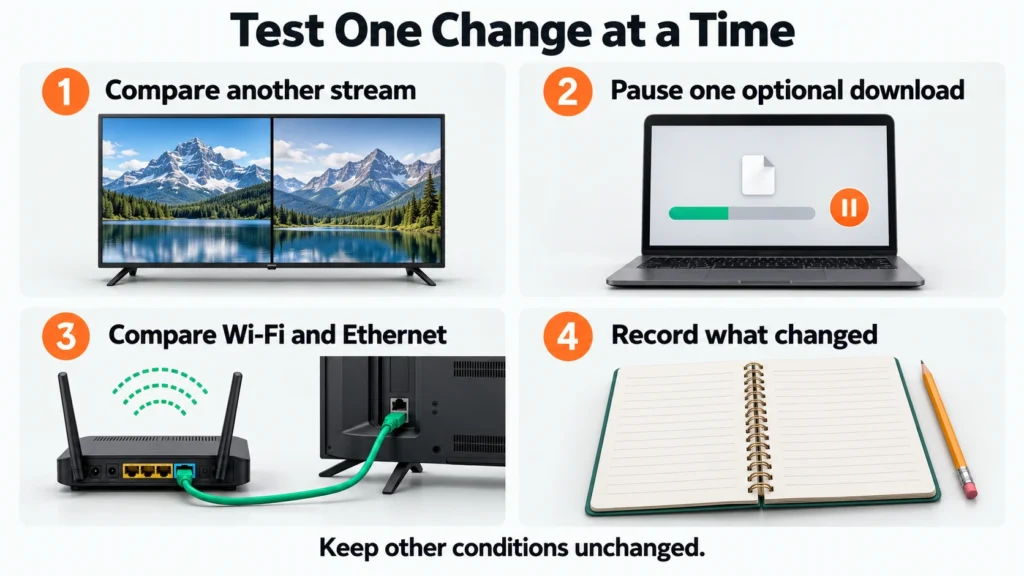
Use comparisons of similar duration. A brief successful start tells you less than watching long enough to cover the usual interruption pattern. Avoid adding simultaneous sessions while testing: that introduces another variable and could exceed your subscription allowance.
9 practical checks for IPTV buffering
The nine checks below explain how to stop IPTV buffering by following the evidence. Start with the symptom table, then choose the relevant comparison. After each change, watch for the usual interruption pattern and write down what happened. If the first check gives no clear result, continue without assuming the cause.
1. Compare another available channel or video
Action: Close the affected stream and open another available item in the same player. Keep the device, connection and quality as similar as possible. Record whether loading pauses happen on both, only the original, or neither during the comparison.
What to observe: Does the same loading pause affect the replacement stream, and does it return when you retry the original?
If a channel never begins playing, use the channel-loading checks to separate an empty list from a failed playback start.
This is a useful starting point when investigating how to stop IPTV buffering because it changes the content while leaving much of your setup alone. If one item repeatedly fails while another plays, report the affected item and time to the service team.
That result does not prove provider fault. Streams can differ in quality, format and delivery path. Return to the original afterwards: it may have recovered while you tested. If several streams pause, continue below rather than assuming they all share the same underlying fault.
2. Check the connection on the actual viewing device
Action: Use your device’s documented network-status or connection-check feature, where available. Confirm it has internet access and is using the intended network. Record any error wording. A Wi-Fi connection to the router and working access beyond the router are different observations.
What to observe: Does the device stay online during a pause, or does its network status change?
A phone speed test alone cannot tell you how to stop IPTV buffering on a television. The phone may use a different wireless connection, sit in a better position or even use mobile data. If a supported test runs on the viewing device, record its context rather than treating one result as a verdict.
Throughput describes how much data moves over time; stability concerns whether delivery remains consistent. Neither a single high reading nor a successful connection check proves sustained playback will work. To understand how to stop IPTV buffering, compare observations during the problem, not just a test taken earlier.
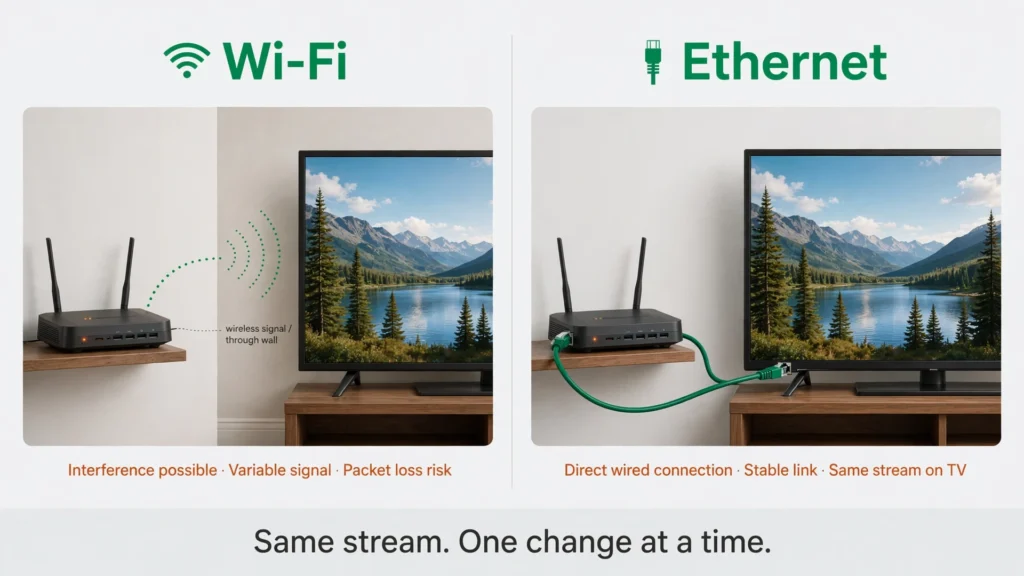
3. Compare Wi-Fi with supported Ethernet
Action: If your viewing device supports Ethernet, compare the same stream through a suitable cable connection to the router. Confirm the device is actually using the wired connection. Check model-specific requirements before buying an adapter; a convenient-looking port does not establish compatibility.
What to observe: Does the wired connection reduce repeated pauses when the stream and other household activity stay comparable?
Google’s streaming-device connection guidance includes Ethernet and adapter options for supported models. Consult the relevant manufacturer documentation for your own hardware.
When considering how to stop IPTV buffering, improvement on Ethernet makes the wireless part of the connection worth investigating. It does not rule out intermittent problems elsewhere. If both connections behave similarly, record that result and move on; buying more Wi-Fi equipment is not yet justified.
4. Improve Wi-Fi placement and compare supported bands
Action: For IPTV buffering on Wi-Fi, first change placement rather than several router settings. Move an accessible router into a more open position, where practical, then repeat the same viewing comparison. Keep equipment ventilated and follow its installation guidance.
What to observe: After changing placement or band separately, do the usual pauses become less frequent, remain similar or get worse?
If both router and viewing device support separate wireless bands, compare them from the actual viewing position. TCL’s connection troubleshooting guide discusses placement, obstructions and comparing 2.4 GHz with 5 GHz. The latter often suits shorter distances; the former generally reaches further. Microsoft explains these range and interference trade-offs in its home Wi-Fi layout guidance.
Neither band is a universal answer to how to stop IPTV buffering. Walls, distance and interference affect the result. If a change helps repeatedly, keep it and document it. If moving equipment is impractical, use the wired comparison as evidence before discussing coverage improvements with broadband support.
5. Pause optional downloads and backups
Action: Temporarily pause a non-essential download, cloud backup or game update that you control. Ask other household members before interrupting their activity. Leave important calls and essential connected equipment alone. Repeat the affected stream with the viewing setup otherwise unchanged.
What to observe: Does playback improve when one optional transfer stops, and worsen if it resumes?
If playback improves when a particular transfer pauses and worsens when it resumes, shared household demand becomes worth investigating. It is an observation about those conditions, not proof that your package is unsuitable or that a particular person caused the problem.
This check helps explain how to stop IPTV buffering during busy periods without immediately upgrading broadband. Record what was active and when. If no optional activity was running, continue testing. If demand appears relevant repeatedly, discuss scheduling transfers or your household’s requirements with broadband support.
6. Restart the player and device, then consider the router
Action: Close and reopen the player first, then repeat the stream. If necessary, restart the viewing device using its official instructions and test again. Standby may differ from a restart. Keep these steps separate so you know which change preceded any improvement.
What to observe: Which restart, if any, changes playback? Note how long the improvement lasts.
Restarting can be part of how to stop IPTV buffering, but repeated recovery after a restart is evidence to record rather than a permanent diagnosis. Note whether the problem returns after similar use or only with particular content.
Restart the router only when appropriate, following manufacturer guidance and warning other users about the interruption. Do not interrupt an update. If restarting everything together appears to solve it, you will have less information about which component mattered. Resume comparisons if the problem returns.
7. Check official updates and device resources
Action: Check for player updates through its official distribution channel and system updates through the device manufacturer’s supported process. Google TV’s troubleshooting guidance includes checking system updates and restarting. Its instructions apply to that platform, not every television or player.
What to observe: Does the same stream behave differently after the update, and are the menus or app still sluggish?
When investigating how to stop IPTV buffering, note any low-storage warnings, app crashes or sluggish menus. These broaden the investigation beyond the stream. Where supported, close unused apps and review storage through official device guidance; avoid installing unknown “cleaner” tools.
Clearing cache and clearing data are different operations. Cache removal generally targets temporary files; clearing data may remove saved access details and settings. Google’s Android storage guidance distinguishes temporary cache from app data. Check the documentation for your own device and app before either step. When deciding how to stop IPTV buffering, preserve a working setup instead of deleting it experimentally, and record update versions before retesting.
8. Compare lower quality and documented buffer options
Action: If the service offers another quality version of the same content, compare it while keeping other conditions unchanged. Lower quality may reduce the data and processing demands, but versions can differ in other ways. Improvement does not uniquely identify a broadband or device limitation.
What to observe: Does the alternative stream play more steadily? If you later change a documented buffer option, record that result separately.
A quality comparison can inform how to stop IPTV buffering when a higher-quality option repeatedly pauses. Record which versions you tried and ask support whether they are suitable for your setup. There is no universal “IPTV needs X Mbps” rule to apply here.
Only adjust a player buffer if its documentation explains the option. Record the original setting, change one value and compare; restore it if unhelpful. A larger buffer may add waiting or live delay and cannot supply missing data. Treat buffer changes as tests of how to stop IPTV buffering, not magic values.
9. Check session limits and gather support evidence
Action: Confirm your order’s permitted simultaneous connections. Close playback on other devices you control, including sessions left running elsewhere, then test one stream. Installed apps, registered devices and active streams are not necessarily counted the same way.
What to observe: Do interruptions coincide with another active session, or continue when only one permitted stream is running?
If a problem appears when another session begins, record that sequence and ask the service team to confirm the allowance. Do not repeatedly exceed it to test a theory. Knowing how to stop IPTV buffering includes recognising an access or session problem that needs account-specific help.
If the allowance remains unclear, collect your device model, player version, affected streams, times and comparison results before contacting support. Avoid buying another subscription or device as a diagnostic shortcut. The report below gives support something specific to investigate.
How to stop IPTV buffering: interpret your comparison tests
Controlled comparisons are central to how to stop IPTV buffering, but no comparison changes only the detail you notice. Another device can have a different wireless radio, player or processing capability. Another network changes both local connectivity and the route to the service.
- Same device, another network: a brief authorised hotspot comparison may help narrow the home-network investigation. Check your mobile allowance first, keep it short and stop the original session. Improvement does not establish ISP fault.
- Same network, another device: close the first stream before comparing supported hardware. Improvement suggests checking the original device, player and its local connection, rather than declaring the broadband healthy.
- Same device, another stream: a difference identifies a pattern to report. It does not demonstrate why that content behaves differently.
TCL’s linked guidance includes hotspot testing, subject to model and carrier conditions. When deciding how to stop IPTV buffering, repeat useful comparisons where practical and describe uncertainty honestly. Several affected apps do not prove ISP fault; one affected channel does not prove provider fault.
An example: narrowing down evening buffering
Hypothetical example: a household in Ireland notices evening loading pauses on a television connected by Wi-Fi. This illustration shows how to stop IPTV buffering through organised comparisons; it is not a customer story, measured test or guaranteed diagnosis.
The viewer records the time, player and affected item. They close it before trying another stream, which also pauses. They pause an optional download, but the interruption still occurs. They leave that download paused while comparing Wi-Fi with supported Ethernet; the wired comparison appears smoother. They record which conditions stayed unchanged rather than attributing the result to several changes at once.
With the download still paused, they return to Wi-Fi and observe pauses again. They then compare a more open router position without changing the wireless band. The improvement makes local wireless conditions a reasonable lead. It does not prove that every evening interruption has the same cause, or establish the performance of the service overall.
Their next action is to document placement and connection results, then discuss a practical connection arrangement if the pattern persists. This approach to how to stop IPTV buffering produces a useful report even if later interruptions need a separate investigation.
How to stop IPTV buffering without unnecessary purchases
Advice about how to stop IPTV buffering often jumps straight to purchases or network changes. Match the remedy to the evidence instead. Keep original settings so that any unhelpful experiment is reversible.
- More headline Mbps: upgrading cannot be assumed to resolve a device, wireless or source-specific problem. Establish whether available throughput is relevant first.
- An automatic VPN recommendation: a VPN changes the connection path and adds another variable. A different result does not prove throttling or justify a blanket recommendation.
- Random DNS changes: avoid changing name-resolution settings without a documented reason. They do not establish a solution to repeated pauses after playback begins.
- Factory resets: these can erase configuration and access details. Reserve them for a justified, documented recovery process after less disruptive checks.
- Oversized buffers: additional waiting is not evidence of a repaired connection. Keep adjustments within documented options and compare the result.
How to stop IPTV buffering: when to ask support
Contact the content service when failures remain tied to particular streams, the player reports access errors or the permitted session count is unclear. Ask broadband support about recurring connection loss or broader connectivity problems. For persistent device-specific failures, the player developer or hardware manufacturer may be the right contact.
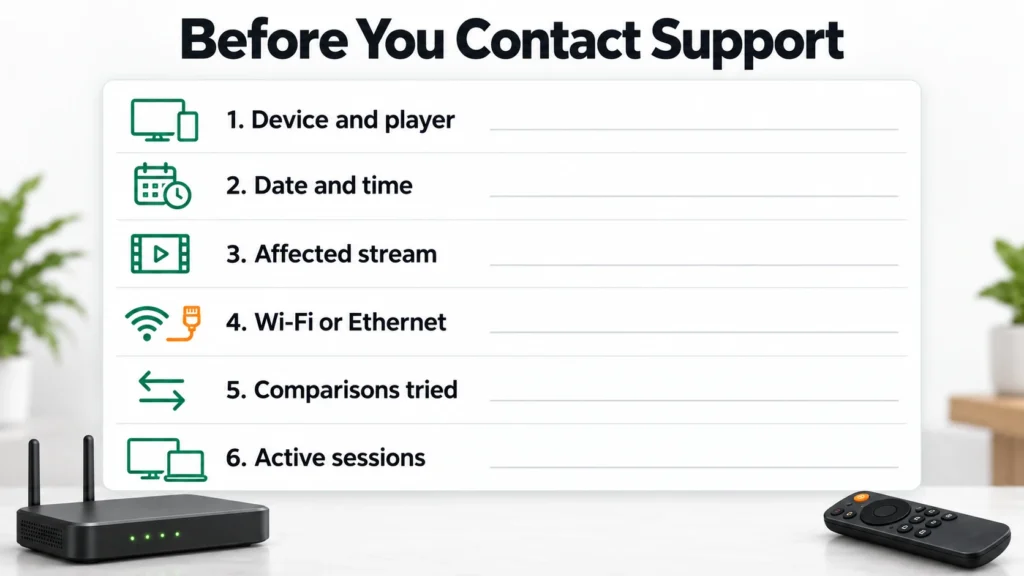
Support can better advise how to stop IPTV buffering when you send observations rather than a presumed diagnosis. Use this report, leaving out passwords, private playlist links, network addresses and other sensitive details:
- Device and software: exact model, system version, player and player version.
- Problem: loading pauses, disconnection, uneven motion or audio failure; include exact non-sensitive error wording.
- When and where: date, Irish local time, affected stream names and whether the issue repeats.
- Connection: Wi-Fi or supported Ethernet, plus any relevant connection-check result.
- Comparisons: what changed, what stayed the same and what happened afterwards.
- Sessions: confirmed allowance and how many streams were active.
If attaching a genuine screenshot, redact account details, private network names, IP/MAC addresses and access URLs first. Include only relevant information. A clear written report about how to stop IPTV buffering is more useful than an unreadable or sensitive screenshot.
Frequently asked questions
Why does fast broadband still buffer?
The advertised package speed does not describe every part of playback. To establish how to stop IPTV buffering, compare the viewing device’s connection, household activity and affected streams. One fast test cannot exclude intermittent delivery or a device-specific problem.
Will Ethernet stop every interruption?
No. It bypasses the wireless link between compatible equipment and the router, making it useful for comparison. It does not fix every source, app or wider-network problem. Check hardware support before buying a cable adapter.
What should I check when IPTV keeps freezing on one stream?
Compare another stream sequentially, then retry the original and record the time. If you need to know how to stop IPTV buffering on one item, that repeatable pattern gives support a starting point without claiming the provider must be responsible.
What is the best player buffer size?
There is no universal best value. Use the player’s documentation, retain the original setting and compare one change. Increasing it can change start-up or live delay without resolving the underlying interruption.
Should I use a VPN?
There is no general VPN prescription for how to stop IPTV buffering. It changes the network path and may improve or worsen a particular comparison. Neither result establishes throttling. Follow service conditions and seek a specific explanation before adding another variable.
Can I compare multiple devices at once?
Only within the subscription’s permitted simultaneous use. Sequential testing is usually clearer: stop one session before starting another. Otherwise extra demand or an exceeded allowance can confuse the result you are trying to interpret.
Your next step
Choose the first relevant comparison and record its result before changing anything else. Check device compatibility and the relevant setup guidance if your hardware or player support is unclear.
If you still need help with how to stop IPTV buffering, contact support with your comparison report. Existing customers can investigate their current setup before considering further purchases.