
IPTV Channels Not Loading? 7 Essential Checks
Work out whether the problem starts with your channel list, account access or playback, then use controlled checks before changing settings or contacting support.
On this page
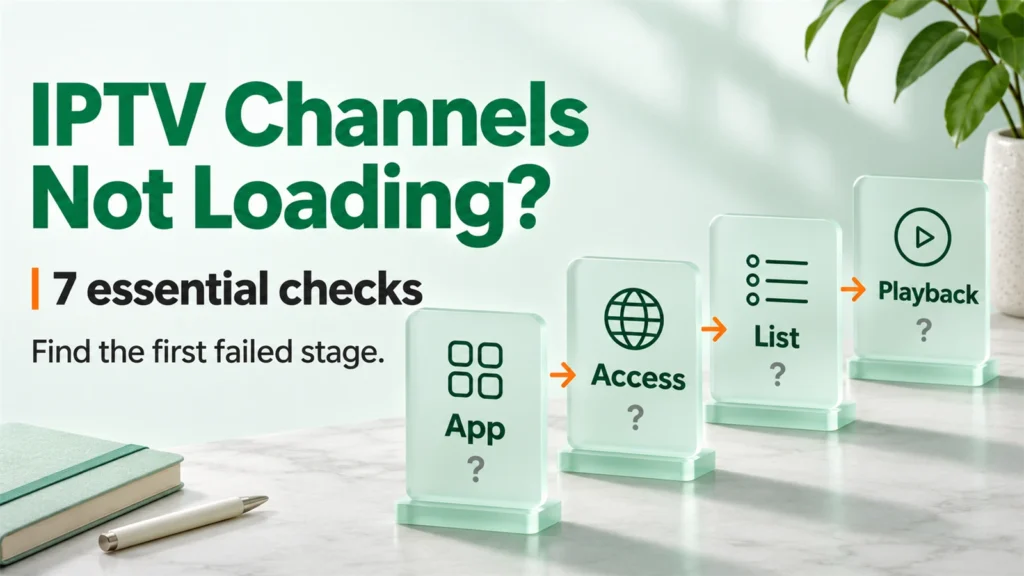
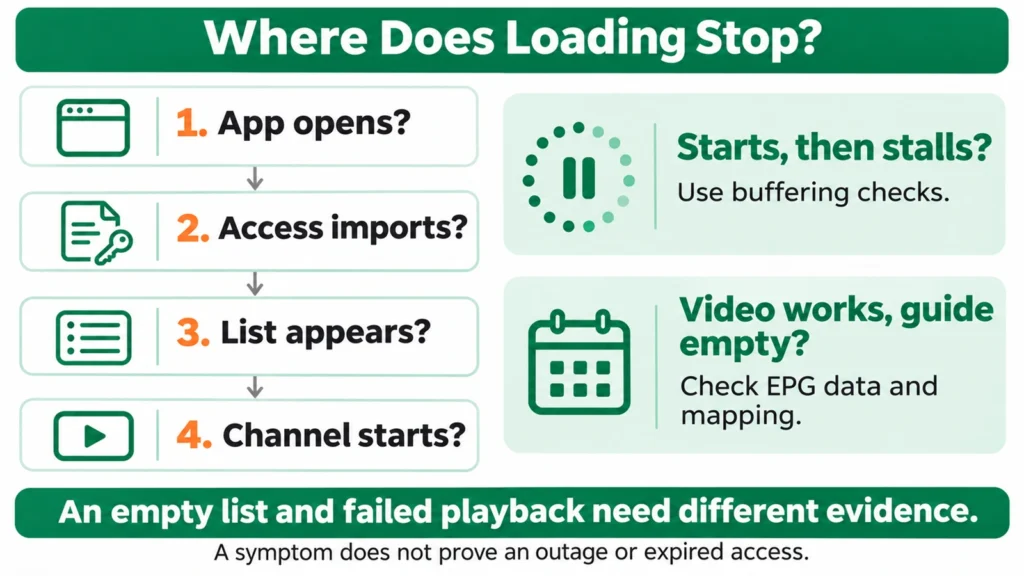
If you have IPTV channels not loading, identify the first stage that fails: opening the app, importing access, displaying the list or starting a channel. Confirm the supported input and current account conditions, then compare permitted channels one at a time. Record what changes before altering another setting. A blank catalogue, a black playback screen and a stream that starts then buffers need different checks; none alone proves an outage or an expired subscription.
Avoid treating IPTV channels not loading as an instruction to rebuild every part of the setup. Start with the observation closest to your situation. Fixing a guide display will not necessarily repair a media request, and refreshing channel names does not test the video behind them.
| What you observe | Start with | What the observation does not prove |
|---|---|---|
| App will not open | App/device operation | The service or playlist is unavailable |
| Import fails or list stays empty | Supported access, profile, filters and refresh | Every media stream is unavailable |
| List loads; selected channel will not play | Stream request and playback test | Fresh account verification succeeded |
| Only some channels fail | A controlled channel comparison | The ISP or provider has been identified as the cause |
| Playback begins then stalls | Buffering checks | A larger plan or new router is required |
| Guide is empty but video plays | EPG data and mapping | The live stream is broken |
1. Identify where IPTV channels not loading begins
Write down the first action that fails. Does the app close before you reach the catalogue? Does importing the supplied access produce an error? Can you select a channel but never see picture or hear sound? These descriptions are more useful than saying everything is broken.
Keep five baseline details together:
- Device make, model and operating-system version.
- Exact app title, developer and version.
- Input-method type, without its private contents.
- First failing action and any displayed error.
- Recent changes, such as an update, profile switch or replacement access details.
A recent change is a lead to investigate, not proof of causation. These details keep an IPTV channels not loading report tied to the setup that actually failed.
For IPTV channels not loading intermittently, include the date and Ireland local time of each attempt. Add the timezone or offset where relevant, especially when sharing logs with support. Do not assume Ireland uses the same UTC offset throughout the year.
Copy the displayed error accurately, with secrets removed. Distinguish a message shown during import from one shown after selecting a channel. If the app reports rate limiting or an account lock, stop repeated login and refresh attempts and seek the documented recovery procedure.
If the app cannot open at all, address that branch with app or device support before testing streams. You cannot yet establish whether the channel catalogue or media is accessible through that app.
Keep a short baseline note before making changes. For IPTV channels not loading, the baseline should say what you selected, what appeared and what remained absent. Repeat the same action after a justified change so you can judge whether the result actually differs.
2. IPTV channels not loading: check access, profile and input
An app licence and a channel subscription are separate things. Paying to activate a player does not establish current service access. Equally, an active service account does not establish that every player edition accepts its supplied input method.
When investigating IPTV channels not loading, confirm current access with the supplier rather than inferring account status from saved channel names. Ask which input method and simultaneous-stream allowance apply to the account you are using.
Check that you selected the intended account or profile. If another device is actively playing, stop that playback before a sequential test where the allowance requires it. Merely having an app installed elsewhere is different from an active stream. Our multiple-device and simultaneous-stream guide explains that distinction.
Do not assume a universal session-release delay. If access remains restricted after playback stops, report the actual message and ask the supplier how sessions are handled. Repeatedly opening more devices can make your comparison less clear.
IPTV playlist not loading: confirm the input first
Use the M3U file or URL, supported account method or assigned portal details actually supplied for your setup. Confirm which kind the player expects. Do not guess credentials, alter token parameters or construct another endpoint from account fields.
With an IPTV playlist not loading, check whether you are importing a local file snapshot or retrieving a remote resource. A saved file does not automatically become a newer supplier-issued catalogue. See the M3U file and playlist URL guide if that distinction is unclear.
Keep private access URLs out of search engines, public validators, forums and online converters. Send account questions through the supplier’s private support route. For IPTV channels not loading after access details were changed, confirm that the intended profile uses the current supplied method before deleting the old setup.
3. IPTV channels not loading: check filters and refresh
A catalogue can appear empty because of the selected view, but that possibility needs checking rather than assuming. Where the player supports these features, remove the search query, leave favourites-only viewing, select the intended list or category and inspect hidden-group settings.
Note the original view first. Then change one relevant filter and look for a difference. If channels reappear, record which selection changed the displayed list. That establishes a display result; it does not yet establish successful playback.
For IPTV channels not loading at the catalogue stage, distinguish four operations: refreshing channel data, refreshing programme-guide data, clearing temporary cache and deleting app data. They are not interchangeable troubleshooting steps.
Use the documented channel-list refresh action for your app edition. Record whether it completes, displays an error or leaves the same catalogue visible. Avoid repeatedly refreshing without reading the result, particularly if the player warns about request limits.
The official Kodi IPTV Simple documentation illustrates why these distinctions matter: it separates local and remote playlist inputs, provides local caching and refresh settings, and allows group-loading configuration to restrict loaded groups. Those are Kodi-specific capabilities, not menu instructions for every television or player.
Refreshing an old local file does not obtain a newer file from the supplier. Likewise, a catalogue that remains visible could have come from cached data. Channel names alone do not establish that a fresh account request succeeded or that each media destination can play.
When IPTV channels not loading becomes a visible list after refresh, move to a playback test. Keep the observation precise: the list appeared, but its channels remain untested. Do not declare the entire problem solved until you have checked the viewing action that originally failed.
4. IPTV channels not loading: compare one channel at a time
Choose a channel your account should currently be able to access. If you are unsure about its expected availability, ask the supplier rather than assuming every listed item must always be available.
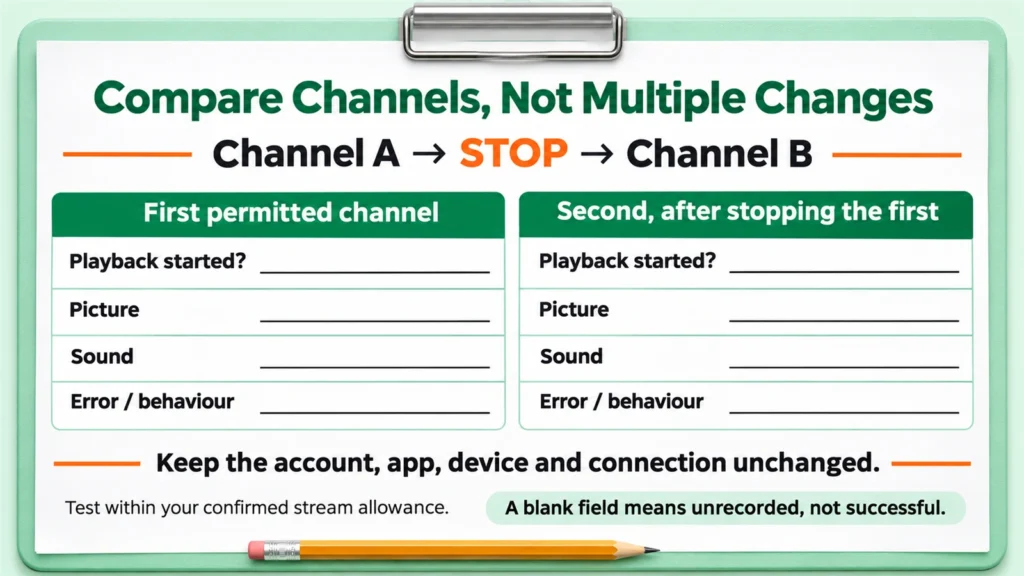
A useful test for IPTV channels not loading keeps the account, app, device and connection unchanged while you compare permitted channels sequentially:
- Select the first channel and note when the attempt begins.
- Record whether playback starts, whether picture appears and whether sound is present.
- Note the exact error or visible behaviour if it fails. Distinguish a spinner, a blank playback area and an app crash.
- Stop the playback or failed attempt appropriately.
- Select a second permitted channel, ideally from another relevant group, without changing settings.
- Record the same observations and compare the two results.
Do not run both tests simultaneously beyond the account allowance. If background playback is unclear, use the app’s supported stop procedure before continuing. Keep the comparison small enough that you can explain exactly what happened. A short private test record makes that easier:
| Test | Playback started? | Picture and sound | Error or behaviour |
|---|---|---|---|
| First permitted channel | Record the result | Note both separately | Copy with secrets removed |
| Second, after stopping the first | Record the result | Note both separately | Note any difference |
Use the same app, device and connection for this comparison of IPTV channels not loading. A blank cell means unrecorded, not a successful test.
Some IPTV channels not working: compare the scope
With some IPTV channels not working, one successful channel proves only that its particular request played under those conditions. It does not rule out intermittent connectivity, per-stream format differences, device limitations or problems affecting other service resources.
Write the result as “first channel: no picture or sound; second channel: picture and sound”. That gives support more to work with than “half the service is down”, especially when you have tested only two items.
For IPTV channels not loading across every channel you tested, record the tested scope rather than declaring a provider-wide outage. All tested items failing in one player still leaves questions about access, the input method, playback compatibility and the service’s expected availability.
If a channel starts and later freezes or pauses, that is a different observation from never starting. Follow the extended buffering checks for that branch. Retain your initial comparison notes instead of restarting the investigation from memory.
5. IPTV channels not loading: check the device without deleting settings
Once you have a baseline, try low-impact actions appropriate to the device: close and reopen the app, restart the device, and check officially available app or system updates. Inspect available storage using the manufacturer’s instructions. After each action, repeat the same permitted test before changing something else.
For IPTV channels not loading after an update, record the current version and the earlier behaviour if known. Do not assume the update caused the failure simply because the timing matches. That information helps the developer assess the report.
The official TCL Google TV app troubleshooting guide covers restart, updates and storage checks. It also distinguishes clearing cache from clearing data or storage, which may sign you out or reset app settings. This is a TCL Google TV example with model and software variation; its US support page does not verify Irish app-store availability.
Treat cache clearance as a specific operation where your platform supports it. App-data removal can require you to rebuild access and preferences. Read the confirmation message rather than assuming similarly named controls have identical effects across devices.
Before any supported action that removes settings, retain the supplied access details securely and record the configuration needed for recovery. Verify that you can obtain the official app again if reinstalling is being considered. Do not post recovery credentials in a screenshot or support forum.
An IPTV channels not loading report does not justify starting with clear-data, reinstallation or a factory reset. These actions can erase useful context without repairing remote access or unavailable media. A cache action also cannot guarantee a remote source will become playable.
Keep security checks enabled. Do not change HTTPS access to HTTP or disable certificate validation as an experiment. For IPTV channels not loading after the basic checks, ask for a version-specific next step rather than cycling through destructive changes. No update or reinstall guarantees restoration of service.
6. IPTV channels not loading: compare connection and playback conditions
Confirm that the viewing device has connectivity. Another app opening or playing video shows some network access, but it does not test authorisation or reachability for every IPTV resource. A browser speed test likewise does not reproduce the whole channel request and playback process.
For IPTV channels not loading, compare conditions only when the test is practical and authorised. You could use a supported wired connection in place of Wi-Fi, or an alternative connection allowed by the account’s terms. Keep the same device, app and permitted channel where possible.
Record the connection used and the outcome. If the result changes, that is useful evidence about those conditions. It does not, by itself, prove ISP blocking, establish which network component is responsible or show that a router replacement is necessary.
Do not treat a VPN or DNS change as an automatic cure. Where errors persist, send the actual observations to support instead of guessing endpoint-specific causes. Any comparison must respect access rules and location conditions.
IPTV black screen: separate playback from sound and guide data
Describe an IPTV black screen in more detail. Is sound playing? Can you still see the player’s surrounding controls? Does the app remain responsive? A missing picture with audible content is a different result from no media starting at all.
If picture plays without audio, follow the no-sound troubleshooting guide. If video plays but programme information is empty, use the EPG and channel-mapping guide. Neither observation automatically establishes a failed live stream.
For IPTV channels not loading, a second supported player or device may provide a useful comparison, but it changes more variables. Record the new app, version, device and input type, and stop the first playback before testing within your allowance. Check player compatibility before switching apps or paying for another licence.
As a bounded desktop example, VideoLAN’s VLC 3.0 documentation describes opening a network URL through Media > Open Network Stream. That documents a supported URL workflow, not support for an arbitrary portal or proprietary account method. Do not force this test or expose credentials to obtain an address.
7. Report IPTV channels not loading with useful evidence
Support can investigate IPTV channels not loading more efficiently when each comparison has a clear result. Collect the observations before contacting support. A concise report should make clear which stage failed and what the comparison actually tested. You do not need a long history of every button pressed.
For IPTV channels not loading, include:
- Device model, operating system, exact app title, developer and version.
- Access-method type, without passwords, tokens or private addresses.
- First failed stage: app opening, import, catalogue display or playback start.
- Date and local time, including timezone or offset where relevant.
- Affected channel names, shared privately with the appropriate support team.
- Exact error text, with sensitive request details removed.
- Whether the list was visible and what happened during a documented refresh.
- Picture and sound results for each sequential comparison.
- Connection, app or device changes, with the result after each change.
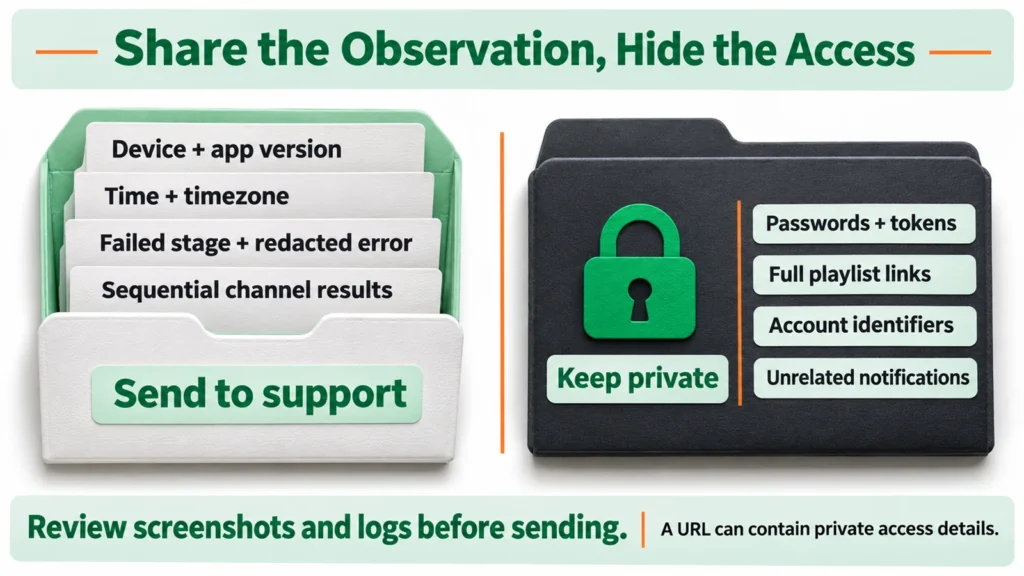
Check screenshots and logs before sending them. Hide full private access links, credentials, tokens, account identifiers and unrelated personal notifications. A URL can contain sensitive details even if no password field is visible. Keep any original diagnostic file secure and share only the relevant redacted material through the appropriate route.
Start with the supplier for current access, entitlement and expected stream availability. Ask the app developer about version-specific import or playback behaviour. Contact the device manufacturer for failures affecting device operation more broadly. These are starting points for clarification, not established fault assignments.
When reporting IPTV channels not loading, ask a focused next question: should these selected channels be accessible through this input on this app edition, and which supported test should follow? Existing customers should obtain that answer before being asked to purchase access again.
Hypothetical example: a visible list with different playback results
This is a hypothetical example of IPTV channels not loading, not a customer story or a hands-on service test.
A viewer in Ireland opens an unspecified player and sees a catalogue. The supplier has confirmed current access and the expected availability of two selected channels. The viewer notes the app version, input type and local time without sharing private access details.
The first channel never produces picture or sound. The viewer records the displayed error, stops the attempt and selects the second permitted channel on the same setup. That channel opens with both picture and sound.
The viewer sends those results privately to support. The successful request demonstrates playback for the second item under the tested conditions. It does not prove why the first failed, establish uninterrupted connectivity or validate every catalogue entry.
The underlying cause remains unresolved. The next question concerns the first channel’s expected access and playback behaviour, supported by a useful comparison rather than an invented repair success.
Frequently asked questions
Why does the list appear if none of the channels play?
Channel names can remain visible from saved or cached catalogue data. Retrieving a list and playing its media are separate checks. With IPTV channels not loading, confirm current access and the supported input, then record a controlled playback result.
Why are only some channels not working?
Several explanations remain possible, including item availability and playback differences. With some IPTV channels not working, compare permitted channels on the same setup and report the scope. One successful channel does not identify the cause of another failure.
Can missing EPG information stop a live channel playing?
An empty guide alone does not establish that live playback is unavailable. Test the selected live channel separately. If it plays, investigate the programme data and mapping rather than treating the missing schedule as proof of media failure.
Should I clear cache or clear app data?
Check the device’s documentation and confirmation message first. These are different actions, and data removal can mean rebuilding access or settings. For IPTV channels not loading, preserve recovery information before any destructive action rather than treating it as the first fix.
Does another streaming app working rule out a connection issue?
No. It shows connectivity for that app’s tested request. It does not verify every IPTV destination, the account’s authorisation or uninterrupted performance. Record it as one comparison, alongside the channel result and connection used.
Does a black screen mean my subscription has expired?
No. An IPTV black screen does not establish account status. Note whether sound or controls remain available, preserve the error and ask the supplier to confirm current access. Avoid diagnosing expiry from appearance alone.
Should I buy a different player before contacting support?
First confirm whether the existing edition supports the supplied method and whether access is current. For IPTV channels not loading, another purchase can leave the same unanswered question. A supported comparison is useful when it tests a clear possibility within the account rules.
Your next step for IPTV channels not loading
Identify the first failed stage, complete one controlled comparison and send the evidence to IPTV Ireland Fast support. Ask what should work through your actual access method before changing more settings or buying again. Keep the next action tied to the observed failure.