
Apple TV IPTV Player: 7 Essential Checks Before You Choose
Compare documented Apple TV player options, confirm compatibility and test your own playlist, remote controls and guide before buying extra features.
On this page
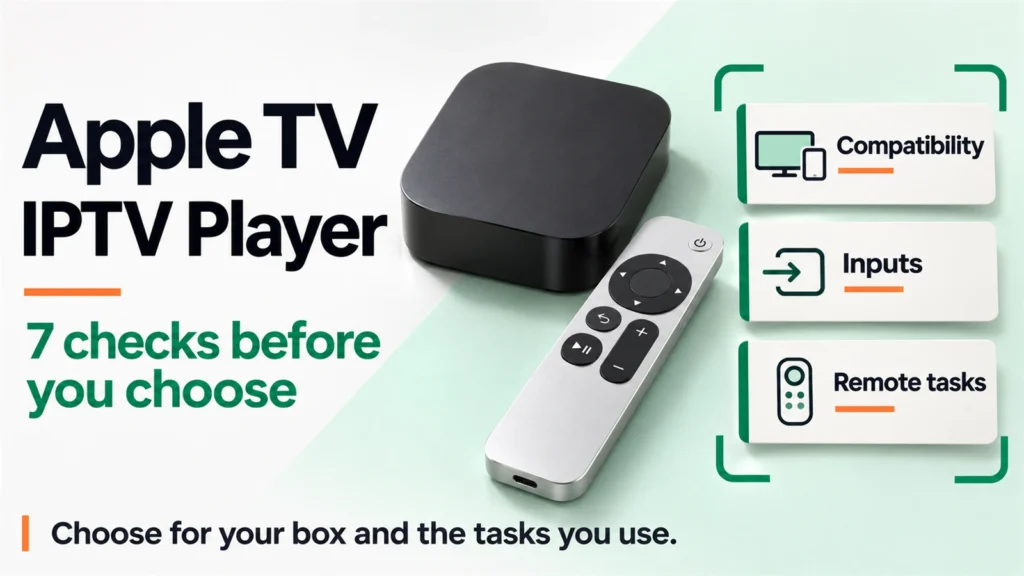
A suitable Apple TV IPTV player installs natively on your box, accepts the input your supplier gave you and handles the remote-control tasks you use. Check those points and the purchase terms, then try a permitted channel before paying for extras. IPTVX and UHF are two documented candidates to compare. Here, Apple TV means the hardware box; neither candidate supplies your viewing content, and neither is a universal winner.
Start an Apple TV IPTV player comparison with what you want to do from the sofa. Finding a channel, reading its schedule and selecting a supplied audio track can matter more than a long feature list. Keep those tasks in view while checking compatibility and cost.
1. Identify the box before choosing an Apple TV IPTV player
Write down the hardware model, installed tvOS version and App Store region associated with your account. These details help you assess an actual installation, rather than the appearance of an app in a browser search.
Apple’s app-installation guidance distinguishes Apple TV 4K and Apple TV HD, which support App Store downloads, from the third-generation Apple TV, which cannot download new apps from that store. Updating built-in software does not turn that older box into an App Store-capable model.
Keep three meanings separate. The Apple TV box is hardware running its supported software. The Apple TV video app on another television is not the box’s tvOS App Store. AirPlay starts playback from another device through a different route; it is not evidence that a native player has been installed on your box.
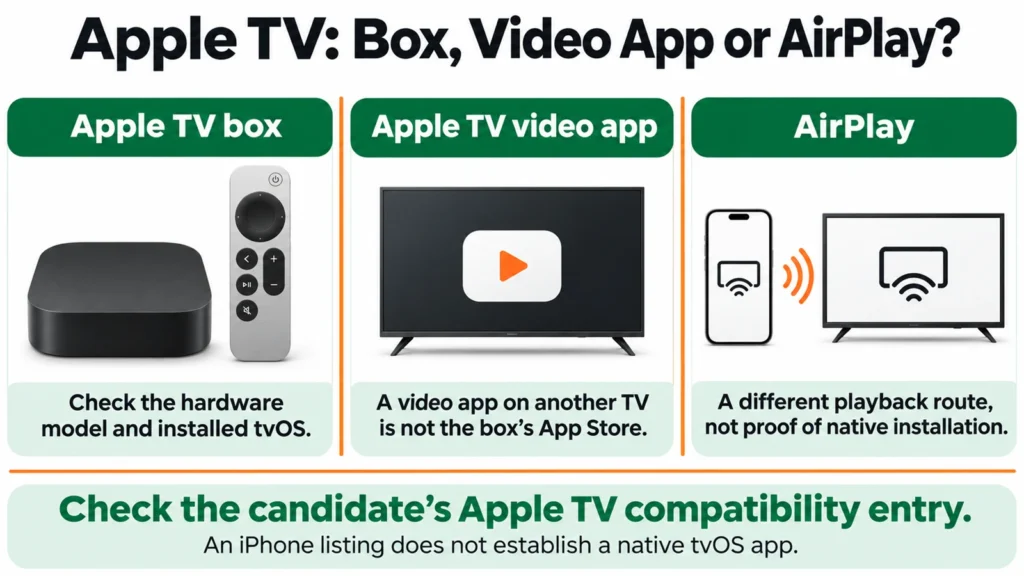
For an Apple TV IPTV player, inspect the candidate’s Apple TV compatibility entry specifically. An iPhone minimum software version does not answer the tvOS question. Likewise, owning an app on a phone does not establish that a native television edition is offered to your account.
If you also watch on a tablet, follow our iPad player checks separately; iPad compatibility and touch controls do not establish the tvOS result.
Use this short compatibility note:
- Hardware: exact box model or generation.
- Software: installed tvOS version.
- Platform: candidate explicitly lists Apple TV.
- Input: the supplied account or playlist method is supported.
- Task: the viewing action you need to perform.
- Purchase: the offer and account conditions relevant to that TV edition.
An app’s current minimum requirement is a starting point, not a permanent promise. Check it again before purchasing features or replacing hardware. If your box cannot meet the requirement, establish a compatible option before spending on an entitlement you may not be able to use.
2. Match the supplied input to your Apple TV IPTV player
Identify what your supplier actually provided: a complete M3U URL, a playlist file, an Xtream-style account connection or another documented method. These are different inputs, and a player’s support for one does not establish support for all of them.
For an Apple TV IPTV player, compare the exact supplied form with the developer’s documentation. A label such as M3U or Xtream is useful evidence about input support, but it does not establish current account access, every listed channel or viewing rights.
If you have a file, confirm how the TV edition accepts that file rather than assuming a desktop import procedure applies. If you have an address, preserve the complete supplied value. Do not shorten a playlist URL into a guessed server field or add an invented endpoint.
Our M3U playlist guide explains local files and remote resources. For a server address, username and password, use the Xtream Codes login guide to distinguish content credentials from a player purchase account.
Keep private access information out of screenshots, public search tools and online converters. Full URLs and QR codes may contain account details even when no separate password is visible. If a candidate needs a different supported input, obtain it directly from the supplier.
When an Apple TV IPTV player imports a catalogue, record that result separately from playback. Seeing channel names does not demonstrate that the selected media request will succeed. Save the input-method type in your notes, while storing the actual credentials securely.
3. Compare documented IPTV players for Apple TV
IPTVX and UHF form a useful shortlist because their primary listings identify Apple TV support and relevant inputs. They are documented candidates for evaluation, not a declaration that either performs best on every source or box.
The table records UK listing observations checked on 8 November 2026. Minimum tvOS requirements can change; they are not the apps’ version numbers.
| Listing detail | IPTVX | UHF |
|---|---|---|
| Current listed provider | Bending X – FZE | Short Wavelength Applications SL |
| Native Apple TV listing | UK App Store | UK App Store |
| Minimum tvOS observed on 8 November 2026 | 16.0 or later | 17.0 or later |
| Documented input | Xtream API, M3U/M3U8 | M3U8 and Xtream |
| Practical task to check | Guide and library navigation with your remote | Source selection and movement between guide and playback |
| Before paying | Confirm the desired TV function and which purchase covers it | Confirm tvOS behaviour and whether the offered tier includes your task |
The linked listings support the provider, platform and minimum-software entries. The task rows are suggestions for your own comparison, not results from a hands-on review.
IPTVX: investigate your guide and library tasks
IPTVX advertises programme-guide and library-management capabilities and requires users to supply content. Its listing also states an iCloud-account requirement. Those statements help identify questions to ask; they do not establish that every shared-platform feature behaves identically on Apple TV or belongs to every purchase option.
For this Apple TV IPTV player candidate, test the actual navigation you need. Can you reach your intended category, recognise the selected item and return from playback without losing your place? Record the observed behaviour rather than turning advertised features into a performance score.
UHF: investigate the TV-specific workflow
UHF’s listing describes user-added content, core functions and an optional PRO offer. Its platform description should be checked against the actual television build. Neither a phone-oriented description nor an iPad image establishes the remote-control workflow on your box.
For this Apple TV IPTV player candidate, check the guide, source selection and track controls on the installed TV build. Treat shared-platform promises as questions to verify, particularly where a description refers to touch gestures or functions you intend to buy.
These two IPTV players for Apple TV may suit different household priorities. Use the broader player-selection guide if you need cross-platform options, but keep this decision tied to the box, source and remote tasks you will actually use.
4. Test remote tasks on the Apple TV IPTV player itself
Make a short task list before exploring optional settings. Use a permitted item your account should currently be able to access, and test from your normal viewing position. A control that looks clear close to the screen may be awkward to read from the sofa.
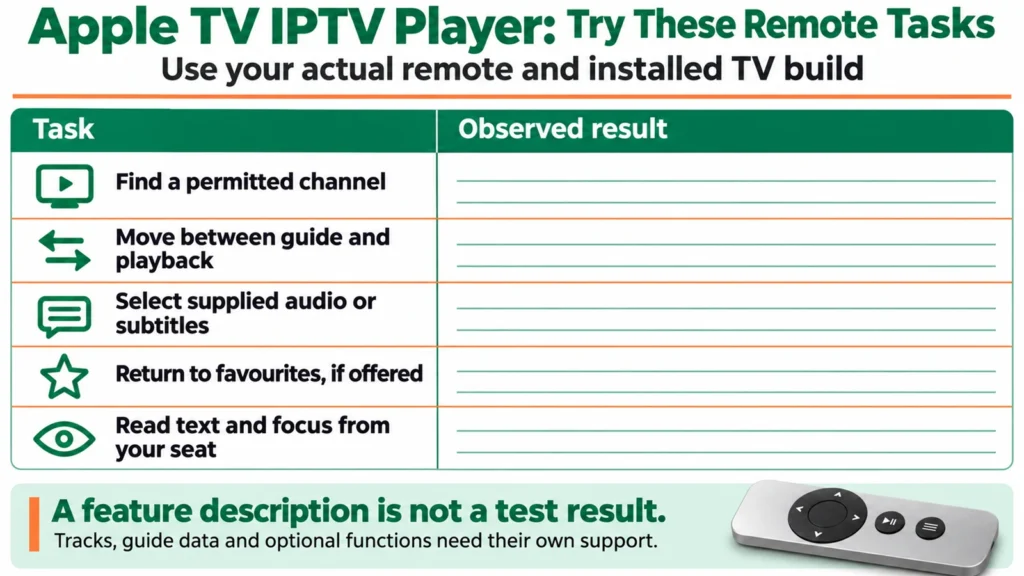
The following are editorial test tasks, not claims about inspected buttons or results in either candidate. Use the app’s current documented controls rather than assuming an iPhone gesture has a television equivalent.
Task and result worksheet
Record each result from your own remote and build. Leave the final column blank until you have tried the action; a feature name on a store page is not a test result.
| Task | What to check | Observed result |
|---|---|---|
| Find a permitted channel | Identify the right item with search or browsing, where supported | __________ |
| Move between guide and playback | Return to the channel or programme context you need | __________ |
| Select a supplied track | Check whether the intended audio or subtitle option is available and selectable | __________ |
| Return to favourites, if offered | Recover a saved item without repeating a long search | __________ |
| Read the display | View text, focus and selection from your normal seat | __________ |
An Apple TV IPTV player cannot select a subtitle track that the source does not supply through the supported route. If the intended option is absent, record the item and what the player actually offers. Do not infer from a missing track alone that another app will create it.
An empty guide similarly needs a separate data check. Confirm whether relevant schedule information is supplied and mapped to the channel. The programme-guide checks cover that branch without requiring you to replace a player whose video already works.
Catch-up also needs available archive material and a compatible route. A replay label or advertised archive feature does not create a past programme. Keep these source requirements separate from whether a remote control is easy to use.
The best Apple TV IPTV player for your setup should pass the tasks you value, not merely display the longest capability list. If two candidates handle playback but only one meets your navigation needs, that is a useful personal comparison without establishing a universal winner.
5. Check the full cost of an Apple TV IPTV player
A free download does not establish that every function is free. Apple explains that a Get button indicates a free download, while additional in-app purchases or subscriptions may exist. Check the actual offer relevant to the TV platform before relying on a paid feature.
For either Apple TV IPTV player candidate, identify the exact option being offered. Multiple purchase entries can describe different bundles or periods. Do not take one number from a mobile listing, old review or another storefront and call it the universal price.
Record these purchase details privately:
- Amount, currency and tax treatment shown.
- One-time payment or recurring billing period.
- Renewal conditions and where the purchase is managed.
- Exact feature or bundle covered on Apple TV.
- Relevant purchase account and any app-specific account requirements.
- Any device, sharing or synchronisation conditions important to your use.
Separate the Apple/App Store purchase account, an app-specific account or iCloud condition, and the content supplier’s credentials. Do not assume both candidates have identical account requirements. A successful software purchase does not verify that your viewing access is current.
If synchronisation matters, ask what is synchronised and between which supported devices. Favourites, playback position and recordings are different things. A family-sharing or sync claim also does not expand the supplier’s simultaneous-stream allowance.
Before paying for an Apple TV IPTV player feature, connect it to an observed limitation: what can you not do now, what does the offer promise to unlock, and what source or device conditions remain? If the description is ambiguous, clarify that point before confirming payment.
Keep receipts and recovery details private. For cancellation, purchase restoration or refund questions, use the official support route associated with the purchase. Do not assume that another person’s store experience establishes the conditions for your account.
6. Compare one Apple TV IPTV player at a time
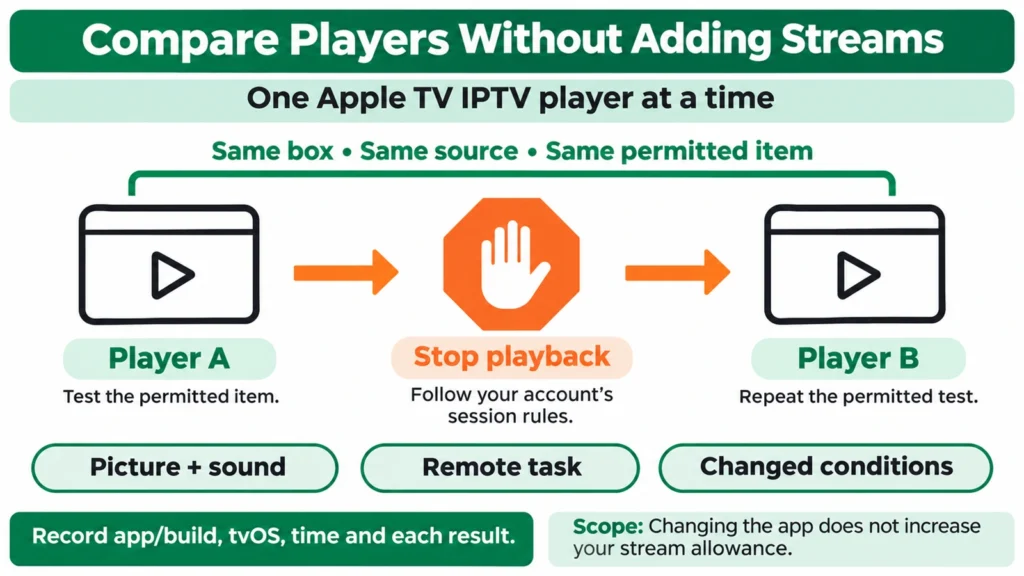
Use the same authorised source and permitted item when comparing candidates, with the same box and connection where practical. Stop other playback where your allowance requires it. The comparison should help explain a result without creating extra active streams.
For an Apple TV IPTV player comparison, record the account allowance before starting. Changing software does not increase it, and leaving one candidate playing while opening another can invalidate the conditions you intended to compare.
Use this sequence:
- Note the box model, tvOS, candidate app and installed version/build.
- Record the input-method type and the date, local time and timezone.
- Import or open the supported source, noting whether the catalogue appears.
- Select one permitted item and record picture and sound separately.
- Try the specific remote, guide or track task you identified earlier.
- Stop playback appropriately before opening the next permitted test.
- Repeat with the second candidate and record any changed conditions.
Keep each Apple TV IPTV player result narrow. One successful item does not establish support for every format, source or audio configuration. If both candidates fail, that alone does not prove a provider-wide outage or a fault in the box.
If picture plays without sound, preserve that observation and use the audio troubleshooting guide. If playback starts and then pauses or freezes, follow the buffering diagnosis. Neither branch is automatically solved by another purchase.
Hypothetical household example: the guide task decides the preference
This is an illustrative scenario, not a hands-on test or a real customer report.
A household compares two compatible candidates on its Apple TV box. Both import the supplied list. The viewer tests the same permitted item sequentially, stopping the first playback before opening the other candidate.
In this fictional comparison, picture and sound work in both. The viewer finds returning from playback to the intended guide position easier in one candidate. They record that task result, then check whether the required function is included in its actual plan before paying.
The preference concerns this household’s task on its tested setup. It does not make that candidate the best Apple TV IPTV player for everyone, establish faster playback or prove support for every catalogue item.
Now consider a separate observation: a channel plays, but its guide information is absent. That result calls for checking schedule data and mapping. It does not, by itself, establish that the account format is wrong or that replacing the player will supply the missing programme information.
7. Choose the Apple TV IPTV player that fits verified needs
Bring the decision back to compatibility, input and the task you tested. A promising description is useful for creating a shortlist; an observed result and a clear purchase offer support the actual choice.
| What you establish | Useful next action |
|---|---|
| Hardware cannot support the intended native app | Find a compatible setup before purchasing app features |
| Supplied input is unsupported | Ask the supplier for a supported form; do not guess a conversion |
| Basic use already meets the need | Keep using it and reassess when a real limitation appears |
| A useful paid feature is confirmed for your setup | Review the full offer before deciding whether to buy |
| Catalogue imports but playback fails | Investigate the failed media stage and retain the comparison evidence |
| One suitable player passes the intended task | Keep the result and purchase conditions with your setup notes |
Retain the Apple TV IPTV player name, installed build, tvOS, input type and test result. Store private access details separately and securely. These notes make later support questions more specific if the app, source or operating system changes.
Do not remove a working profile before retaining a supported backup or recovery route. Check what recovery actually preserves rather than assuming a purchase account restores every local setting. Avoid a factory reset, security downgrade or repeated payment as the first response to an unclear result.
For app-specific behaviour, provide the developer with a sanitised report identifying the platform and build. For current access or expected item availability, ask the content supplier. Those routes clarify different parts of the setup without assigning fault prematurely.
Choose an Apple TV IPTV player because it fits the verified task and conditions. If an essential point remains unanswered, keep the working arrangement while you clarify it rather than treating replacement as progress by itself.
Frequently asked questions
Which is the best Apple TV IPTV player for my setup?
Choose by native compatibility, supported input, remote tasks and actual purchase terms. IPTVX and UHF are documented candidates to evaluate, not proven universal winners. Test the viewing action you need on your own box before choosing paid features.
Does Apple TV include IPTV channels?
An Apple TV IPTV player uses the content or access you supply separately. Installing a candidate or buying its features does not establish a channel subscription, current entitlement or guaranteed item availability. Confirm viewing access with the appropriate supplier.
Can I install an Apple TV IPTV player on an older box?
Check the exact model and the app’s current tvOS requirement. Apple TV third generation cannot download new App Store apps. Apple TV HD or 4K store access still does not establish compatibility with every current candidate or feature.
Is an iPhone app automatically a tvOS app?
No. Confirm the Apple TV entry in the compatibility information and availability on your device/account. For an Apple TV IPTV player, a phone screenshot, mobile feature description or AirPlay option does not establish an equivalent native television interface.
Can I use M3U or Xtream access?
The documented candidates advertise relevant inputs, but check your exact supplied form against the TV edition’s instructions. An IPTV player for Apple TV still needs current authorised access. Ask for a supported input rather than guessing addresses or using converters.
Is a free Apple TV IPTV player download fully free?
Not necessarily. Check the specific functions available without payment and the actual purchase option for the TV platform. A download label does not establish the scope, billing period or account conditions of an additional entitlement.
Will changing the player cure buffering?
There is no automatic fix. An Apple TV IPTV player comparison can provide useful evidence, but source access, connection conditions and device behaviour still need investigation. Record the stage that fails before assuming a software purchase will improve it.
How do I compare without exceeding my stream allowance?
Stop the first playback and any other sessions required by the account rules before starting the next permitted test. Keep the same item and conditions where possible. Installed applications are not themselves permission for more simultaneous viewing.
Your next Apple TV IPTV player check
Before choosing an Apple TV IPTV player, tick off these six points:
- Native TV support: the listing explicitly includes Apple TV and the app is available to your box/account.
- Correct software: your installed tvOS meets the candidate’s current requirement.
- Supported input: you have matched the supplied format to the TV edition’s documentation.
- One tested task: the permitted playback and remote action you care about have an observed result.
- Current purchase terms: the exact offer covers the TV feature you intend to buy.
- Separate viewing access: content credentials and stream allowances remain independent from the app purchase.
A suitable IPTV player for Apple TV should fit those checks together. Keep the evidence, then choose on usefulness rather than an unsupported ranking. Our setup help can help organise the next content-connection check.