
How to Watch IPTV on a Laptop: 7 Practical Checks
Match your supplied source to a desktop player, separate Windows and Mac controls, and test picture, sound and viewing allowance before a longer session.
On this page
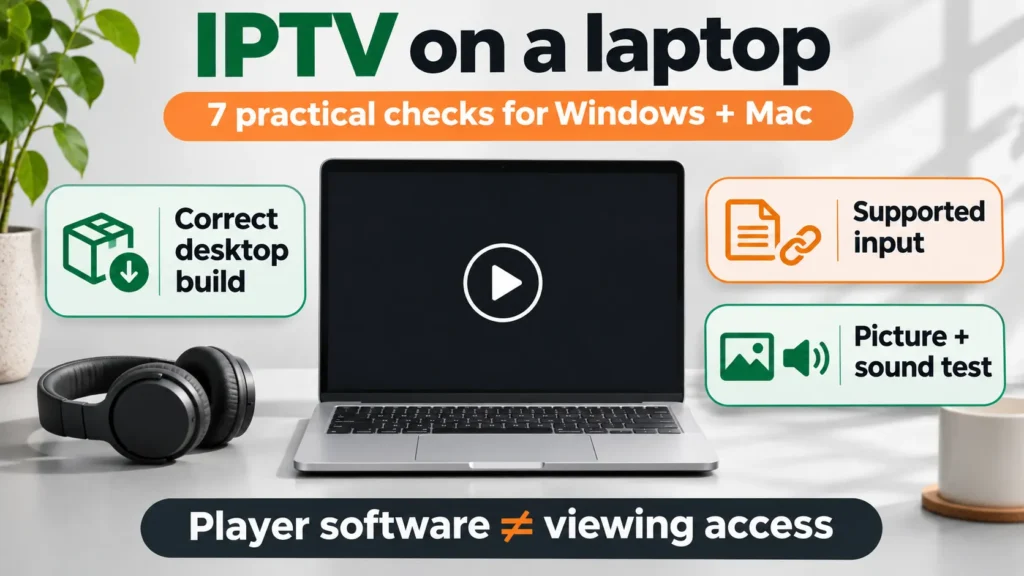
You can watch IPTV on a laptop when a compatible desktop player supports your supplied input, your viewing access is current and the connection can reach the source. Identify whether you received a file, playlist URL, media address or account credentials; install the correct desktop build; open the supported resource; then test one permitted item for picture and sound. Installing VLC or another player does not create a channel subscription or add simultaneous viewing permission.
A laptop adds a few practical choices that a television tutorial may overlook: Windows and Mac menus differ, desktop packages need to match the machine, and sound can be directed to speakers, headphones or a connected display. Work through those choices before changing unrelated settings.
1. Check the machine and supplied input for IPTV on a laptop
Record the operating system, its version and the processor where package selection requires it. Keep the exact player and installed build in your notes once installation is complete. These details help you follow instructions for your machine rather than a similar-looking screen from another platform.
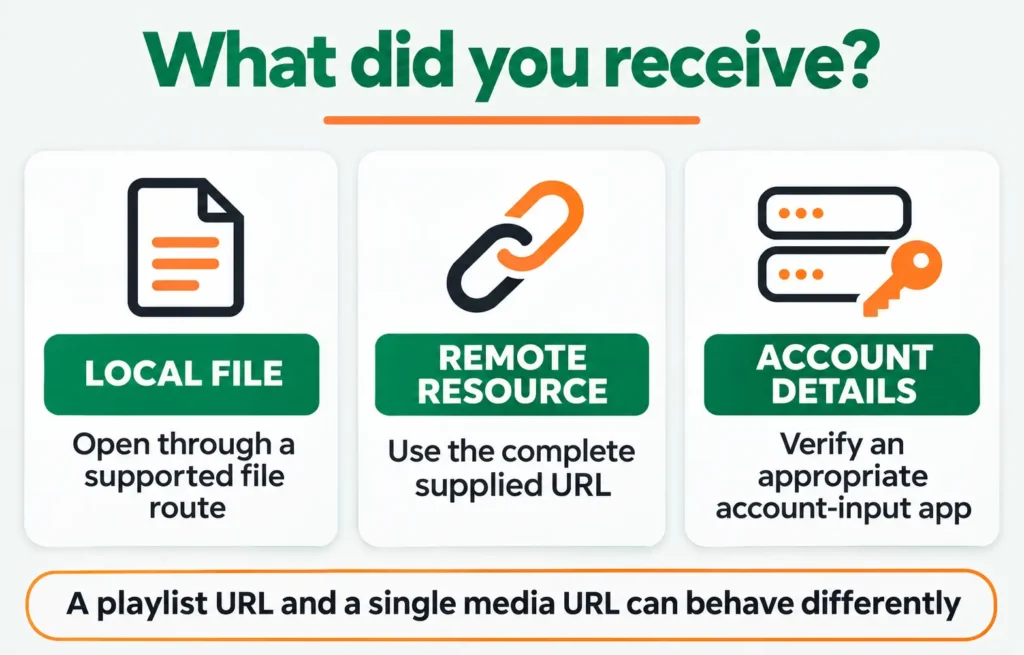
For IPTV on a laptop, identify the source before choosing an import route. A file, a remote catalogue and an individual media address can produce different results even when opened in the same player.
| Supplied input | What it represents | Next check |
|---|---|---|
| Local playlist file | A saved resource containing entries | Supported file-opening route and file accessibility |
| Complete remote playlist URL | An address for retrieving catalogue information | Supported network input and current retrieval |
| Direct permitted media URL | An address for a particular media resource | Player support and actual playback access |
| Xtream account details | Server/account information for a compatible login method | An appropriate account-input app or supplier-provided alternative |
A playlist address and a single video address are not interchangeable descriptions. A catalogue might appear without any selected video starting. A direct media resource may open without a catalogue at all.
Our M3U file and URL guide explains the playlist distinction. If you have server details, a username and password, use the Xtream account-input explanation rather than assuming VLC has a matching sign-in form.
Preserve original access data securely. Do not shorten a supplied URL, invent a server path or send private information to an online converter. Full addresses and QR codes can expose access even if no separate password field is shown.
Can you use IPTV on laptop with only account details?
Possibly, through a separately verified compatible account workflow. Ask the supplier which input and desktop app are supported, or request a supported resource. Setting up IPTV on a laptop does not require deriving an address yourself from private credentials.
2. Choose a desktop build for IPTV on a laptop
VLC is the documented general desktop-player example here. It is not a tested universal winner, a source of viewing channels or a promise that every format and account system will work.
For Windows, start with the official VideoLAN Windows download page. Select the offered package appropriate to your operating system and processor, following the installation guidance for that machine. Official-domain retrieval identifies Windows package choices; it does not verify compatibility with your particular source.
For a MacBook, use the official VideoLAN Mac download page. VideoLAN identifies Intel, Apple Silicon and Universal choices. Match the offered package to your Mac and check current requirements rather than copying an old version number from a tutorial.
Installing IPTV on a laptop does not require an Android emulator merely because a television tutorial uses an Android app. Choose a native desktop route where it supports your input. Codec packs, browser plugins and emulators are not the default next step when an address fails.
Check what the player actually provides. Opening supported media is different from offering a complete TV-style guide, archive catalogue or integrated account login. If your intended task needs those functions, verify the exact desktop edition instead of assuming a general media player includes them.
If VLC does not match the supplied method, clarify that mismatch before buying another application. Our wider player-selection guide can help organise the requirements, but current desktop support still needs checking for the particular input.
For IPTV on a laptop, keep software installation and viewing access separate. Your operating-system account, any paid-player entitlement and the supplier’s credentials perform different jobs. Successfully installing software verifies none of the content account’s availability by itself.
3. Open IPTV on a laptop using the Windows workflow
The official VLC 3.0 media documentation describes these Windows-style opening routes. Choose the route that matches the resource you actually received:
- Local resource: choose Media → Open File, select the supplied file and open it. The documentation also describes dragging a file from File Explorer into VLC.
- Network resource: choose Media → Open Network Stream, enter the complete supplied URL and select Play.
These are documented VLC 3.0 examples. Current builds, language and another player’s interface can differ; follow the help for the installed application.
Select the original supplied file rather than a similarly named copy whose contents you have changed. For a remote resource, preserve the complete address. Keep private details out of screenshots and avoid replacing supplied components with values from a generic example.
When learning how to watch IPTV on laptop with VLC, note what the opened resource represents. If a supported playlist displays entries, select one your account should currently be able to access. If it is a direct media address, the result may go straight to playback instead.
Do not expect every playlist to become a rich television guide. Channel names, programme metadata and media playback are separate things. A previously visible or cached list also does not establish that a fresh account or video request has succeeded.
Before testing IPTV on a laptop, stop other active viewing where the supplier’s rules require it. Keep the account allowance unchanged and test one item at a time rather than opening extra windows to compare simultaneously.
Record the first outcome: resource rejected, list empty, catalogue visible or picture starting. Include the exact sanitised error if one appears. That gives you a specific next question rather than a reason to re-enter every detail repeatedly.
If the labels differ from your installed player, use its current help. Do not force the Windows example onto a different app simply because both can open media. The purpose is supported file or network access, not matching a screenshot at any cost.
4. Open IPTV on a laptop with the Mac workflow
VideoLAN’s Mac interface documentation explicitly depicts VLC 3.0.8 for Mac OS X and describes a File menu, together with audio track and device controls. It is historical interface evidence, not a current-build walkthrough.
For IPTV on a laptop running macOS, begin with the correctly matched Mac package and your installed build’s help. Do not search for a Windows Media menu as though its absence means the installation failed.
For a local file, the desktop media documentation also describes dragging a file from Mac Finder into VLC. Use that only for a supported local resource; dropping a file is not equivalent to entering a supplier’s account credentials.
For network opening, find the installed Mac build’s documented action for opening a network resource and enter the complete supplied address privately. The reviewed historical material does not establish an exact current network-menu label or keyboard shortcut, so follow the help for your actual build.
| Task | Windows documented example | Mac documented boundary |
|---|---|---|
| Open a local resource | VLC 3.0 Media → Open File | Historical File menu; Finder drag-and-drop documented |
| Open a network resource | VLC 3.0 Media → Open Network Stream | Follow installed-build help for the network-opening action |
| Check player audio | Inspect the controls in your build | Historical documentation includes track/device controls |
The relevant distinction for IPTV on a laptop is the task, not identical menu wording. Use Finder to identify the intended file, check which application is active and read its menu/help context. Record the actual build when asking about a missing action.
For IPTV on a laptop running macOS, keep the system account, any player entitlement and the content login distinct. Access to one does not establish access to the others. If an account-only source is supplied, obtain an appropriate supported route rather than trying credentials in an unrelated text field.
5. Test picture, sound and your task for IPTV on a laptop
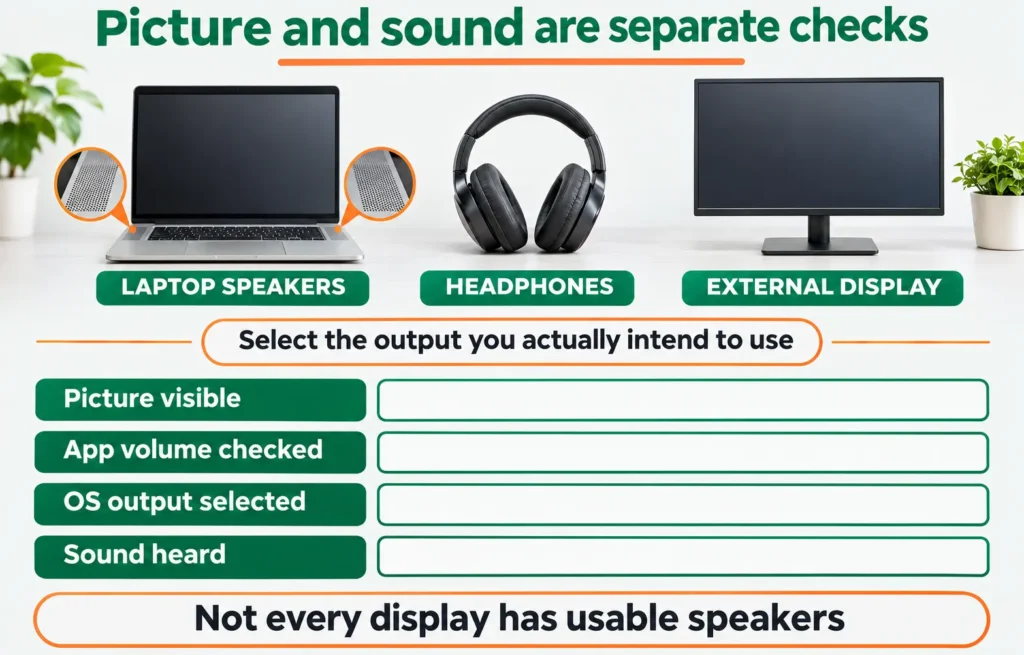
Choose one permitted item and keep the source, player and connection unchanged for the initial check. For IPTV on a laptop, record picture separately from sound: visible video is not evidence that the intended speakers or headphones are receiving audio.
First-playback worksheet
| Task | Observation to record | Your result |
|---|---|---|
| Start the permitted item | Picture appears and remains visible | __________ |
| Hear the intended output | Sound is audible through the chosen speakers/headphones | __________ |
| Select a supplied track, if supported | Intended available track is selectable | __________ |
| Stop and return | Playback stops; the required navigation remains usable | __________ |
Check the player’s mute and volume state, then the operating system’s selected output. A connected headset or display is another part of the route; connection alone does not establish audible playback.
For Windows, Microsoft’s audio guidance gives Start → Settings → System → Sound, then selecting the intended device under Output and checking volume/mute. Apply the example to the relevant Windows version and available hardware.
For Mac, Apple’s sound-output guidance describes Apple menu → System Settings → Sound → Output, then choosing the available device you intend to use. Older system versions can differ. A display may be listed without providing the usable speakers you expect.
When checking IPTV on a laptop with an external screen, decide where sound should come from before changing settings. Laptop speakers, headphones and monitor audio are separate possible destinations. App volume and system output also need separate observations.
An absent source track is different from an unselected track. Use documented controls for supplied options, but do not expect another setting to create missing media. An external subtitle file is a separate resource, not proof that the broadcast supplied that subtitle track.
Hypothetical example: picture appears after connecting a display
This is an illustration of IPTV on a laptop, not a real customer report or hardware test.
A viewer connects an external display and starts a permitted item. Picture appears, but they hear no sound. They record the result, check app volume and inspect the selected operating-system output against the speakers or headphones they intended to use.
That is a useful investigation step, not proof of a faulty display or a guaranteed repair. The viewer keeps the outcome narrow and consults the missing-sound checks if the problem remains unresolved.
6. Diagnose the failed stage before changing the setup
Start with what happened during the attempt. For IPTV on a laptop, installation, input handling, catalogue retrieval and media playback are different stages. A single failure does not establish that everything upstream or downstream is broken.
| Observation | Next useful check | What it does not prove |
|---|---|---|
| Installation unavailable | Correct OS/processor package and current compatibility | An emulator or security downgrade is needed |
| Input is rejected | Supplied form and documented player support | A single definite supplier or account fault |
| List remains empty | Correct resource, retrieval result and supported view | Every media item is unavailable |
| Catalogue loads; media fails | One permitted request and its exact result | Fresh account access or working video was verified |
| Picture without sound | Track, app volume and intended OS output | The entire source is down |
| Playback freezes after starting | Connection/source observations and buffering checks | A larger plan or new player will fix it |
| Optional guide is missing | Available schedule data and app guide support | A working live stream has failed |
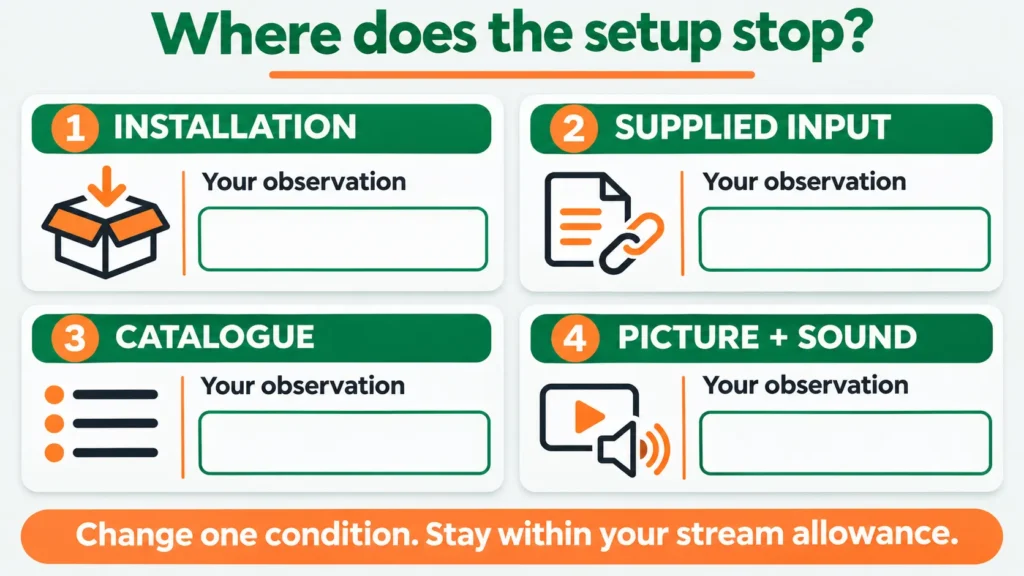
Change one condition at a time and record any difference. Another app playing something shows some connectivity, but it does not verify the same source, account request or media format. If a second player is appropriate, use a separately verified compatible method and stop the first playback before testing.
For IPTV on a laptop that starts and then pauses, follow the buffering diagnostic guide. Preserve the distinction between never starting and stalling later rather than applying the same change to both.
Network capacity is another separate question. The connection-speed explanation provides context, but a speed result alone does not validate account access or source availability. Avoid declaring an operator block from one connection comparison.
Keep a note of the laptop model, OS, player/build, input type and attempt time, with timezone where relevant. Record the selected item privately and remove sensitive details from error reports. Stop repeated attempts if rate-limit or account-lock messages appear.
Troubleshooting IPTV on a laptop does not require disabling the firewall globally, bypassing certificate checks or assuming a VPN is the cure. Preserve a supported recovery copy before deleting profiles or reinstalling. A different result can narrow the question without identifying the cause by itself.
7. Keep a usable IPTV on a laptop setup
Retain the working method and the evidence behind it. For IPTV on a laptop, a concise recovery note is more useful than a folder of unlabelled screenshots containing access details.
Check these six points:
- The desktop build matches the machine and operating system.
- The supplied input has a documented supported route.
- Credentials, private URLs and account details remain protected.
- A permitted item has a recorded picture and sound result.
- The intended output and everyday task have been checked.
- Recovery information and a sanitised support note are available.
Before relying on this IPTV on a laptop setup, keep the working input in a secure recovery location and note which route opened it. A screenshot of a menu does not replace access to the original file or complete supplied resource. Keep secrets separate from the general note. Include the model, OS, app build, time and input-method type when reporting a problem, but share full private account information only through the appropriate secure support route when required.
Ask app support about interface/build behaviour and the supplier about input or current access. Those are clarification routes, not fault assignments. If a paid function is proposed, identify the task it promises to unlock, the platform it covers and whether billing recurs. Confirm the current offer before purchasing; do not use payment as an experiment.
A successful IPTV on a laptop test establishes the selected item and task under those conditions. It does not validate all channels, formats or optional features. Keep that limit alongside the result so later changes can be compared honestly.
Frequently asked questions
Can you use IPTV on laptop?
Yes, with current authorised access, a compatible player and a supported input. Test IPTV on a laptop with one permitted item, keeping picture and sound separate. Installing software alone does not establish viewing access or extra stream permission.
How to watch IPTV on laptop with a supplied playlist?
Identify whether it is a local file or a complete remote URL, then use the supported desktop opening route. If a catalogue appears, select a permitted entry and test playback. The Windows and Mac interface instructions need to match the installed platform.
How to play IPTV on a laptop with Xtream details?
Verify an appropriate account-input application or request a supported resource from the supplier. The VLC documentation used here does not establish an Xtream sign-in form. Do not guess a conversion address or send credentials to an online converter.
Does VLC include viewing channels?
Installing it does not supply your viewing subscription. You need your own authorised, supported source. Treat player software, content entitlement and any account credentials as separate parts of the setup.
Is the Mac menu the same as Windows?
Do not assume so. The documented Windows-style example uses Media, while the historical Mac interface uses File. For IPTV on a laptop running macOS, follow the installed build’s help rather than importing Windows labels or shortcuts.
Why does a playlist load but video fail?
Catalogue retrieval and media playback are separate requests, and visible names can be saved or cached. Record the exact permitted item’s result. For IPTV on a laptop, a visible list alone does not prove fresh successful access or working media.
Why is there picture but no laptop sound?
Check app mute/volume, supplied audio tracks and the selected system output separately. Connecting headphones or an external screen can change the intended audio route. The observation alone does not identify a faulty device or source.
Does installing on a laptop add another simultaneous stream?
No. Confirm the supplier’s concurrent-viewing allowance separately. Installed devices and active requests are different things. Stop other playback before testing where the account rules require it.
Your next step for IPTV on a laptop
Match the supplied input to the correct desktop build, open it through a documented route and test picture, sound and the output you intend to use. If you still need help with how to play IPTV on a laptop, send a sanitised stage-specific report through our setup help. Preserve the supported setup before making further changes.