
How to Install IPTV on Firestick: 7 Essential Setup Checks
Check your Fire TV Stick model, find a compatible player and add supported service access, with practical tests for picture, sound and guide data.
On this page
Here is how to install IPTV on Firestick: identify your exact Fire TV Stick model and operating system, download a compatible player through its supported store route, then add authorised service access and test playback. Fire OS and Vega OS require different app compatibility checks. Installation, any player licence and content access are separate stages, so a downloaded app alone does not establish that channels will play.
How to install IPTV on Firestick: start on the stick’s HDMI input
Select the television input connected to the stick and use the remote that controls that device. If you are browsing the television’s native app store, you may be configuring a different platform. The stick’s operating system governs its app installation, regardless of the display’s brand.
Follow your exact model’s power instructions and establish its internet connection before searching for software. Do not assume every TV USB socket supplies suitable power, or that every model must use an identical power arrangement. If the device itself will not start, resolve that stage before investigating the player.
Understanding how to install IPTV on Firestick includes knowing which screen you are operating. Our smart-TV setup guide explains native installation separately; Samsung, LG and other television store routes do not become the stick’s store route simply because it is attached.
Keep four requirements distinct: the Amazon/store account, the downloaded player, any optional app licence and the authorised content service. Each can have its own conditions. Store availability does not establish content rights, and a paid app does not automatically supply a subscription.
1. Identify the model before choosing how to install IPTV on Firestick
Record the full model, generation and available software information using the device’s actual documentation or manufacturer-supported information controls. Avoid relying on remote shape, retailer shorthand or an unqualified “4K stick” description. Do not assume one About menu applies across every interface.
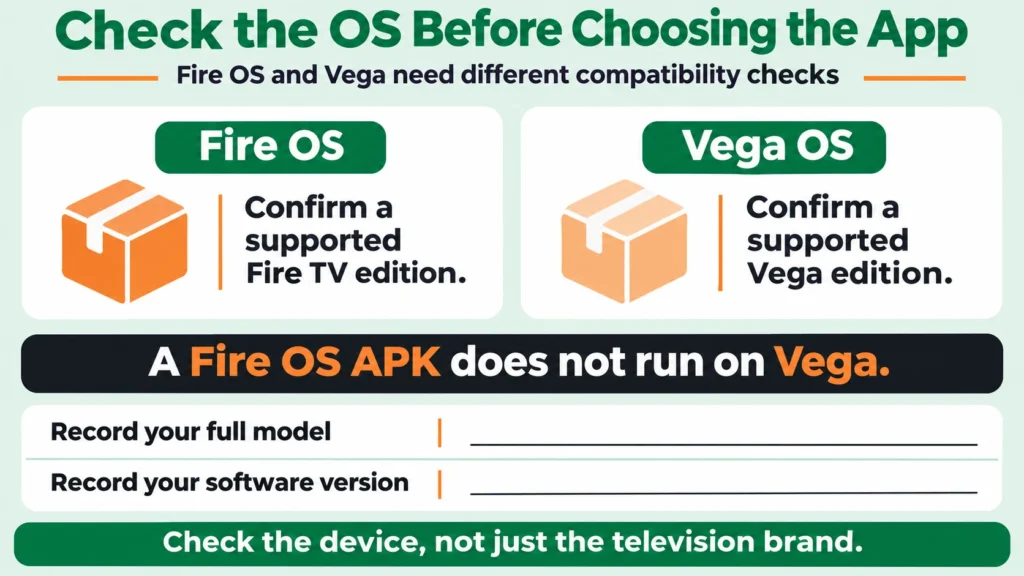
Amazon’s Fire OS overview and device table identify Fire OS as Android-derived and list both Fire OS and Vega devices. Two specific examples are Fire TV Stick 4K Plus (2025), Fire OS 8, and Fire TV Stick 4K Select (2025), Vega OS. Keep the complete names when checking compatibility.
When checking how to install IPTV on Firestick against an older tutorial, compare its platform with your recorded details. A guide written for another operating system may describe controls or packages that do not apply.
Amazon’s Fire OS-to-Vega developer explanation describes Vega as a different Linux-based platform and states that Fire OS APKs do not run there. That does not establish that no IPTV player can exist for Vega or identify an app available in Ireland.
| Platform | Compatibility evidence to seek | What not to assume |
|---|---|---|
| Fire OS | A supported Fire TV edition for the exact model/software | A mobile Android listing proves suitability |
| Vega OS | A supported app edition for that platform and device | A Fire OS APK is a Vega application |
| Television used as HDMI display | Suitable input and the device’s documented physical setup | The television’s native store installs software on the stick |
The first practical decision about how to install IPTV on Firestick is therefore which app platform you need. Establish it before paying for software or following a download link.
2. Choose how to install IPTV on Firestick after checking player support
Confirm an IPTV player for Firestick supports your access
Check the exact app name, developer and Fire TV edition through the developer’s genuine information and its linked distribution route. Compare model/software requirements with your device. A familiar icon or similar name is insufficient evidence that a result is the intended product.
If TiviMate is offered for your exact supported device, review our TiviMate Premium buying checks before paying for optional features. This does not establish support for every Fire TV model.
Verify availability through the legitimate store used by your device and account. A Google Play page or mobile Android listing does not independently establish Fire TV support. Likewise, support on one Fire TV operating system does not automatically establish another edition.
When researching how to install IPTV on Firestick, ask two separate questions: can this device obtain the player, and can that player accept the supplied service access? A playlist, account-based method and identifier-based activation should not be treated as interchangeable.
Before paying, make a short compatibility record:
- Device: full model, generation and operating system, not just the television brand.
- App: exact title, developer and supported Fire TV edition.
- Store: matching listing offered to this device and account.
- Access: the specific input method supported by both player and service.
- Licence: which features any separate app purchase actually unlocks.
- Controls: directional-pad navigation suitable for your viewing arrangement.
A free download can have paid features, and a paid download can have its own conditions. Check what is included rather than assuming that every app or service uses the same commercial arrangement. Keep receipts and recovery information privately so you can identify which seller handles each purchase.
Our player-selection guide explains the wider checks. For an IPTV player for Firestick, the useful shortlist is the one supported by your actual model, store and access method, rather than a generic ranking. Knowing how to install IPTV on Firestick should reduce uncertainty before payment, not create a reason to buy an unverified app.
3. How to install IPTV on Firestick through the supported store
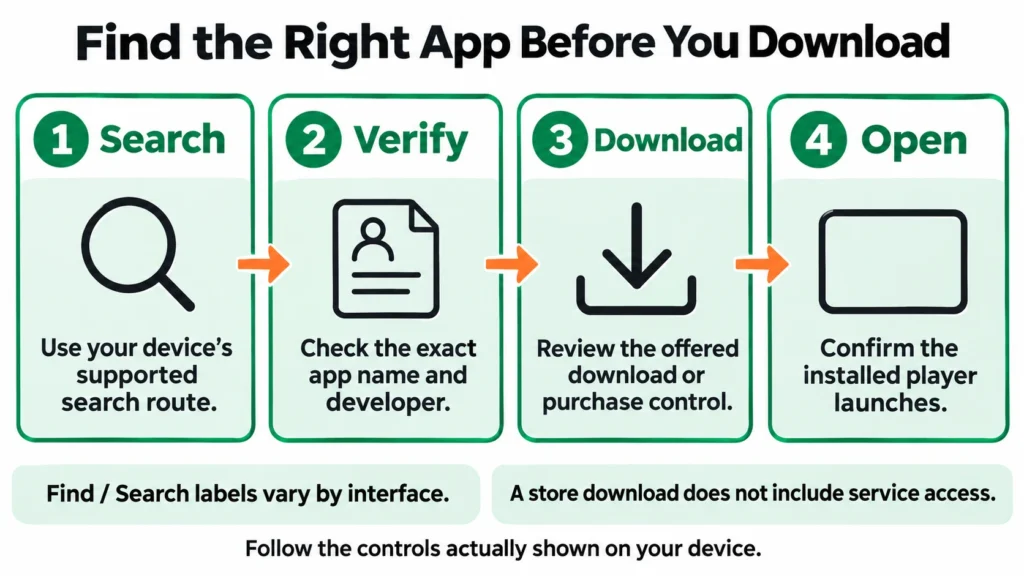
Use the app-search or discovery route documented for the interface actually displayed. You may encounter different labels in different Amazon guidance; they are alternatives to match to your device, not mandatory consecutive screens.
Amazon UK’s app-download instructions describe Find or supported Alexa voice search, selecting the app and using Get or the shopping-basket control. The page notes that Appstore purchases may require account verification. It does not establish a particular payment requirement for every free download.
Amazon’s separate new Fire TV navigation guide, covering eligible models including the Fire TV Stick 4K Plus, describes Search for finding/downloading apps and an Appstore menu entry on the interfaces it covers. Category availability can vary by country and device. Do not assume that document establishes the screen layout on a Vega stick.
To apply that guidance to how to install IPTV on Firestick:
- Open the supported app-search route on your device.
- Enter the verified exact app name.
- Select the matching result and inspect its identity and requirements.
- Use the offered download or purchase control, reviewing any conditions.
- After installation completes, open the player and note whether it launches.
Finding an app establishes only that result under those store conditions. It does not verify your subscription, every content format or future performance. If no matching result appears, preserve the exact search and device details for check 6.
A Firestick IPTV setup should use its genuine store controls. Do not substitute an Android-style button label, an unrelated downloader tutorial or another model’s screenshot for the interface you can actually see.
4. IPTV on Firestick: separate player activation from service access
Open the installed app and follow its actual supported setup. First identify whether it requests a player account, app activation or content-service access. Similar words such as account or login do not mean the credentials belong to the same seller.
Any player licence is separate from the content subscription. If activation is required, verify the official process and what the purchase supplies before proceeding. Do not assume a store download or paid feature unlock adds channels.
The access stage of how to install IPTV on Firestick must use the method supplied for that player. A playlist URL and an account/server login are different workflows; do not combine them into a guessed form or invent an endpoint from a domain name.
Where an app genuinely offers companion-device or QR entry, inspect its official destination and follow its instructions. That option is not universal. Similarly, confirm the required identifier for device activation rather than assuming it equals a network-interface MAC address.
Copy supplied details accurately, checking spaces and case-sensitive characters. Keep passwords, tokens and private URLs out of screenshots or public validators. Do not change HTTPS to HTTP or alter identifiers as a generic login fix.
After using guidance on how to install IPTV on Firestick, observe the access result: is access accepted, does the library populate and can an item play? Those are separate results. Record the first failure instead of treating a visible library as proof that the whole service works.
5. Test your Firestick IPTV setup stage by stage
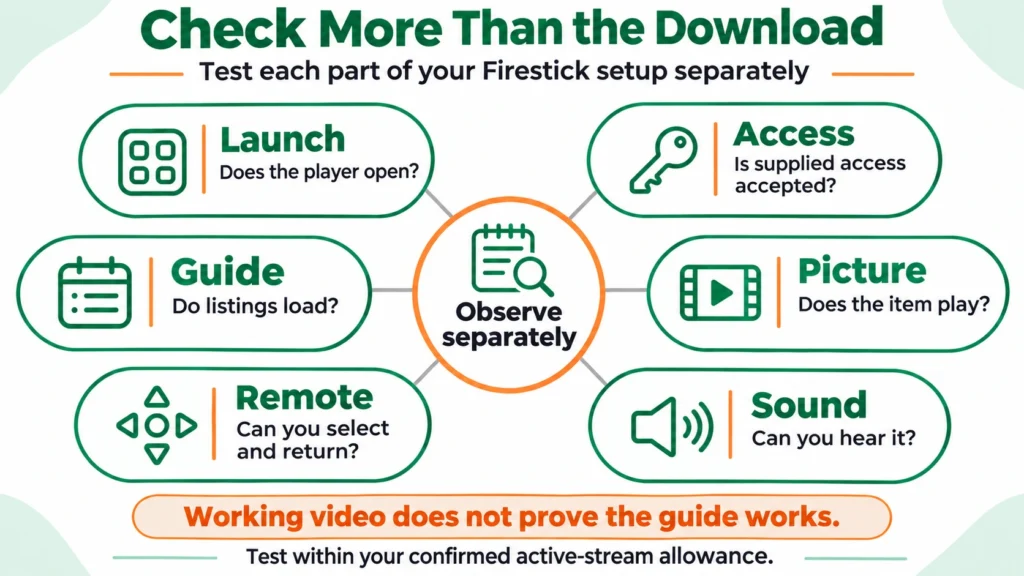
A useful Firestick IPTV setup test checks one stage at a time. Stop other playback as required by the selected plan, following documented session behaviour. Minimising an app or pressing an exit control does not universally prove that provider-counted access has ended immediately.
Use this staged test:
- Player launch: confirm the installed app opens and responds to the remote.
- Access: confirm the supported supplied method is accepted; record any redacted message.
- First item: open one authorised programme and observe both picture and sound.
- Second item: try another appropriate authorised item where available, retaining the same device/settings.
- Navigation: return to the library and select content using the actual remote.
- Guide: inspect EPG separately if it is supplied and supported.
When checking how to install IPTV on Firestick successfully, distinguish a stream that fails to start from one that plays silently or intermittently. A single working item validates only that comparison. It does not establish full-catalogue coverage, recording, catch-up or later reliability.
If picture appears without sound, use the separate audio troubleshooting guide. Test available audio or subtitle tracks only where provided; an absent language does not automatically mean installation failed.
For a blank schedule, consult the EPG guide. Listings are metadata, not proof of playable video. Learning how to install IPTV on Firestick includes checking that distinction so a guide problem does not trigger unnecessary account changes.
6. How to install IPTV on Firestick when an app is missing
If search returns no match, recheck the exact app identity, model, operating system, supported software and legitimate store eligibility. An absent result does not establish a content-service outage, nor does it prove that geography is the only explanation.
When researching how to install IPTV on Firestick through an older tutorial, compare the tutorial’s platform and date with the current developer information. Do not assume a system update will add that product or that a similarly named result is a safe replacement.
If the app is listed but download fails, capture the actual store message. Note the device’s connection state and any stated requirement. Use model-specific guidance rather than applying an invented minimum free-space figure or a deep settings path from another interface.
Ask the manufacturer or app developer about supported installation if the evidence remains unclear. If no compatible store option exists, ask the service about another supported viewing arrangement before buying a replacement device.
Understanding how to install IPTV on Firestick does not require treating APK transfers, unknown-sources permissions or security disabling as universal steps. The supported-store route is a complete consumer workflow where a compatible app is offered. A different operating system calls for a supported app edition; changing unrelated television settings will not convert an incompatible package into one.
Keep working access and any existing installation while investigating. A factory reset or repeated deletion is not a useful opening response to an unexplained search result.
7. Match support to the stage that fails
If you need help with how to install IPTV on Firestick, describe where the process stops: app absent, download unsuccessful, player unable to launch, licence problem, service access rejected, library empty or playback failing. Buffering, silence and missing guide data are further distinctions after installation.
A support request about how to install IPTV on Firestick should identify the actual device rather than just saying “my TV”. Include the full model/generation, operating system and software version, app title/developer/version, installation source and supplied access-method type.
Add the exact redacted error, date, time and timezone, plus the staged test results. For viewers in Ireland, local time with its timezone helps distinguish observations made at different times. Say which items were tested and whether other playback or recording was active.
Send store/device questions to the relevant manufacturer, app-function questions to the developer and supplied-access questions to the service. These are useful starting points, not proof that one party caused the failure. A working app launch does not establish valid service access; an accepted login does not establish every stream’s condition.
When investigating how to install IPTV on Firestick after an unresolved failure, preserve recovery details before considering data clearing or reinstallation with support. Confirm that you can obtain the trusted app again and restore relevant settings or purchases. Do not share passwords or private playlist/server links in the report.
The best next action is the one that resolves a specific unanswered question. Changing the app, access details and device settings simultaneously makes later results harder to interpret.
How to install IPTV on Firestick: a hypothetical setup example
Imagine a viewer in Ireland whose existing stick is connected to the selected HDMI input and powered according to its model instructions. They record its full model and operating system before looking for software.
They identify a player whose developer confirms the relevant platform edition and supported service input. A matching listing is available through their legitimate device/account store. The app and exact hardware remain unspecified here because no named combination is being presented as tested.
The viewer follows the route displayed on that interface, verifies the result and downloads the player. They check any licence separately, then enter authorised service access using the supplied supported method. Suppose the app opens, access is accepted and two selected items play with sound and usable remote controls.
These outcomes are fictional. They illustrate how to install IPTV on Firestick through distinct checks, not a real hardware test or successful customer case. If the guide remains absent, the viewer records a guide-data question while preserving the working playback configuration.
The useful conclusion is limited to the stages observed. It is not that every item, subtitle language or feature is confirmed, or that another Fire TV model will offer the same player. A different model/OS would require its own compatibility check before repeating the process.
Keep a useful setup record
Before asking someone to explain how to install IPTV on Firestick for your particular arrangement, collect the information they would otherwise have to request separately:
- Full stick model/generation and operating system/software.
- Exact app title, developer, platform edition and version.
- Official store route used and whether the matching result appeared.
- Player-licence status, without purchase identifiers or payment information.
- Supplied service input type, without credentials or private links.
- First failed stage, exact redacted message and observation time.
- Results for picture, sound, navigation and guide, recorded separately.
This record also protects a working setup from accidental changes. Note original settings before any supported adjustment and keep recovery information privately. If a successful comparison depends on one particular item or output, say so rather than reporting universal success.
Practical guidance on how to install IPTV on Firestick becomes more useful when it starts from this evidence. An unresolved availability question can remain unanswered until the developer confirms it; there is no need to invent an alternative download or assume that another purchase will remove the limitation.
Frequently asked questions
Do I install a player or the IPTV service?
Usually the installation step concerns a compatible player, followed separately by supported service access. The exact arrangement must be confirmed with the provider. When checking how to install IPTV on Firestick, distinguish the downloaded software from the account, playlist or activation that supplies authorised content access.
Does every Fire TV Stick use Fire OS?
No. Amazon’s device table includes both Fire OS and Vega models. Check the complete model and generation rather than general “4K” branding. Advice on how to install IPTV on Firestick must match the actual operating system, not assume that every device follows an older tutorial.
Can a Fire OS APK run on Vega?
No. Amazon describes Vega as a different platform where Fire OS APKs do not run. That compatibility limit does not mean all IPTV players are absent from Vega. Seek a supported edition and legitimate listing for your actual device instead of treating the original package as transferable.
Why is the player named in a tutorial missing?
The app may not match the model, operating system, software or store conditions. Confirm its current official identity and requirements. When researching how to install IPTV on Firestick, treat an old name or screenshot as a clue to verify, not proof that your device or service has failed.
Is Downloader required for every setup?
No. A compatible app available through the supported store can be obtained through that route. How to install IPTV on Firestick should not begin with an assumed need for developer mode or unknown packages. A missing utility in an old tutorial calls for a model/OS check, not an automatic workaround.
Does buying the player include channels?
Not automatically. A player purchase can concern application features, while the authorised content service has separate access conditions. Confirm what each seller supplies. Neither an app-store listing nor a paid player licence establishes rights to every channel or compatibility with every source.
What should I test before choosing a plan?
Confirm model/player compatibility and the supported access method, then test only within the access and allowance actually provided. Check picture, sound, remote controls and guide separately where available. Knowing how to install IPTV on Firestick is only part of confirming that the intended viewing arrangement works.
Your next step
Identify the model/OS, verify a matching store app and confirm the supplied access format before spending more. If you still need help with how to install IPTV on Firestick using access from IPTV Ireland Fast, contact our support team with your setup record. Establish the compatible route first, then use the staged test to identify any remaining question.