
How to Get IPTV on a Smart TV: 7 Essential Setup Checks
Identify your television platform, find a supported player and test your supplied access, with separate setup guidance for Samsung, LG and Google TV.
On this page
Learning how to get IPTV on a smart TV starts with identifying its platform, finding an available supported player through the official store route, adding your service’s supported access and testing playback. The precise steps depend on model, software and region. Installing the app, activating any player licence and obtaining authorised content access are separate stages; completing one does not automatically complete the others.
How to get IPTV on a smart TV: native app or external device?
A native TV app runs on the television’s own software. An external HDMI streaming device runs its own operating system and app store, while the television displays the selected input. Attaching that device does not convert the TV’s native operating system into another platform.
This distinction changes how to get IPTV on a smart TV in practice. If the player runs on an attached box, use that box’s documentation for installation and activation. The television’s brand does not tell you which app edition the box needs.
Keep the hardware, operating system, player and content source separate in your notes. A manufacturer account may let you download software, an app licence may unlock player functions and a service account may supply content access. Store presence does not establish content rights or compatibility with every source.
Before following advice about how to get IPTV on a smart TV, identify where the app will actually run. You may be able to use an existing compatible television directly, but that needs verification. Neither a new box nor a new subscription should be the automatic starting point.
1. Identify the platform before choosing how to get IPTV on a smart TV
Record the television’s brand, full model and model year where known. Add its operating system/software version and relevant store region. Use the actual model’s manual or documented device-information controls; there is no universal About menu shared by every smart TV.
Distinguish Samsung Tizen, LG webOS and Android/Google TV. Android TV and Google TV are related, but their interfaces should not be treated as identical. If your model uses another platform, follow that manufacturer’s guidance instead of forcing one of the routes below onto it.
The first useful answer to how to get IPTV on a smart TV is therefore a device description, not an app name. “A television with a streaming box attached” leaves an important question open: are you configuring the TV or the box?
Take a private note of the model and software before searching for a player. That gives the developer or support team enough information to check the intended edition. Avoid including serial numbers or account identifiers unless a trusted support process actually needs them.
Our device compatibility guide provides broader context. When checking how to get IPTV on a smart TV of a particular age or edition, the exact model remains decisive; a general compatibility category cannot verify every app or feature.
2. Check player support before deciding how to get IPTV on a smart TV
Confirm the proposed app’s full title, developer, television edition and supported models/software. Find its legitimate listing for your actual store region. A mobile listing or a similarly named app on another platform does not establish a native TV version.
Check the supplied input method too. The player must support the service’s instructed account, playlist or device-activation arrangement. Finding software in the store answers an installation question, not whether your access will work with it.
When researching how to get IPTV on a smart TV, compare the app’s documented requirements with the information you already have. Note whether a separate licence is needed, which edition it covers and how activation works. Do not assume the content subscription includes paid player features.
Our player-selection guide covers those choices without requiring a universal winner. On a television, readable menus and remote controls also matter: a player must be comfortable from your normal viewing position.
Before installing, compare the model, input and remote checks in our Samsung TV player-selection guide or LG TV player-selection guide.
A sensible plan for how to get IPTV on a smart TV identifies a supported player before payment. If model eligibility, input support or licence conditions remain uncertain, ask the relevant seller about those points rather than buying first and treating compatibility as guaranteed.
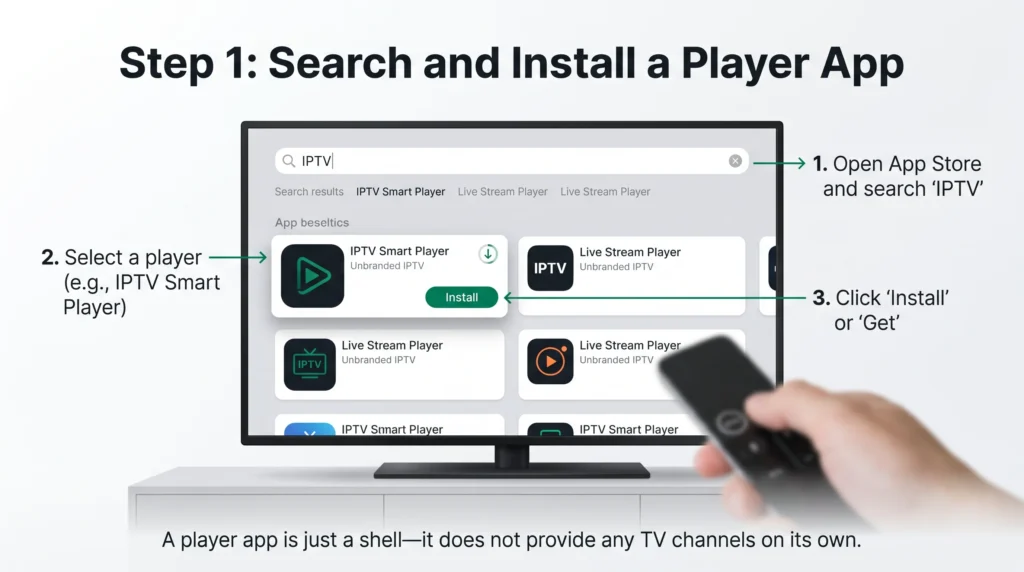
3. How to get IPTV on smart TV: official installation routes
Search results for “how to get IPTV on smart TV” can mix unrelated platforms. Use the route that matches the device running the app. The following are scoped manufacturer examples, not proof that a named player is available on every Irish television.
IPTV on Samsung TV: the documented Apps route
Samsung UK’s app-management guidance gives this installation example: press Home, select Apps, open Search, enter the app name, select the matching result and choose Install. Samsung says an account is required for downloads and notes that steps can vary by model.
Use the store’s app search rather than a browser web search. Check the result’s identity before downloading. This explains one route for IPTV on Samsung TV; it does not confirm a particular player’s Irish listing or establish the same controls on every firmware version.
IPTV on LG TV: the Content Store example
Open the supported Apps/LG Content Store entry for your model. LG’s Content Store guidance describes signing into an LG account, searching the app name, selecting the matching result and choosing Install. LG cautions that screens or contents may differ from the product.
The cited page is US guidance, not confirmation of Irish availability. For IPTV on LG TV, verify the local result and model support. If your software uses different labels, follow its documentation rather than guessing where an older screenshot’s button moved.
Android/Google TV: keep the interfaces distinct
For Google TV, Google’s installation guidance supports selecting Search, or supported remote search, entering the app name, opening its page if available and choosing Install. Browsing the Apps tab is another documented route.
For Android TV, use its supported Google Play route and current manufacturer instructions. Do not assume the Google TV labels above occupy the same places. Knowing how to get IPTV on a smart TV includes matching the interface rather than copying remote actions from another platform.
| Platform | Documented place to search | What to verify | What not to assume |
|---|---|---|---|
| Samsung TV | Apps search in the documented Samsung example | Model, software, account and exact app identity | Every model or Irish store has the same app catalogue |
| LG webOS | Supported Apps/LG Content Store route | Model-specific labels, account and local app eligibility | US store guidance confirms Irish player availability |
| Android/Google TV | Google TV Search/Apps; Android TV’s supported Google Play route | Actual interface, device support and matching TV edition | Google TV steps are a universal Android TV menu |
A missing result does not automatically indicate a television fault or provider outage. For how to get IPTV on a smart TV when the app is absent, continue with the availability checks below rather than making APK transfer or developer mode your ordinary next step.
4. Add supplied service access using the player’s supported method
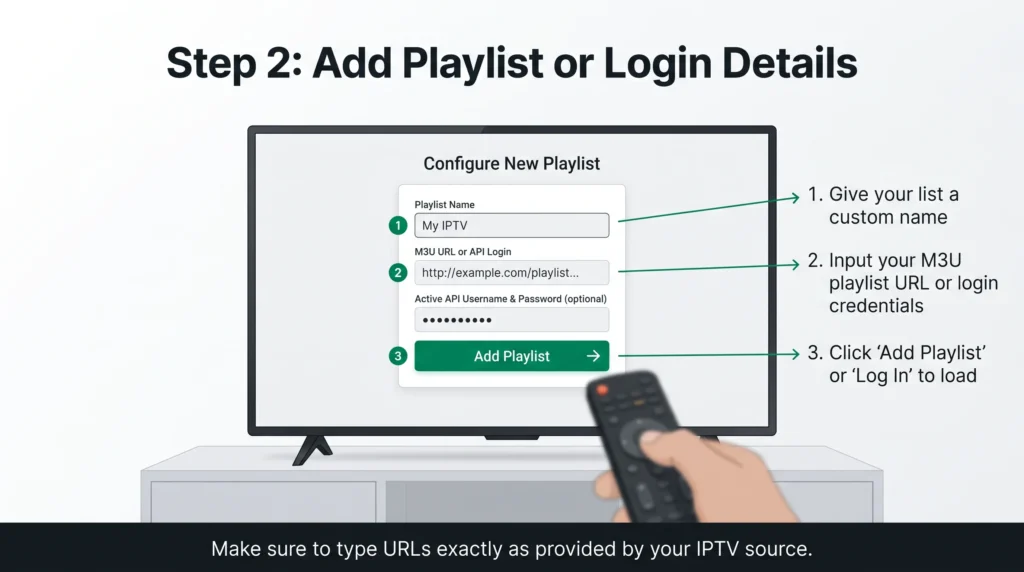
The access stage of how to get IPTV on a smart TV begins by identifying what each screen requests. The television store account, a player licence and authorised content access may use different credentials or activation processes. Do not enter a service password into an unrelated account field simply because both screens say Sign in.
Use only the supported method supplied for that combination. It may involve account fields, a playlist URL or identifier-based activation. Preserve supplied protocols, paths and required information instead of constructing server addresses or forcing one format into another.
For how to get IPTV on a smart TV using identifier-based activation, confirm which identifier the app requires. A player/app identifier may differ from the television network-interface MAC. Do not assume they are interchangeable or change identifiers to make a rejected setup appear different.
Copy fields carefully. Remote keyboards can introduce spaces, and case-sensitive passwords or tokens must retain their supplied characters. Do not downgrade HTTPS or put private access links into public checking tools.
Before submitting details, check which organisation the screen belongs to and what type of access it requests. If the app provides a documented companion or QR-based entry method, verify its official destination before using it; do not put your credentials into a link supplied by an unrelated search result.
Record the first stage that fails: app activation, service login, library retrieval or playback. A populated library is useful evidence, but does not prove every item plays. Understanding how to get IPTV on a smart TV means verifying each stage separately, without assuming an app purchase created content access or that a rejected login proves expiry.
5. Test picture, sound, guide and remote operation
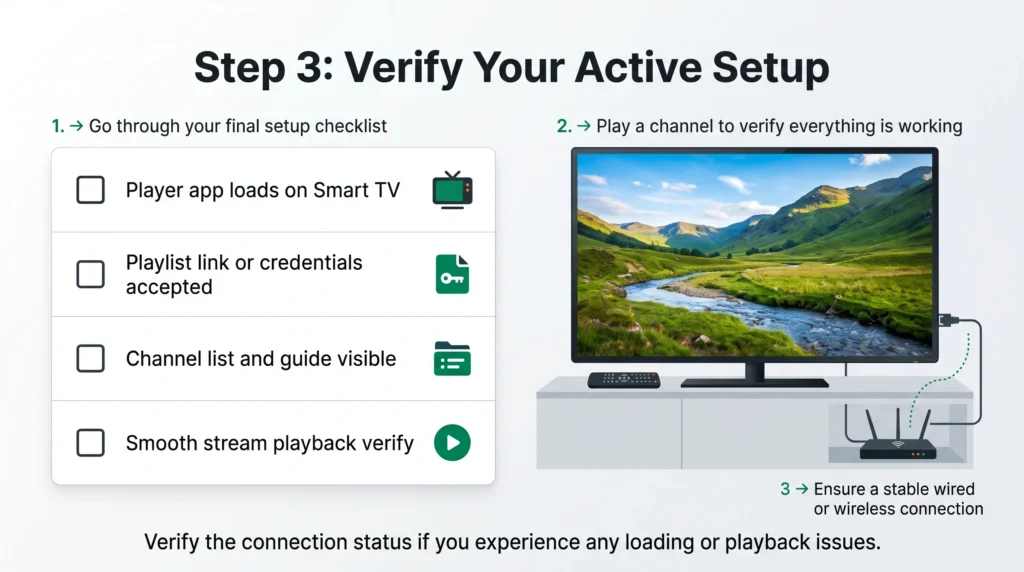
Use a short, controlled sequence rather than changing several settings at once:
- Stop unnecessary playback. Before a single-stream setup test, follow the provider’s supported session behaviour on other devices.
- Play one authorised item. Observe whether moving picture and sound are present, and note the selected item.
- Try another available item. Keep the app, output and device settings unchanged so the comparison has a clear meaning.
- Return to the first item. Check that navigation and selection still behave as expected with the actual remote.
When checking how to get IPTV on a smart TV working comfortably, use the actual remote from your usual seat. Try selecting an item, returning to the library and finding it again. Note unreadable text, an unclear selection highlight or controls that do not behave as expected.
Test available audio and subtitle controls only where the programme and player provide them. A missing language is not automatically a failed installation. If the picture works but sound is absent, use the separate no-sound guide instead of repeating account activation.
Guide data also needs its own check. A blank schedule does not prove streams cannot play, and visible programme names do not confirm successful video. Our EPG guide explains source, mapping and time issues.
A short successful test resolves part of how to get IPTV on a smart TV for the observed setup. It does not establish every channel, subtitle track, recording feature or future condition. Keep a note of the tested items and any unresolved functions before changing more settings.
6. Handle a missing app or unsupported television
Check the exact app spelling and developer, television model, supported software and local store eligibility. Compare what the developer lists with what the television actually offers. An app available on somebody else’s model is not proof that your result should be identical.
If you are considering an Apple TV box as a separate device, use our Apple TV IPTV player checks before choosing software; the Apple TV video app on a television is a different product.
If an official supported update is relevant, follow the manufacturer’s instructions. Do not promise that updating will add a particular app. Preserve an existing working installation while checking whether it remains obtainable before considering deletion.
For how to get IPTV on a smart TV without a supported native player, an external HDMI streaming device is one possible route. Verify its own platform, legitimate app availability and source compatibility before purchasing. It needs appropriate input selection, power and network access; a TV USB socket does not guarantee every function.
If you are considering a Fire TV Stick, check the Firestick installation guide against its exact model and operating system.
If you cannot establish how to get IPTV on a smart TV natively, another supported viewing device may meet the immediate need. You do not need to replace a television merely because one chosen app is unavailable. Evaluate the missing requirement rather than treating new hardware as a universal repair.
Casting or mirroring is conditional on the app, source and receiver. It is not interchangeable with native installation, and session permissions still matter. Advice about how to get IPTV on a smart TV should therefore establish the intended playback arrangement before promising either an external device or casting will work.
7. Troubleshoot the failing stage and send useful details
Name where setup stops. An app absent from the store, a failed download, a player that will not open, rejected activation and an empty library are different problems. So are a stream that will not start, interrupted playback, silence and missing guide data.
For how to get IPTV on a smart TV after an unsuccessful attempt, choose a comparison relevant to that stage. A store error calls for store/device checks; verifying service fields does not make an unavailable app appear. A library that loads but will not play needs playback evidence, not an invented diagnosis from the login stage.
Ask manufacturer or developer support about device, store and application behaviour. Ask the service about its supplied access and supported method. Responsibilities can overlap, so send observations rather than assigning blame from one symptom.
Include:
- Television or external-device model, operating system and software version.
- Exact app title, developer, edition and version.
- Official installation route used and relevant store region.
- Supplied access method, described by type only.
- Failure stage and exact redacted message.
- Date, time and timezone, including Irish local time where relevant.
- Solo playback results, tested items and changes already tried.
Do not expose passwords, tokens, private server/playlist URLs or activation identifiers. Preserve recovery details before any later data clearing or reinstallation. The next answer to how to get IPTV on a smart TV should build on the evidence collected, rather than begin with a factory reset or another purchase.
How to get IPTV on a smart TV: a hypothetical setup example
Imagine a viewer in Ireland checking how to get IPTV on a smart TV they already own. They first establish that the app will run natively, record the model/software and confirm the relevant manufacturer store route.
They find a matching television edition in their local store and verify with the developer and service that it supports the supplied access method. Any player licence is checked separately. The model and app remain unspecified here because no particular combination is being claimed as tested.
Using the scoped installation route, they install the player, complete any required app activation and add authorised service access. Suppose the library appears and two selected items play with picture, sound and usable remote navigation. Those outcomes are fictional and establish only what this example assumes was observed.
Now suppose the guide stays blank. They record that as a separate guide-data question rather than reinstalling a player that already plays video. They ask about the supported guide source and relevant mapping while preserving the working access.
This example illustrates how to get IPTV on a smart TV through separate decisions. It is not a customer story, screenshot description or hardware test, and it does not promise the same availability or result on another model.
Frequently asked questions
Does every smart TV support IPTV?
No universal player or source compatibility can be assumed. Check the model, software, available app and supported access method. Researching how to get IPTV on a smart TV starts with those details, not the word smart or a brand name alone. Another platform needs its own documentation.
Does installing a player include content?
Not automatically. Store access, player activation and a content-service account are separate requirements. A successful installation does not establish channels, access rights or paid app features. When checking how to get IPTV on a smart TV, identify which seller supplies each part before paying or entering credentials.
How do I set up IPTV on Samsung TV?
Confirm your model, local player listing and supported service access, then use the documented Samsung installation example where applicable. Verify the matching app before downloading. The route above is model-scoped guidance, not a guarantee that any named player is offered on your Irish television.
How do I set up IPTV on LG TV?
Verify the webOS model and use its supported store route to find an available matching player. Then follow that edition’s activation and content-access instructions. A result in another country’s catalogue does not establish eligibility for yours, and app installation alone does not supply the content account.
Are Android TV and Google TV setup steps identical?
No. They are related platforms with interfaces that can differ. The Google TV search instructions above should not be copied as a universal Android TV path. For how to get IPTV on a smart TV using Android TV, follow its supported store route and actual manufacturer documentation.
What if my television has no suitable native app?
Check availability carefully before deciding the TV is unsupported. If no compatible native option exists, investigate a supported external device or another viewing screen. Verify the full source/player/device arrangement first. A missing app does not justify unknown downloads, security changes or region workarounds.
Do I need a box if I already have a smart TV?
Not necessarily. A compatible native app may meet your needs. How to get IPTV on a smart TV without extra hardware depends on the installed platform, available player and supported access. Consider a box only when its verified capabilities address a requirement your existing television cannot meet.
Your next step
Write down the model, platform, exact player and supplied access method, then follow the relevant store route and test one stage at a time. If you still need help with how to get IPTV on a smart TV using access from IPTV Ireland Fast, contact our support team with those details. Establish compatibility before buying additional software or hardware.